
Extracting and Cleaning Text: LEFT, MID, SEARCH, SUBSTITUTE, CHAR and TEXTSPLIT
The problem
Systems love codes. A product code carries the market, the therapeutic area and the strength. A study reference carries a country and a sequence number. A dossier file name carries a product and a date. All that information is there, but locked inside a single cell, and the question you need to answer (sales by area, count by market, everything above a strength) needs it in a column of its own.
The other half of the problem is dirt. Data exported from an ERP, copied from a PDF or pasted from a web page arrives with extra spaces, line breaks inside cells and curly quotes that look right but do not match anything. A lookup fails and nobody can see why, because the two cells look identical.
Both problems have the same answer: Excel's text functions, which can cut a string at a position, find a delimiter, replace a piece, or split everything in one go. This article uses the companion file F09_Extracting_Cleaning_Text.xlsx.
How Excel sees text
A text is a sequence of characters, and every character has a position, starting at 1. Spaces, hyphens and invisible characters all count. Almost every function below works with those positions: it asks for the first N characters, for N characters starting at position P, or for the position where something is found.
One consequence catches beginners. The functions return text, even when the characters are digits. The strength 020 cut out of a code is the text 020, not the number 20, and it will not add up or sort as a number. VALUE converts it.
Cutting at a fixed position
When every code has the same structure, three functions are enough. LEFT takes characters from the start, RIGHT from the end, MID from any position:
=LEFT(text, [num_chars])
=RIGHT(text, [num_chars])
=MID(text, start_num, num_chars)
The Fixed Position sheet has ten codes such as UKCAR020: two letters for the market, three for the area (CAR, ONC, HEM, NEU) and three digits for the strength. The positions are kept in cells I2:I5, so that the formulas contain no numbers, and for UKCAR020 they read:
=LEFT(A2,$I$2)       returns UK
=MID(A2,$I$3,$I$4)   returns CAR
=RIGHT(A2,$I$5)      returns 020
=VALUE(D2)           returns 20
LEN, which returns the number of characters, is a useful companion: a column of =LEN(A2) immediately shows the code that is one character too long or too short.
A trap with dates
LEFT, MID and RIGHT work on what the cell contains, not on what it shows. A real date is a serial number, so applying LEFT to a date reads the digits of that number. In the Date Trap sheet, A2 holds 13-May-25, which is the serial number 45790. =LEFT(A2,2) returns 45, not 13. To read the text you see, convert it first:
=LEFT(TEXT(A2,"dd-mmm-yy"),2)
which returns 13.
Cutting at a variable position
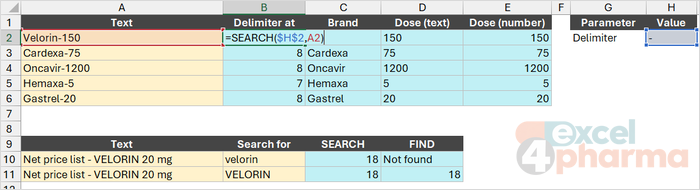
Fixed positions are a luxury. In the Variable Position sheet the strings are brand and dose joined by a hyphen, and the lengths vary: Velorin-150, Cardexa-75, Oncavir-1200, Hemaxa-5. Here the information is identified by a delimiter, so the first step is to find its position. SEARCH does that:
=SEARCH(find_text, within_text, [start_num])
With the delimiter stored in H2, the position for the first row is =SEARCH($H$2,A2), which returns 8. The brand is everything before that position and the dose everything after it:
=LEFT(A2,B2-1)               returns Velorin
=MID(A2,B2+1,LEN(A2))        returns 150
The length argument of MID deserves a note. We do not need to know how many characters the dose has: asking for as many as the whole string contains simply returns everything to the end. LEN(A2) is a convenient way to say "all the rest".
SEARCH or FIND
Excel has two functions for finding text, and they differ in one respect. SEARCH ignores case and accepts the wildcards ? and , FIND is case-sensitive and does not. Both return #VALUE! when the text is not found. Rows 10 and 11 show it. The text Net price list - VELORIN 20 mg* searched for velorin gives 18 with SEARCH, and FIND, wrapped in IFERROR, reports "Not found". Searched for VELORIN, both return 18.
=IFERROR(FIND(B10,A10),"Not found")
Use FIND when case carries meaning, for example when a code in capitals must be told apart from a word, and SEARCH in all other cases.
Two delimiters
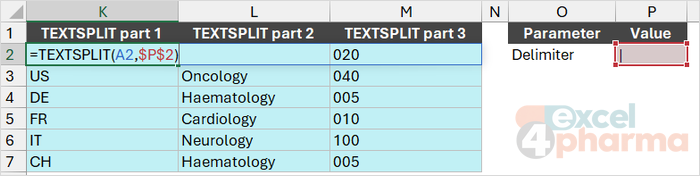
A string with two delimiters, such as UK|Cardiology|020, needs the delimiter to be found twice. The trick is the start_num argument: search again starting just after the first hit. In the Two Delimiters sheet the pipe sits in P2:
=SEARCH($P$2,A2)                      returns 3
=SEARCH($P$2,A2,B2+1)                 returns 14
=MID(A2,B2+1,C2-B2-1)                 returns Cardiology
=MID(A2,C2+1,LEN(A2))                 returns 020
The middle part starts one position after the first pipe, and its length is the distance between the two pipes minus one.
The modern way: TEXTBEFORE, TEXTAFTER and TEXTSPLIT
The three functions below are available in Microsoft 365 and Excel 2024. They do the same job without counting positions. TEXTBEFORE returns what precedes a delimiter, TEXTAFTER what follows it, and TEXTSPLIT cuts the whole string at every delimiter and spills the pieces into neighboring cells:
=TEXTBEFORE(text, delimiter, [instance_num], [match_mode], [match_end], [if_not_found])
=TEXTAFTER(text, delimiter, [instance_num], [match_mode], [match_end], [if_not_found])
=TEXTSPLIT(text, col_delimiter, [row_delimiter], [ignore_empty], [match_mode], [pad_with])
In the same sheet, columns G:I and K:M reproduce the results above:
=TEXTBEFORE(A2,$P$2)                           returns UK
=TEXTBEFORE(TEXTAFTER(A2,$P$2),$P$2)           returns Cardiology
=TEXTAFTER(A2,$P$2,2)                          returns 020
=TEXTSPLIT(A2,$P$2)                            returns UK, Cardiology, 020 in three cells
Three details are useful. A negative instance_num counts from the end of the text, so TEXTAFTER(A2,$P$2,-1) always returns the last piece, however many delimiters there are. By default the match is case-sensitive, and setting match_mode to 1 makes it case-insensitive. And when the delimiter is not found, TEXTBEFORE and TEXTAFTER return #N/A unless you supply if_not_found.
The cells that TEXTSPLIT fills must be free, otherwise Excel returns #SPILL!. If your file must also work in Excel 2021 or earlier, stay with the SEARCH and MID pattern: it works everywhere.
Cleaning imported text
The most common dirt has four forms, and the Cleaning sheet contains one example of each in A2:A6: extra spaces, a line break inside the cell, a non-breaking space and curly quotes. A single formula in column C cleans them all. First the tools.
TRIM removes spaces at the start and the end of a text and reduces repeated spaces inside it to one. The first raw text, " Velorin 20 mg ", has 19 characters; TRIM brings it to 13.
SUBSTITUTE replaces text wherever it appears, whether once or everywhere:
=SUBSTITUTE(text, old_text, new_text, [instance_num])
Without instance_num every occurrence is replaced; with it only that one. It is case-sensitive. In the SUBSTITUTE sheet, with the old and new text in F2:F3, =SUBSTITUTE(A2,$F$2,$F$3) corrects Hemaxa 5mg to Hemaxa 5 mg, and for UK-CAR-020 the formula =SUBSTITUTE(A8,$F$4,$F$5,$F$6) replaces only the second hyphen and returns UK-CAR/020, while the same formula without the last argument returns UK/CAR/020. Do not confuse it with REPLACE, which works by position and does not look at the content.
The difficulty with invisible characters is knowing what to replace. Two functions help. UNICODE returns the code number of the first character of a text, and CHAR or UNICHAR does the reverse:
=UNICODE(LEFT(A5,1))     returns 8220, the opening curly quote
=CHAR(34)                returns the straight quote "
=CHAR(10)                returns a line feed
Here are the characters that cause most of the damage:
| Code | Character | Typical source |
|---|---|---|
| 10 | Line feed | Alt+Enter inside a cell, or a text export |
| 34 | Straight quote | What formulas and databases expect |
| 160 | Non-breaking space | Web pages and PDFs; TRIM does not remove it |
| 8220, 8221 | Curly quotes | Word processors and e-mail |
The cleaning formula, with the codes held in cells H2:H6 so that the formula has no hard-coded numbers, nests four replacements and finishes with TRIM:
=TRIM(SUBSTITUTE(SUBSTITUTE(SUBSTITUTE(SUBSTITUTE(A2,UNICHAR($H$2),CHAR($H$4)),UNICHAR($H$3),CHAR($H$4)),UNICHAR($H$5)," "),CHAR($H$6)," "))
Reading from the inside out: opening curly quotes become straight quotes, closing curly quotes the same, the non-breaking space becomes a normal space, the line feed becomes a space, and TRIM tidies the spaces that result. All five raw texts come out clean, so that Cardexa, line break, 40 mg becomes Cardexa 40 mg and "Hemaxa" 5 mg keeps its quotes, now straight.
Notice the line feed is replaced by a space and not simply deleted. CLEAN, which removes non-printing characters, would delete it and join the words into Cardexa40 mg.

CODE, CHAR and the character set
CODE returns the number of the first character of a text, so =CODE("@") returns 64, and CHAR returns the character for a number from 1 to 255. A word of caution: those numbers are not really ASCII. The original ASCII table, which dates back to the 1960s, defines only 128 characters. Codes above 127 in Excel for Windows come from the system's character set, so =CHAR(177) returns the plus-minus sign on a Windows computer set to English, but another system could return something else. UNICHAR and UNICODE use the universal Unicode numbers and are safe everywhere: =UNICHAR(8364) returns the euro sign, which CHAR cannot produce.
A final use of CHAR(10) is writing a line break inside a formula: =A10&CHAR(C10)&B10 joins two texts on two lines, as long as Wrap Text is on (Ctrl+1, tab Alignment).
Common mistakes
- Counting positions off by one. MID starts counting at 1, and the text after a delimiter starts at its position plus 1.
- Forgetting that the result is text. A strength cut from a code must go through VALUE before it can be summed or compared.
- Trying to remove a non-breaking space with TRIM. TRIM only handles the normal space, code 32.
- Using CLEAN on line breaks and gluing the words together.
- Using FIND when you meant SEARCH, and getting #VALUE! only because of a capital letter.
- Typing numbers such as 4, 7 or 8 into formulas instead of keeping the positions in cells. A change in the code structure then means editing every formula.
- Leaving no room for TEXTSPLIT to spill, and getting #SPILL!.
Companion file
Illustrative data only. Not a decision tool.For further reading
- LEFT, LEFTB functions - Microsoft Support
- SEARCH, SEARCHB functions - Microsoft Support
- SUBSTITUTE function - Microsoft Support
- TEXTSPLIT function - Microsoft Support