
Combining and Formatting Text: CONCAT, TEXTJOIN, TEXT and FORMULATEXT
The problem
Two jobs come back in almost every reporting file. The first is building text: a lookup key that glues market, product and pack into a single cell, or a headline such as "Velorin 20 mg (UK): net price 1,284.50 GBP as of 15-Apr-26, -4.2% vs prior period", written by a formula so that it updates itself. The second is the opposite: making a model explain itself, so that a reader can see which formula sits behind a number without clicking into the cell.
Excel has a small family of text functions for these jobs. They look minor, but a lookup that fails because a key was assembled with a stray underscore, or a dashboard title that shows 46127 where a date should be, can eat an afternoon.
The examples use the companion file F08_Combining_Formatting_Text.xlsx. The Keys sheet lists ten market, product and pack combinations in A2:C11. Three packs are empty on purpose, because empty cells are where most joining problems start.
What a cell really holds
A cell holds a value and, separately, a display format. When a cell shows 1,284.50, the value may be 1284.5, and the format adds the comma and the second decimal. A date is the same story: the cell holds a serial number and the format turns it into 15-Apr-26.
This matters for text because joining works on values, not on what you see. Join a date to a sentence and Excel uses the serial number. Join a price and you get all its decimals. The functions below fall into two groups: those that join pieces of text, and those that convert a value into text with a format you choose.
Joining text
There are four ways to join text, and they differ in a few details that are worth knowing.
The ampersand operator joins anything, one piece at a time. It adds nothing of its own, so spaces and separators must be written in. With the delimiter typed in J2 of the Keys sheet, the key for the first row is:
=A2&$J$2&B2&$J$2&C2
and returns US_Velorin 20 mg_28 tablets. Keeping the delimiter in a cell, rather than typing it into every formula, lets you change it in one place.
CONCATENATE is the historical function. It accepts up to 255 items, each of them a single cell or a piece of text, never a range:
=CONCATENATE(A2,$J$2,B2,$J$2,C2)
It still works in every version, and the result is identical to the ampersand. Microsoft keeps it for compatibility and presents CONCAT as its replacement.
CONCAT is the newer function, available in Excel 2016 and later. Its advantage is that it accepts ranges:
=CONCAT(A2:C2)
Its limit is that it has no delimiter. The result for the first row is USVelorin 20 mg28 tablets, all glued together, which is fine for gluing codes but poor for readable keys. Whenever you need a separator between items, CONCAT is the wrong choice.
TEXTJOIN, available in Excel 2019 and later, was designed to fix exactly this. Its first argument is the delimiter, its second says whether empty cells should be skipped, and the rest is any mix of texts and ranges:
=TEXTJOIN($J$2,$J$3,A2:C2)
Look at the row for the UK and Oncavir, where the pack is empty. The ampersand and CONCATENATE both return UK_Oncavir 100 mg_, with a trailing underscore that will never match a key built elsewhere. TEXTJOIN with ignore_empty set to TRUE returns UK_Oncavir 100 mg. Change J3 to FALSE and TEXTJOIN behaves like the ampersand again: the delimiter is inserted even where the cell is empty. An empty cell contributes an empty piece of text, not a space, but the delimiter around it is still written.

Two limits are worth remembering. A joined text cannot exceed 32,767 characters, the maximum a cell can hold, otherwise CONCAT and TEXTJOIN return #VALUE!. And TEXTJOIN accepts up to 252 text arguments, which is far more than a key will ever need.
Keeping the format with TEXT
Now the second group. Suppose a net price sits in B5 of the Report Line sheet and the price date in B4. The natural attempt is:
="Net price "&B5&" as of "&B4
and it returns Net price 1284.5 as of 46127. The number has lost its thousands separator and its second decimal, and the date has turned into a serial number, because the ampersand used the values.
TEXT converts a value into text using a format you specify:
=TEXT(value, format_text)
The format codes are the ones you know from custom number formats (Ctrl+1, tab Number, category Custom). Here is the whole sentence from the introduction:
=B2&" ("&B3&"): net price "&TEXT(B5,"#,##0.00")&" "&B7&" as of "&TEXT(B4,"dd-mmm-yy")&", "&TEXT(B6,"+0.0%;-0.0%")&" vs prior period."
The result is Velorin 20 mg (UK): net price 1,284.50 GBP as of 15-Apr-26, -4.2% vs prior period. The last format has two sections separated by a semicolon: the first applies to positive numbers, the second to negative ones, so the sign is always shown.
The most useful format codes
The TEXT sheet is a small laboratory. Four inputs sit in B2:B5 (a date, a number, a percentage and a time), the format codes are listed in column A, and column C applies each code to its input with =TEXT($B$3,A8) and similar formulas. Change an input or retype a code and the result follows. These are the codes worth knowing for numbers, applied to 1,234,567.891:
| Code | What it does | Result |
|---|---|---|
0 |
Digit; shows a zero when there is none | 1234568 |
0000000000 |
Pads with leading zeros to ten digits | 0001234568 |
#,##0.00 |
Thousands separator and two decimals | 1,234,567.89 |
#,##0, |
A comma after the last digit divides by 1,000 | 1,235 |
#,##0.0,, |
Two commas divide by 1,000,000 | 1.2 |
0.0% |
Multiplies by 100 and adds the sign (input 0.1237) | 12.4% |
For dates, applied to 15-Apr-26 (a Wednesday):
| Code | What it does | Result |
|---|---|---|
d or dd |
Day, without or with a leading zero | 15 |
ddd, dddd |
Day name, short or long | Wed, Wednesday |
mmm, mmmm |
Month name, short or long | Apr, April |
yy, yyyy |
Year, two or four digits | 26, 2026 |
and for times, applied to 14:05:09: hh:mm:ss gives 14:05:09, while h:mm AM/PM gives 2:05 PM. The letter m means minutes when it follows an h or precedes an s, and months everywhere else, which is why mm can surprise you when typed alone.
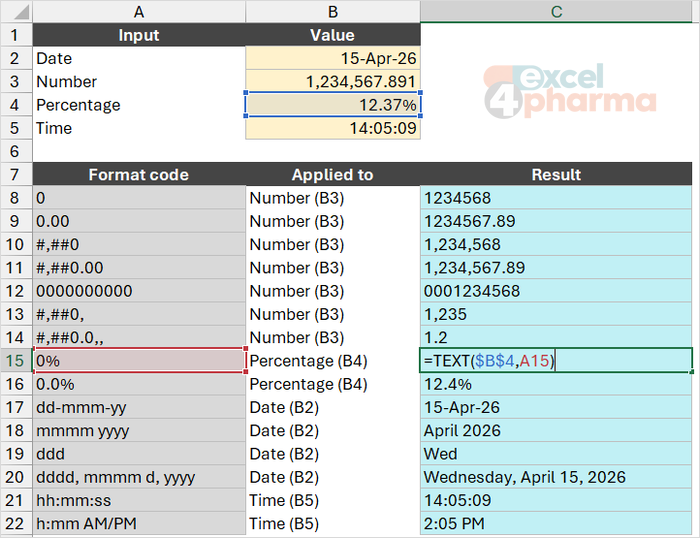
One warning about locale. The thousands separator, the decimal separator and even the letters used for day, month and year depend on the regional settings, and localized versions of Excel can expect different letters in the format text. In a file that travels between countries, test the TEXT formulas on the machine that will open them, or keep the format codes in cells, as the lab does, so that they are easy to change.
A second warning concerns the result. TEXT returns text, and text cannot be added or compared as a number. Keep the original value in one cell, as in the Report Line sheet, and use TEXT only in the cell that builds the sentence.
Showing formulas with FORMULATEXT
FORMULATEXT returns the formula of another cell as text:
=FORMULATEXT(reference)
On the FORMULATEXT sheet, the cell next to Keys!D2 reads =A2&$J$2&B2&$J$2&C2, and the one next to Keys!G2 reads =TEXTJOIN($J$2,$J$3,A2:C2). It is available in Excel 2016 and later.
The function returns #N/A when the cell does not contain a formula, when the formula is longer than 8,192 characters, when the formula cannot be displayed because the sheet is protected, or when the formula sits in a workbook that is not open. The companion file wraps it in IFERROR so that a constant, such as Keys!A2, simply returns "No formula":
=IFERROR(FORMULATEXT(Keys!A2),"No formula")
Why not just press Ctrl+` or choose Formulas > Show Formulas? Because those commands switch the whole sheet at once. FORMULATEXT puts the formulas you choose in cells, where you can print them, search them, or place them beside the results in a documentation sheet or a training file.

Common mistakes
- Using CONCAT and expecting a separator. CONCAT has none; use TEXTJOIN or the ampersand.
- Leaving a trailing delimiter because an empty cell was not skipped. Set ignore_empty to TRUE in TEXTJOIN, or test the cell first.
- Joining a date or a number directly and getting a serial number or too many decimals. Wrap the value in TEXT.
- Typing the format code with the wrong case or the wrong letters.
mmis minutes after an hour and months elsewhere, and format codes may differ in localized versions of Excel. - Summing or comparing the result of TEXT. It is text: keep the original number in its own cell.
- Expecting spaces to appear by themselves. The ampersand joins exactly what you give it, so add
" "where you need one.
Companion file
Illustrative data only. Not a decision tool.For further reading
- CONCAT function - Microsoft Support
- TEXTJOIN function - Microsoft Support
- TEXT function - Microsoft Support
- FORMULATEXT function - Microsoft Support