
Conditional Sums Compared: Five Techniques, Including Database Functions
The problem
Summing a column for the rows that meet a few conditions is the most common job in any reporting file, and Excel offers at least five ways to do it. Most users learn one and use it for everything. That works until the question changes: a criterion has to cover a whole family of codes, an alternative condition appears, or the file becomes slow.
This article puts the five techniques side by side on the same data and the same two questions, so that the strengths and the limits of each one become visible. A good technique must pass two tests. First, changing a criterion in its input cell must change the result immediately, with no edits to the formula. Second, it must accept wildcards, so that one criterion can cover, for example, every rebate account at once.
The data and the two questions
The Ledger sheet holds a gross-to-net ledger: 480 postings with an account code in column A (rebates REB-110 and REB-120, discounts DIS-210 and DIS-220, fees FEE-310), a market in column B, a period from 1 to 12 in column C, and three amounts: Actual in D, Budget in E and Prior Year in F. Each combination of account, market and period has two postings.
On the Compare sheet, the criteria sit in B2:D2, under the labels Account, Market and Period in B1:D1. The labels are spelled exactly as the ledger headers, for a reason that will become clear with the database functions. The questions are:
- the total for account REB-110, Market B, period 3;
- the total for all rebate accounts, REB-*, in all markets, period 3.
Technique 1: SUMIFS
The modern standard, and the shortest route:
=SUMIFS(Ledger!D$2:D$481,Ledger!$A$2:$A$481,$B$2,Ledger!$B$2:$B$481,$C$2,Ledger!$C$2:$C$481,$D$2)
The sum range locks only the rows, so copying the formula to the right switches from Actual to Budget and Prior Year with no changes. For the second question it is enough to type REB-* in the account criterion and * in the market criterion: wildcards are supported, and an asterisk on its own matches any text.
Technique 2: DSUM and the database functions
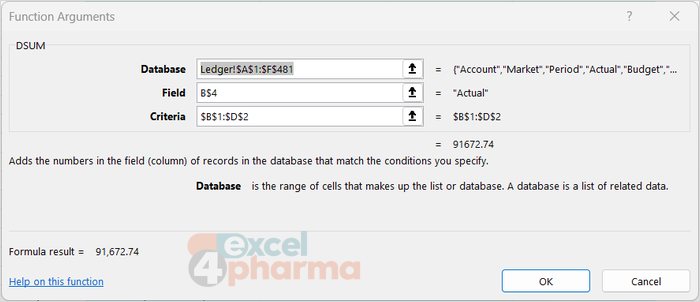
DSUM belongs to a family of database functions with a different logic. Instead of pairs of ranges and criteria, it takes a whole table, the name of the field to sum, and a separate block of criteria:
=DSUM(database, field, criteria)
In the file:
=DSUM(Ledger!$A$1:$F$481,B$4,$B$1:$D$2)
The database is the whole ledger, headers included. The field is the column to sum, given as its header text (here read from B4, which contains Actual) or as its position in the table, such as 4. The criteria are a range on the sheet: a row of labels that match the ledger headers exactly, and below them one or more rows of conditions. This is why the labels in B1:D1 must be spelled like the headers: for DSUM they are part of the formula.

The criteria block has its own grammar, shared with the Advanced Filter command:
- conditions on the same row must all be true (AND);
- conditions on different rows are alternatives (OR);
- an empty criteria cell means "any value";
- the usual operators and wildcards work:
>1000,<>Market A,REB-*.
One behavior surprises most users. A plain text criterion such as REB matches every value that begins with those letters, REB-110 and REB-120 included. To force an exact match, the criterion must be written as ="=REB".
Where DSUM really shines is OR logic. The third block of the Compare sheet asks for account REB-110 or account DIS-210, period 3, any market. The criteria simply take two rows, one per alternative, with the market column left empty:
| Account | Market | Period |
|---|---|---|
| REB-110 | 3 | |
| DIS-210 | 3 |
=DSUM(Ledger!$A$1:$F$481,"Actual",$B$21:$D$23)
The same question with SUMIFS needs two SUMIFS added together, one for each account. With three or four alternatives across different columns, the DSUM criteria block stays readable while the SUMIFS version grows into a long chain.
The family includes DAVERAGE, DCOUNT, DCOUNTA, DMAX, DMIN, DPRODUCT, DSTDEV, DVAR and DGET. DGET returns the single value that matches the criteria, and an error if there are none or more than one, which makes it a useful check that a supposedly unique key really is unique.
Technique 3: SUMIF with a key column
Before SUMIFS existed, the classic way to sum on several criteria was to create a helper column that joins the criteria fields into a single key, and then use SUMIF on it. In column G of the ledger:
=A2&"|"&B2&"|"&C2
produces keys such as REB-110|Market B|3. The separator is not decoration. Without it, keys can collide: account REB-1 in period 13 and account REB-11 in period 3 would both produce REB-113. With it, every key is unambiguous. The sum becomes:
=SUMIF(Ledger!$G$2:$G$481,$B$2&"|"&$C$2&"|"&$D$2,Ledger!D$2:D$481)
It works, it accepts wildcards (the key criterion becomes REB-*|*|3), and on very large tables it can be fast. The price is the helper column itself: adding a new dimension to the analysis means changing the key formula, the criterion, and remembering to do both.
Technique 4: SUMPRODUCT
As seen in the article on conditional aggregation, SUMPRODUCT can multiply conditions together:
=SUMPRODUCT((Ledger!$A$2:$A$481=$B$2)*(Ledger!$B$2:$B$481=$C$2)*(Ledger!$C$2:$C$481=$D$2)*Ledger!D$2:D$481)
The first question is answered correctly. The second is not: the equal sign compares values exactly and knows nothing about wildcards, so REB-* matches no account and the result is zero. Getting around this requires text functions inside the conditions, such as LEFT(Ledger!$A$2:$A$481,4)="REB-", which means rewriting the formula for each new type of criterion. SUMPRODUCT remains valuable for weighted calculations and OR logic, but as a general conditional sum it is the least flexible of the five.
Technique 5: IF helper columns and SUM
The most transparent approach adds one helper column per amount to the ledger, each returning the amount when all conditions are met and zero otherwise. In H2, copied right and down:
=IF(AND($A2=Compare!$B$2,$B2=Compare!$C$2,$C2=Compare!$D$2),D2,0)
and the results are simple SUMs of the helper columns. Anyone can follow the logic row by row, which makes it useful for checking another method. But it has the same blind spot as SUMPRODUCT, because IF, AND and OR do not understand wildcards, and it adds three columns of formulas to the data, all tied to one specific set of criteria.

The verdict
| Technique | Criteria from cells | Wildcards | OR logic | Extra columns | Readability |
|---|---|---|---|---|---|
| SUMIFS | Yes | Yes | Only by adding formulas | None | High |
| DSUM | Yes | Yes | Yes, one row per alternative | None (criteria block) | High once known |
| SUMIF with key | Yes | Yes | Only by adding formulas | One key column | Medium |
| SUMPRODUCT | Yes | No | Yes, with the >0 test | None | Low |
| IF columns + SUM | Yes | No | Yes, with OR() | One per amount | High, but bulky |
SUMIFS should be the default: it passes both tests, needs nothing extra and is easy to audit. DSUM deserves a place in the toolkit for questions with many alternatives, and for reports where the criteria themselves should be visible on the sheet for the reader to check. The other three are worth recognizing in inherited files, and the IF columns make an excellent independent check when a total looks suspicious.
A few tools are left out on purpose. Subtotals require sorted data and break as soon as the layout changes; AutoFilter is perfect for a quick look but not for a report that must be repeated every month; PivotTables answer most of these questions brilliantly, but they deserve their own articles.
Common mistakes
- Labels that do not match the database headers. A field name that does not exist returns #VALUE!; a criteria label that does not match any header cannot filter anything, so the total is wrong.
- A criteria block that includes an empty row. An empty row in DSUM criteria means "any value", so the function sums the whole table.
- Expecting wildcards to work on numbers. In every technique, 10* matches text that starts with 10, never the number 1000. Codes that look like numbers should be stored as text if they will be filtered by pattern.
- Keys without a separator in the SUMIF technique. Different combinations can produce the same key, and the totals mix.
- Forgetting the plain-text "begins with" rule in DSUM criteria. REB-1 also matches REB-110 and REB-120; use
="=REB-1"for an exact match.
Companion file
Illustrative data only. Not a decision tool.For further reading
- SUMIFS function - Microsoft Support
- DSUM function - Microsoft Support
- Filter by using advanced criteria - Microsoft Support