
Rounding Functions: ROUND, ROUNDUP, MROUND, CEILING.MATH, FLOOR.MATH and TRUNC
The problem
Every finance or commercial team has seen it: a table where the lines visibly do not add up to the total. Nobody made a mistake in the formulas; the numbers were simply displayed with fewer decimals than they actually have. The reader, of course, does not know that, and the credibility of the whole report suffers.
Rounding is also a business rule in its own right. A list price must have exactly two decimals, a price point may have to end in 0.05, an order must be shipped in full cartons, a budget is presented in thousands. Each of these needs a different function, and choosing the wrong one produces results that are almost right, which is the most dangerous kind.
Display is not value
The first thing to understand is that a number format changes what we see, not what Excel stores. A cell showing 1,234 may contain 1,234.4, and every formula that uses it will use 1,234.4.
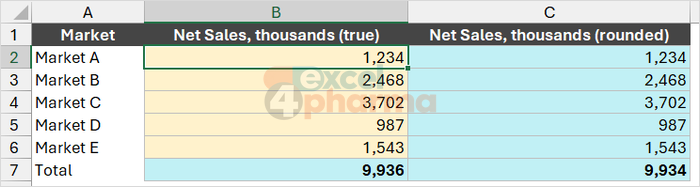
On the Display vs Value sheet, five markets report net sales in thousands, each with a hidden decimal of about 0.4. The cells are formatted without decimals. The lines show 1,234, 2,468, 3,702, 987 and 1,543, which add up to 9,934, but the total shows 9,936. The total is right: it adds the real values, including the five hidden decimals. The lines are right too. It is only the display that disagrees with itself.
There are two honest ways out. Either keep the true values and add a note such as "totals may not add due to rounding", common in published reports, or round the lines first with ROUND and total the rounded figures, so that what is shown adds up exactly. What should be avoided is the option Set precision as displayed (in File > Options > Advanced): it permanently replaces every value in the workbook with its displayed version, cannot be undone, and silently changes every calculation that follows.
ROUND, ROUNDUP and ROUNDDOWN
ROUND rounds a number to a given number of digits:
=ROUND(number, num_digits)
With A2 containing 28.786, =ROUND(A2,2) returns 28.79, =ROUND(A2,1) returns 28.8 and =ROUND(A2,0) returns 29. A negative second argument rounds to the left of the decimal point, which is how budgets are rounded to thousands: =ROUND(97954352,-3) returns 97,954,000, and -6 would round to millions.
A value exactly halfway, such as 2.5, is rounded away from zero: =ROUND(2.5,0) returns 3 and =ROUND(-2.5,0) returns -3. This is the rule most people learned at school. Not everyone in the Microsoft world follows it, though: the Round function in VBA uses the so-called banker's rounding, which sends halves to the nearest even number, so in a macro Round(2.5) returns 2. A model that mixes worksheet formulas and VBA can disagree with itself by one cent for exactly this reason.
ROUNDUP and ROUNDDOWN take the same arguments, but always move in one direction: ROUNDUP away from zero, ROUNDDOWN towards zero. =ROUNDUP(10.11,1) returns 10.2, while =ROUNDDOWN(101456,-2) returns 101,400. ROUNDUP is the right choice when any fraction must count as a whole unit, such as the number of full days of a hospital stay or the number of vials needed for a dose.
Rounding to a multiple: price points, cartons and pallets
Many business rules round not to a number of digits but to a multiple. Three functions cover the cases.
MROUND rounds to the nearest multiple. A price grid that only allows prices ending in 0 or 5 cents, with the price step of 0.05 in E3, uses:
=MROUND(B2,$E$3)
so that 12.43 becomes 12.45 and 12.42 becomes 12.40. MROUND needs the number and the multiple to have the same sign, and Microsoft warns that with a decimal multiple the direction of an exact midpoint is not guaranteed. For a price-setting rule that must be applied consistently, rounding the price expressed in cents to an integer is the safer route.
CEILING.MATH rounds up to the next multiple. Packs are shipped in cartons of 12, so an order of 250 packs means 252 packs in 21 cartons:
=CEILING.MATH(H2,$E$1)
with the units ordered in H2 and the carton size in E1. Dividing the result by the carton size gives the number of cartons. FLOOR.MATH does the opposite and rounds down: with pallets of 480 packs, =FLOOR.MATH(H2,$E$2)/$E$2 returns the number of full pallets in an order, and the remainder ships loose.
The older CEILING and FLOOR functions, still found in many files, work the same way with positive numbers: =CEILING(65,11) returns 66, the next multiple of 11, and =FLOOR(65,11) returns 55. They are less predictable with negative numbers, which is why the .MATH versions are the better choice in new work.

TRUNC and INT
TRUNC simply cuts off the decimals beyond a given position, without rounding: =TRUNC(5.467,2) returns 5.46, and =TRUNC(5.467) returns 5. INT returns the integer part of a number, but it always moves down: with positive numbers it gives the same result as TRUNC, with negative numbers it does not. =INT(-5.4) returns -6, while =TRUNC(-5.4) returns -5. When a calculation can produce negative values, such as a variance or a price change, the difference matters.
The floating-point trap
Excel stores numbers in binary, with about 15 significant digits of precision, as practically every program does. Most decimal fractions, such as 0.1, have no exact binary equivalent, so tiny errors can appear. Microsoft's own example: =(43.1-43.2)+1, displayed with 15 decimals, shows 0.899999999999999 instead of 0.9.
In day-to-day work the difference is invisible, until a formula compares two values that "should" be equal. A check such as =IF(B2=C2,"OK","Check") can return Check for two amounts that look identical. The fix is to round before comparing, to a sensible number of decimals:
=IF(ROUND(B2-C2,2)=0,"OK","Check")
Where to round
A rule of thumb that saves many arguments: round where the business rounds, and nowhere else. A price is rounded when it is set, because the rounded price is the real price. A sales total is not rounded in the calculation, only in the display, because the true total is the real number. Rounding in the middle of a chain of calculations, and then calculating further on the rounded figure, accumulates small errors that are very hard to trace later.
Common mistakes
- Confusing format and value. A cell formatted to show no decimals still holds them, and every formula uses them.
- Turning on Set precision as displayed to make a report add up. The change is permanent and affects the whole workbook.
- Using INT on negative numbers when TRUNC was intended.
- Comparing calculated amounts for exact equality. Round the difference first.
- Rounding intermediate results. Round at the point where the business rule applies, not at every step.
Companion file
Illustrative data only. Not a decision tool.For further reading
- ROUND function - Microsoft Support
- MROUND function - Microsoft Support
- CEILING.MATH function - Microsoft Support
- Floating-point arithmetic may give inaccurate results in Excel - Microsoft Learn