
Relative, Absolute and 3D References
The problem
The real power of a spreadsheet is that one formula, written once, can be copied to a thousand cells. That power has a price: when a formula moves, its references move with it. Most of the time this is exactly what we want. Sometimes it is a disaster, and the result is a column of numbers where only the first one is right.
Understanding how references behave when copied is the single most useful skill in Excel. Almost every other technique, from lookups to conditional sums, depends on it.
Relative references: the default
When we write =B2*C2 in D2, Excel does not really store "multiply B2 by C2". It stores something closer to "multiply the cell two columns to my left by the cell one column to my left, on my row". This is a relative reference, and it is the default.
Copy the formula down to D3 and it becomes =B3*C3; copy it to D50 and it becomes =B50*C50. Each row multiplies its own units by its own price, which is exactly what we want in a list of orders. The fastest way to copy a formula down a long list is a double click on the fill handle, the small square at the bottom right corner of the selected cell: Excel fills down as far as the adjacent column has data.
Absolute references: locking a cell
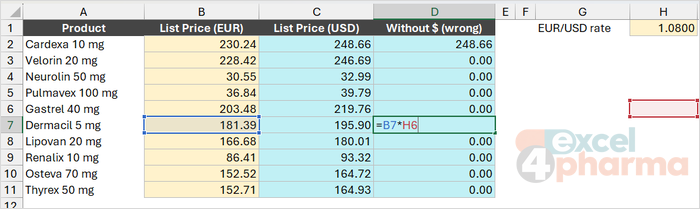
Now suppose a list of list prices in euros, in column B, has to be converted to US dollars. The exchange rate sits in a single cell, H1. The first formula looks natural:
=B2*H1
Copied down, it becomes =B3*H2, =B4*H3 and so on. The prices still move as they should, but the exchange rate slides down into empty cells, and every result after the first is zero.
The solution is to lock the reference with dollar signs:
=B2*$H$1
The dollar sign before the column letter locks the column; the dollar sign before the row number locks the row. With both, the reference is absolute: wherever the formula is copied, it keeps pointing at H1.
There is no need to type the dollar signs. While editing a formula, place the cursor on a reference (or select it) and press F4. Each press cycles through the four possible forms:
| Press | Form | What stays fixed |
|---|---|---|
| 1 | $H$1 | Column and row |
| 2 | H$1 | Row only |
| 3 | $H1 | Column only |
| 4 | H1 | Nothing |
Keeping a parameter such as an exchange rate, a VAT rate or a discount in its own cell, and pointing to it with an absolute reference, is good practice for a second reason too. When the rate changes, we change one cell, and every formula follows. A rate typed inside hundreds of formulas has to be found and changed hundreds of times, and one of them will be missed.
Mixed references: locking half
The two middle forms of the table above, H$1 and $H1, are mixed references. They lock only the row or only the column, and they are what makes a single formula fill an entire grid.
Consider a classic price scenario table. The products are listed down column A, their current list prices in column B, and across row 2 a series of possible price reductions: 5%, 10%, 15%, 20%. Each cell of the grid should show the price of the product on its row after the reduction in its column. In C3:
=$B3*(1-C$2)
Read the dollar signs carefully. $B3 locks the column but not the row: copied to the right, it keeps pointing at the list price in column B; copied down, it moves to the next product. C$2 does the opposite: it locks the row, so it always reads the reduction from the header row, but it moves across the columns. Written once in C3 and copied to the whole grid, this formula produces every combination correctly.
A quick way to choose the right form: ask what must stay fixed when the formula moves in each direction. If it must not move horizontally, lock the column. If it must not move vertically, lock the row.
References to other sheets
A reference can point to another sheet by putting the sheet name and an exclamation mark in front of the cell: ='Price List'!D5. When the sheet name contains spaces, or looks like a cell address (a sheet called Q1, for example), it must be wrapped in single quotes. There is rarely a need to type this: while writing a formula, click on the other sheet's tab and then on the cell, and Excel writes the reference for you, quotes included. Dollar signs work exactly the same way across sheets.
References to other workbooks follow the same idea, with the file name in square brackets, such as ='[Price Master.xlsx]Price List'!D5. They work, but they break as soon as the other file is renamed or moved, so they are best kept to a minimum.
3D references: the same cell across many sheets
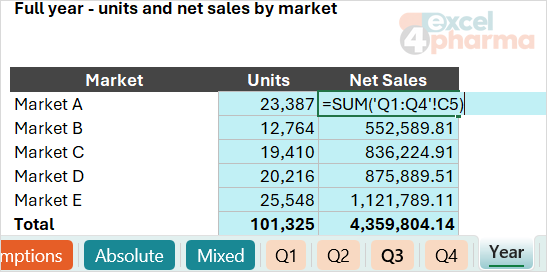
Some workbooks have one sheet per period or per market, all with an identical layout: four quarterly sheets, for example, named Q1, Q2, Q3 and Q4, each with the same sales table. To total the same cell across all of them, there is a lesser-known shortcut, the 3D reference:
=SUM('Q1:Q4'!C5)
It means: sum cell C5 on every sheet from Q1 to Q4, including any sheet that sits between them in the tab order. The quotes are needed here because Q1 and Q4 are also valid cell addresses: without them, Excel reads Q1 as a cell on the current sheet and the formula returns #VALUE!. With sheet names that cannot be mistaken for cells, such as Jan and Mar, =SUM(Jan:Mar!C5) works without quotes. The two sheets named in the reference act as bookends, and the behavior follows from that:
- a sheet inserted or copied between Q1 and Q4 is included automatically;
- a sheet deleted or moved outside the bookends drops out of the total;
- if a bookend sheet itself is moved, the range adjusts to the sheets now lying between the two.
A neat trick builds on this: two empty sheets named, say, Start and End, placed around the sheets to consolidate. =SUM(Start:End!C5) then sums whatever sheet we drag between the bookends, which makes it easy to include or exclude a market just by moving its tab.
3D references only work with a specific group of functions: SUM, AVERAGE, AVERAGEA, COUNT, COUNTA, MAX, MAXA, MIN, MINA, PRODUCT, the STDEV and VAR families, and, in Microsoft 365, HSTACK and VSTACK. Functions such as SUMIFS or XLOOKUP cannot use them.
A word of caution, and of opinion. One sheet per period is a common layout, but it is rarely the best one: the same data in a single table, with a column for the quarter, can be summarized by SUMIFS or a PivotTable in any combination. 3D references are a good rescue tool for workbooks already built that way, not a reason to build new ones like it.
A curiosity: the R1C1 style
There is a second way to write references, which most users never see. In File > Options > Formulas, the R1C1 reference style option replaces column letters with numbers. In that style, a relative reference is written as an offset: R[-1]C means "one row above, same column". A formula copied down a column then looks identical in every cell, which makes R1C1 a powerful way to spot the one formula that is different from its neighbors.
The style is older than Excel itself. It comes from Multiplan, Microsoft's first spreadsheet, released in 1982; Excel kept it alongside the A1 style of VisiCalc and Lotus 1-2-3, the spreadsheets that most users of the time already knew. VBA programmers meet it often, because macros frequently write formulas in R1C1 form.
Common mistakes
- Forgetting to lock a parameter cell. The first result is right and every other one is zero or wrong. Always test a copied formula on the second and last rows, not only on the first.
- Locking too much. A reference with dollar signs on both parts, copied across a grid, returns the same value in every cell.
- Mixing up the halves in a grid.
B$3instead of$B3locks the wrong dimension. Ask which direction must stay fixed. - Moving cells by cut and paste. Excel updates references to cut-and-pasted cells, even absolute ones. Copy and paste, instead, leaves absolute references unchanged. The difference matters when rebuilding a layout.
- Sorting a range that contains formulas with relative references to cells outside the sorted area. After sorting, each row may point to the wrong place.
- Typing a 3D reference across sheets whose names look like cells, such as Q1:Q4, without quotes. Write
'Q1:Q4'!C5, or build the reference by clicking the tabs.
Companion file
Illustrative data only. Not a decision tool.For further reading
- Switch between relative, absolute, and mixed references - Microsoft Support
- Create a 3-D reference to the same cell range on multiple worksheets - Microsoft Support