
Formula Basics: Operators, Wildcards and the Formula Bar
The problem
Excel has more than 500 functions, and most of them are easy to learn one at a time. The hard part is different: knowing that a function exists, finding it when you need it, and writing it in a way that gives the right answer the first time. A misplaced bracket or a misunderstood order of calculation produces a number that looks perfectly reasonable and is simply wrong.
This article covers the ground every other formula stands on: how to enter a formula, how Excel decides what to calculate first, and how wildcards let a single criterion match a whole family of values.
What a formula is
A formula is an instruction that Excel evaluates and replaces with a result. It always starts with an equal sign, followed by values, cell references, operators and functions:
=B2*C2
=SUM(D2:D25)
=ROUND(B2*(1-C2),2)
The first multiplies two cells, the second calls a function, the third combines both. Functions are simply prewritten formulas: SUM saves us from typing =D2+D3+D4..., and ROUND saves us from writing the rounding logic ourselves.
A curiosity from the past: Excel also accepts a plus sign at the start of a formula. Type +B2*C2 and Excel turns it into =+B2*C2. The habit comes from Lotus 1-2-3, the spreadsheet that dominated offices before Excel, where formulas began with a plus. Many long-time users still type it that way, especially on numeric keypads where the plus key is closer than the equal sign.
The opposite need also comes up: entering text that begins with an equal or plus sign without Excel treating it as a formula. An apostrophe at the start does the trick. Typing '=Price x Volume shows =Price x Volume as plain text; the apostrophe itself stays invisible in the cell.
Five ways to enter a function
When we already know the function, the fastest route is to type it. As soon as we type = and a few letters, Formula AutoComplete lists the matching functions. In Microsoft 365 the match is not limited to the start of the name: typing =LOOK lists VLOOKUP, HLOOKUP and XLOOKUP. Pressing Tab accepts the highlighted function and opens the bracket.
When we know the function but not its arguments, typing the name and pressing Ctrl+A (for example =SUMIFS then Ctrl+A) opens the Function Arguments dialog box, with one box per argument and a short explanation of each.
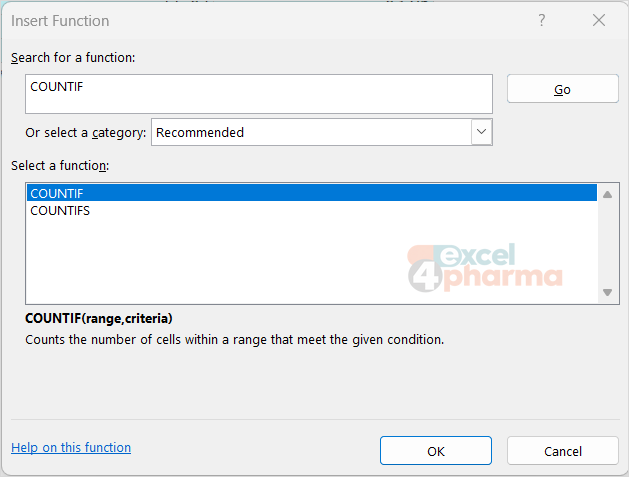
When we do not know which function we need, the Insert Function dialog box helps. It opens from the fx button to the left of the formula bar, or from Formulas > Insert Function. The Search for a function box accepts plain language: a description such as "count cells that meet a condition" returns COUNTIF, COUNTIFS and their relatives. Below the list, Excel shows the syntax and a one-line description, and a link opens the full help page.
For the most common job of all, Alt+= inserts a SUM of the adjacent range, a shortcut known as AutoSum. The arrow next to AutoSum on the Home tab offers the other quick aggregations (average, count, maximum, minimum) and a More Functions entry.
Finally, while a function is being typed, Excel shows a tooltip with its arguments. For arguments that take a fixed set of options, such as the last argument of VLOOKUP, a small list explains what each option does.
How Excel decides what to calculate first
A formula with several operators is not calculated from left to right. Excel follows a fixed order of precedence, the same idea as the school rule that multiplication comes before addition. From first to last:
| Order | Operator | Meaning |
|---|---|---|
| 1 | : , and a space |
Reference operators: range, union, intersection |
| 2 | - |
Negation, as in -1 |
| 3 | % |
Percent |
| 4 | ^ |
Exponentiation |
| 5 | * and / |
Multiplication and division |
| 6 | + and - |
Addition and subtraction |
| 7 | & |
Joins two pieces of text |
| 8 | = < > <= >= <> |
Comparison |
Operators on the same level are evaluated from left to right. Brackets override everything: whatever sits inside them is calculated first.
A practical example. A list price sits in B2, a discount rate in C2, and a fixed rebate per pack in D2. The net price is the list price minus the discount, minus the rebate:
=B2*(1-C2)-D2
Without the brackets, =B2*1-C2-D2 would subtract the discount rate (a small number such as 0.15) instead of applying it. The result would be off by almost the whole discount, and nothing would flag it.
The precedence table also hides a classic surprise. Negation comes before exponentiation, so =-2^2 returns 4, not -4: Excel squares -2. Mathematicians would expect -4, and so do most people. When a negative sign and a power meet, brackets remove any doubt: =-(2^2) returns -4.
The text operator & deserves a mention because it appears everywhere in criteria. It joins two values into a single text: if A2 contains ONC and B2 contains -100, then =A2&B2 returns ONC-100. We will meet it again shortly, gluing a comparison operator to a cell reference.
Wildcards: one criterion, many matches
Many functions accept criteria written as text: SUMIFS, COUNTIFS and AVERAGEIFS, the lookup functions in exact-match mode, and MATCH. In all of these, three characters have a special meaning.
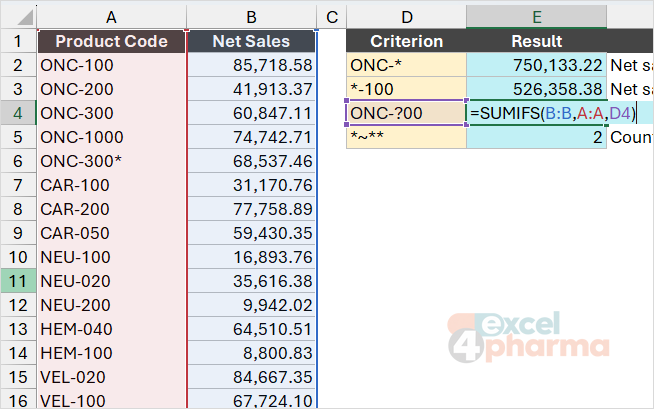
The question mark stands for exactly one character. The criterion "ONC-?00" matches ONC-100 and ONC-200, but not ONC-1000: each question mark replaces one and only one character, so we need as many question marks as there are characters to replace.
The asterisk stands for any sequence of characters, including none. "ONC-*" matches every code that starts with ONC-, whatever its length; "*mg" matches every text ending in mg; "V*n" matches anything that starts with V and ends with n.
The tilde is not a wildcard but an escape sign. It tells Excel to treat the next question mark or asterisk literally. To count the cells that actually contain an asterisk, often used in source systems to flag provisional values, the criterion is "*~**": any text, then a real asterisk, then any text.
Here is how this works in practice. A sales table lists product codes in column A and net sales in column B. Oncology codes all start with ONC-. The total for the whole oncology range is:
=SUMIFS(B:B,A:A,"ONC-*")
One formula covers every current and future oncology code, without listing them one by one. The criterion works just as well from a cell: with ONC-* typed in D2, =SUMIFS(B:B,A:A,D2) gives the same result, and changing D2 to CAR-* switches the total to another range without touching the formula.
Two cautions. Functions that return a single result, such as XLOOKUP or MATCH, stop at the first match: with a wildcard, "the first" may not be the one we had in mind. And wildcards only work on text. A criterion such as "10*" will not match the number 1000, because a number is not a text; it will match the text 1000, which is a different thing (more on this trap in the article on numbers stored as text).
Taming long formulas
The formula bar is not a fixed-size window. When a formula grows long, pressing Alt+Enter while editing breaks it into lines without changing the result, and Ctrl+Shift+U expands the formula bar to show several lines at once. The bottom edge of the formula bar can also be dragged down to any height.
A formula split by logic is far easier to check:
=IF(B2>C2,
    B2-C2,
    0)
Spaces and line breaks inside a formula are ignored by the calculation, so we can format formulas for the human reader. Excel will not mind.
Common mistakes
- Forgetting the equal sign. Without it,
B2*C2is just text, and the cell shows exactly what was typed. - Trusting left-to-right reading.
=B2+C2*D2multiplies first. When in doubt, add brackets: they cost nothing and make the intent explicit. - Brackets that do not match. Excel colors each pair while you type; a formula that ends with a different color from the one it started with is missing a bracket somewhere.
- Wildcards on numbers.
"10*"finds text that starts with 10, never numbers. Numeric criteria need comparison operators, such as">=1000". - Unintended wildcards. A product name that genuinely contains an asterisk or a question mark will behave as a pattern in criteria. Use the tilde to search for it literally.
Companion file
Illustrative data only. Not a decision tool.For further reading
- Calculation operators and precedence in Excel - Microsoft Support
- Using wildcard characters in searches - Microsoft Support