
Data Validation and Dynamic Drop-Downs
The problem
A model is only as reliable as the cells people type into. A rebate typed as 12 instead of 12%, a product spelled two ways, a date in the wrong century: each looks harmless, and each spreads through every formula that depends on it. The usual answer, a note saying "enter a percentage", is read once.
Data validation moves the rule into the cell. It defines what may be entered, shows a message when the cell is selected, and rejects or questions anything that does not fit. It has two jobs in a model: to protect the work, by keeping inconsistent values out of the calculations, and to guide the user, by making clear what each input expects. One of its rules, the list, creates the drop-down menu, which is the most common way to let a reader choose a parameter.
The examples use the companion file W05_Data_Validation.xlsx. The Entry sheet has seven input cells, each with its own rule, a register with a rule on duplicates and a series with one value that breaks its rule. The Lists sheet holds the source lists and the limits that the rules use.
The rules
Select the cells and choose Data > Data Validation. In the Settings tab, Allow sets the type and the other fields set the condition:
| Allow | Typical condition | Example in the file |
|---|---|---|
| Whole number | Between, greater than or equal | Units per month, 0 or more |
| Decimal | Between two limits | Rebate rate, 0% to the maximum |
| Date | Between two dates | Launch date, within the planning window |
| Text length | Less than or equal | Comment, up to 40 characters |
| List | A range, a name or typed items | Version, therapy area, product |
| Custom | A formula that returns TRUE or FALSE | No duplicate codes |
The limits do not have to be numbers in the dialog. Either end can be a cell or a name, and the file uses names: MaxRebate, MinLaunch, MaxLaunch and MaxComment, all in the Lists sheet. When a limit changes, it changes once, in a labeled cell, and not in nine dialogs.

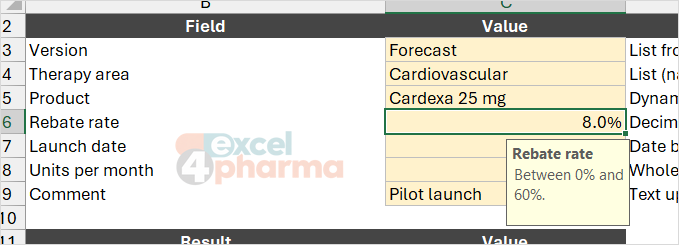
The Input Message tab shows a short text and a title when the cell is selected: "Between 0% and 60%." It costs nothing and removes most questions. The Error Alert tab sets what happens when a value does not comply, and it has three styles. Stop refuses the entry. Warning explains the problem and lets the user decide to keep it. Information only informs. The rebate rate and the units use Stop, because a wrong value there is an error. The launch date uses Warning, because a date outside the planning window might be right. The comment uses Information.
Rules do not look back
Validation checks what is typed. It does not check what is pasted, nor what is already there. The register on the Entry sheet shows it: E21 holds 85%, typed before the rule on rebate rates (0% to 60%) was applied, and the cell accepts it without complaint. Data Validation > Circle Invalid Data draws a red circle around every cell that breaks its rule, and Clear Validation Circles removes them. Run it after applying a rule to a range that already has data.
Copying and pasting can also overwrite the rule. A cell pasted over a validated cell brings the validation of its source, or none, with it. Where this matters, use Paste Special > Values, or protect the sheet as described in the article on protection.
Custom rules take a formula. The product code register uses =COUNTIF($B$19:$B$24,B19)=1, written for the first cell and applied to B19:B24: a code is accepted only if it appears once in the range.
Drop-down lists
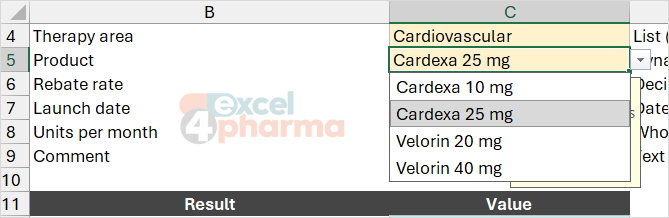
Set Allow to List and the Source to one of three things. The first is typed items, separated by commas in the English version: Actual,Budget,Forecast,Prior Year. It is the quickest and the hardest to maintain, since the list lives inside the dialog. The second is a range of cells, such as =$A$2:$A$5. The third is a name. Microsoft's page lists all three.
Two points make lists robust. The first is that the source can be on another sheet. Current versions accept a range from another sheet directly; older versions needed a name, and a name is still the cleanest way, because it documents the list: =TherapyAreas says more than =Lists!$C$2:$C$4. The second is that the list can grow. If the list is an Excel table, as with the versions in the file, the name VersionList refers to the table column, tblVersions[Version], and a version added at the bottom of the table appears in the drop-down.
The simple list has limits. The value chosen is stored in the cell itself, so that cell is both the control and the data: every formula in the model must refer to it. The arrow shows only when the cell is selected, the font of the list cannot be changed, and the position of the drop-down is tied to the cell. When a selection must drive several sheets, or a dashboard needs a visible control, the combo box described in the article on form controls is the alternative.
A list that depends on another list
The classic design is two linked lists: choose a therapy area and the next list offers only its products. The Lists sheet has the areas in C2:C4 and their products in the cells to the right of each: four for Cardiovascular, two for Oncology and one for Rare disease.
The first list uses the name TherapyAreas. The cell with the choice is named PickArea. The second list uses the name ProductList, defined as:
=OFFSET(Lists!$C$1,MATCH(PickArea,TherapyAreas,0),1,1,
        COUNTA(OFFSET(Lists!$C$1,MATCH(PickArea,TherapyAreas,0),1,1,COLUMNS(Lists!$D$1:$G$1))))
MATCH finds the position of the chosen area in the list, 1 for Cardiovascular, 2 for Oncology. OFFSET starts at the header cell in C1, goes down that many rows and one column to the right, where the products start. The width is the number of filled cells in the row: the inner OFFSET reads the full row of four columns, and COUNTA counts the non-empty ones. For Oncology the name covers two cells, for Cardiovascular four. The cell C12 shows the size of the current list: =COLUMNS(ProductList) returns 4.
A shorter way to write the same dependency is a name per area, with the second list defined as =INDIRECT(PickArea). It needs the names of the product ranges to match the areas exactly, and an area with a space in its name cannot be a name. In Microsoft 365 the source can also be a spill range, such as =$G$2#, built with FILTER. The OFFSET version works in every version.
Dependent lists have one weakness. If the area changes after the product was chosen, the old product stays in the cell and is no longer valid. Cell C13 tests it with =IF(ISNUMBER(MATCH(C5,ProductList,0)),"Yes","No: choose the product again"), and the price lookup in C14 uses the product. A result that tests the consistency of its own inputs is cheap insurance.
Common mistakes
- Setting a rule and then pasting over it. The paste brings its own validation.
- Trusting validation to clean data that already exist. Use Circle Invalid Data.
- Typing a list in the dialog when it will change. Use a table or a name.
- Defining the list for a dependent drop-down with names that differ from the items by a space or a letter.
- Choosing Stop for a value that may legitimately be outside the range. Use Warning.
- Forgetting the input message, and then explaining the rule by email.
- Treating a text drop-down as a number. The cell holds text, so a formula that needs a position should use MATCH or the combo box.
- Building a dependent list without a check that the second choice still belongs to the first.
Companion file
Illustrative data only. Not a decision tool.For further reading
- Apply rules for data validation - Microsoft Support
- Create a drop-down list - Microsoft Support
- Define and use names in formulas - Microsoft Support