
INDEX, MATCH and CHOOSE: Flexible Lookups and Selectors
The problem
XLOOKUP has made many lookups simpler, but three older functions remain part of every serious Excel toolkit. INDEX and MATCH, used together, did everything XLOOKUP does long before it existed, and they still work in every version of Excel, which matters when a file has to travel. More importantly, they do a few things that a lookup function cannot: return a reference instead of a value, build ranges that grow and shrink, and pick a row and a column at the same time. CHOOSE, the third, is the simplest way to switch a model between scenarios.
The examples use a small regulatory tracker: a product master list, a matrix of registration statuses by market, and monthly sales for a running total.
MATCH: where is it?
MATCH does not return a value from a table. It returns a position: the number of the row (or column) where a value is found within a range.
=MATCH(lookup_value, lookup_array, [match_type])
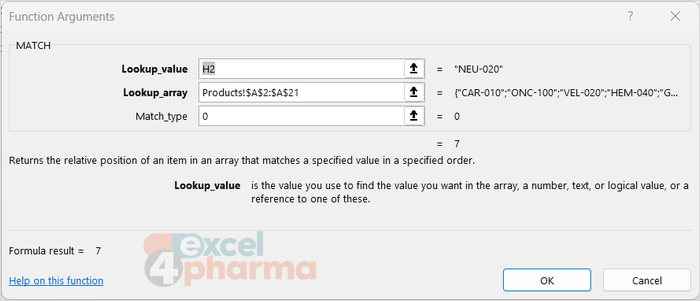
On the Products sheet, product codes are listed in A2:A21. With the code NEU-020 typed in H2 of the INDEX MATCH sheet:
=MATCH(H2,Products!$A$2:$A$21,0)
returns, say, 7: the code is the seventh item of the range. The count starts from the first cell of the range, not from row 1 of the sheet, so the seventh item sits in row 8.
The third argument controls the type of match, and it hides the same trap as the last argument of VLOOKUP:
- 0: exact match, in any order. This is the right choice almost always.
- 1, or omitted: the largest value less than or equal to the one searched; the range must be sorted in ascending order.
- -1: the smallest value greater than or equal to the one searched; the range must be sorted in descending order.
Omitting the argument means 1, an approximate match. On an unsorted list of codes, this returns a plausible but wrong position, with no warning. Writing the 0 every time is a habit worth building. With 0, MATCH also accepts wildcards in text, such as "NEU*".
INDEX: what is there?
INDEX does the opposite job. Given a range and a position, it returns what sits there, a bit like naming a square in a game of battleships:
=INDEX(array, row_num, [column_num])
With a single column or row, one number is enough: =INDEX(Products!$B$2:$B$21,7) returns the seventh product name. With a block of several rows and columns, the second number picks the column: =INDEX(Products!$A$2:$E$21,7,3) returns the value in the seventh row and third column of the block. A row or column number outside the range returns #REF!.
INDEX and MATCH together
On their own, the two functions are modest. Together, MATCH finds the position and INDEX uses it to fetch the value:
=INDEX(Products!$B$2:$B$21,MATCH(H2,Products!$A$2:$A$21,0))
Read from the inside out: find the row of the code in column A, then return the product name in the same row of column B. To return the therapeutic area instead, only the first range changes, from column B to column C. Because the search column and the result column are separate, the result column can sit to the left of the search column, which VLOOKUP cannot do, and inserting a column in the table does not break the formula, because the ranges move with it.
A useful refinement is to calculate the position once, in its own cell, and let several INDEX formulas use it. With the MATCH in H3, =INDEX(Products!$B$2:$B$21,$H$3), =INDEX(Products!$C$2:$C$21,$H$3) and so on fetch every field of the record from a single search. In a large file this is also faster, because Excel searches only once.

Two-way lookups
The pairing becomes elegant when both the row and the column are unknown. The Two-Way sheet holds a matrix of registration statuses: products down column A (A2:A21), markets across row 1 (B1:G1), statuses in B2:G21. With a product code in J2 and a market in J3:
=INDEX($B$2:$G$21,MATCH(J2,$A$2:$A$21,0),MATCH(J3,$B$1:$G$1,0))
The first MATCH finds the row of the product, the second finds the column of the market, and INDEX returns the status at the intersection. The same result can be obtained with two nested XLOOKUP functions, but the INDEX version has the advantage of working in any Excel version and of reading like the question it answers: in this table, at this row, at this column.
INDEX returns a reference: running totals
There is a feature of INDEX that sets it apart from almost every other lookup: it can return a reference to a cell, not just its value. That means INDEX can be used as one end of a range.
The YTD sheet holds monthly net sales in B2:B13, January to December. With a month number typed in E2, the year-to-date total up to that month is:
=SUM($B$2:INDEX($B$2:$B$13,E2))
If E2 contains 5, INDEX returns a reference to B6, the fifth cell of the range, and the formula becomes =SUM($B$2:B6): January to May. Change E2 to 9 and the range extends to September. The same structure works with AVERAGE, MAX or any function that accepts a range, and it is a cleaner alternative to the volatile OFFSET function for ranges that grow and shrink.
CHOOSE: pick one of a list
CHOOSE returns one item from a list of up to 254, based on an index number:
=CHOOSE(index_num, value1, [value2], ...)
=CHOOSE(2,"Low","Base","High") returns Base. An index below 1 or above the number of values returns #VALUE!.
The real use of CHOOSE is as a scenario switch. A model that has a low, a base and a high case for the same assumption needs one cell that says which case is active, and every formula that depends on the assumption reads it. On the CHOOSE sheet, the active scenario number sits in B2 (1, 2 or 3), and the peak market share of each scenario sits in B5, C5 and D5:
=CHOOSE($B$2,B5,C5,D5)
Change B2 and every result in the model follows. Like INDEX, CHOOSE can also return references, so it can switch between whole ranges: =SUM(CHOOSE($B$2,B8:B19,C8:C19,D8:D19)) totals the monthly volume of the active scenario.
For a scenario switch, INDEX does the same job with less typing and scales better when the scenarios are many: =INDEX(B5:D5,$B$2). In a well-built model the scenario number is not typed by hand but comes from the cell link of a drop-down control, so that users pick Low, Base or High from a list and never see the number behind it.

INDEX and MATCH or XLOOKUP?
For a simple lookup in Microsoft 365, XLOOKUP is shorter and handles missing values more gracefully. INDEX and MATCH remain the better choice when the file must work in Excel 2019 or earlier, when one position feeds many results, when a reference is needed rather than a value, as in the running total, and for two-way lookups that should read clearly. Microsoft 365 also offers XMATCH, a modern MATCH that defaults to an exact match and can search from the last item backwards.
Common mistakes
- Omitting the third argument of MATCH. The default is an approximate match, which on unsorted data returns a wrong position with no error.
- Ranges of different size or starting row in INDEX and MATCH. If MATCH searches A2:A21 and INDEX returns from B1:B20, every result is shifted by one row. Both ranges must start on the same row.
- Counting positions from row 1 of the sheet. MATCH and INDEX count from the first cell of the range.
- A scenario index outside the list. CHOOSE returns #VALUE!, INDEX returns #REF!. Restricting the input cell to the allowed values, or feeding it from a drop-down, prevents both.
- Locking the wrong parts. In a two-way lookup copied across a grid, the lookup ranges must be absolute, while the cells holding the row and column keys usually need mixed references.
Companion file
Illustrative data only. Not a decision tool.For further reading
- INDEX function - Microsoft Support
- MATCH function - Microsoft Support
- CHOOSE function - Microsoft Support