
Logic and Errors: IF, IFS, AND, OR, IFERROR and Error Values
The problem
A workbook that only calculates is a calculator. A workbook that decides is a model: it flags a price above its reference, applies a rebate only to customers who qualify, picks a discount tier from a volume. Each of these is a test with two or more outcomes, and the functions that run such tests are the logical functions.
The second half of the problem is what happens when a formula cannot produce a number. A lookup finds nothing, a divisor is empty, a cell contains text where a number was expected. Excel answers with an error value, and one error in a chain of formulas travels all the way to the total. Handling errors well means two things that pull in opposite directions: keeping the report clean, and not hiding the mistakes that the error was trying to tell you about.
The examples use the companion file F14_Logic_And_Errors.xlsx.
Logical values
Everything starts with a test, an expression that is either true or false. B2>C2, A2="Hospital" and D2<=E2 each return TRUE or FALSE, written without quotation marks because they are logical values, not text. Behind the scenes Excel treats TRUE as 1 and FALSE as 0, which is why they can be added, multiplied and counted. A logical test returns a value you can see on its own: type =5>3 in a cell and it shows TRUE.
Comparison ignores the case of text. The AND OR sheet shows it in B10: ="Velorin"="VELORIN" returns TRUE. When case matters, EXACT compares two texts and distinguishes upper and lower case, so =EXACT("Velorin","VELORIN") returns FALSE.
IF
IF runs a test and returns one result if it is true and another if it is false:
=IF(logical_test, value_if_true, [value_if_false])
The IF sheet lists six products with a net price in B and a reference price in C. The flag in column D is:
=IF(B2>C2,"Above reference","Within reference")
The two results do not have to be text. They can be numbers, other formulas, even another IF. What matters is what happens when you leave the third argument out, because the three variants look different in a report:
=IF(B2>C2,"Above reference","")     returns an empty text: the cell looks blank
=IF(B2>C2,"Above reference")        returns FALSE when the test fails
=IF(B2>C2,"Above reference",)       returns 0 when the test fails
The second form shows the word FALSE in the cell, the third shows a zero. Both are valid and both are almost never what you want in a report. If the cell should look empty, write "" explicitly.

AND, OR and NOT
A real decision rarely rests on a single test. AND returns TRUE only when all its tests are true, OR when at least one is, and NOT reverses a logical value:
=AND(test1, test2, ...)
=OR(test1, test2, ...)
=NOT(logical)
On the AND OR sheet a volume rebate is granted to a customer who buys at least 5,000 packs (J2) with a compliance rate of at least 90% (J3). The thresholds sit in cells, not in the formula. Column D asks for both conditions, column E for either condition when the compliance that alone qualifies is 98% (J4), and column F reverses column D. The decision in column G puts AND inside IF:
=IF(AND(B2>=$J$2,C2>=$J$3),"Rebate","No rebate")
The pair AND and OR is also the clean alternative to nesting. A formula such as =IF(A1<>2,IF(A1>A5,IF(A1<100,"Pass","Fail"),"Fail"),"Fail") repeats the same failing result three times and invites mistakes. The same logic reads in one line as =IF(AND(A1<>2,A1>A5,A1<100),"Pass","Fail").
A wording trap deserves attention: "exceeded the budget" means actual above budget. When the budget sits in column B and the actual in column C, the test is C2>B2. Writing B2>C2 produces a perfectly working formula that gives the opposite answer, and no error will ever warn you.
IFS and the case for a lookup table
When there are more than two outcomes, the instinct is to nest one IF inside another. Excel allows up to 64 nested levels, but Microsoft itself describes this as not at all advisable: nested formulas are hard to read, hard to verify, and every change of threshold means rewriting the formula. Order also matters. The first test that is true wins and the formula stops, so a list of thresholds must be tested from the most demanding to the least.
IFS was introduced for this case. It takes pairs of a test and a result and returns the result of the first pair whose test is true:
=IFS(test1, result1, [test2, result2], ...)
It is available in Excel 2019 and later and accepts up to 127 pairs. If no test is true, IFS returns #N/A. To set a default, make the last test TRUE, which is always true. The IFS and Lookup sheet assigns a discount to each customer from the annual volume, with the tiers listed in I2:J6:
=IFS(B2>=$I$6,$J$6,B2>=$I$5,$J$5,B2>=$I$4,$J$4,B2>=$I$3,$J$3,TRUE,$J$2)
It works, and it is already long with five tiers. With ten tiers it would be unreadable, and adding a tier would still require editing the formula. Compare it with a lookup against the tier table. With approximate match, VLOOKUP finds the last tier whose threshold is not above the volume:
=VLOOKUP(B2,$I$2:$J$6,2,TRUE)
=XLOOKUP(B2,$I$2:$I$6,$J$2:$J$6,,-1)
The first requires the thresholds in ascending order. The second uses match mode -1, which returns the exact match or the next smaller item. Both give the same discounts as the IFS, and column G of the sheet checks it. A new tier is a new row in the table, with no formula to touch. This is why the rule of thumb is simple: a handful of outcomes that depend on text or on different conditions, use IF or IFS; a ladder of numeric thresholds, use a table and a lookup.
Column D shows the IFS without the TRUE default, wrapped in IFNA. Below the first tier it would return #N/A, and IFNA replaces exactly that error with the text "No tier".

Error values
When a formula cannot return a result, Excel displays an error value, always beginning with a hash sign. Seven of them matter in everyday work:
| Error | Typical cause |
|---|---|
| #DIV/0! | Division by zero or by an empty cell |
| #VALUE! | Text where a number is expected, or an argument of the wrong type |
| #REF! | A reference that no longer exists, or an index beyond the table, such as a VLOOKUP column number larger than the table |
| #NAME? | A misspelled function or name, or text without quotation marks |
| #NUM! | A number that is not valid for the operation, such as the square root of a negative |
| #N/A | A value that is not available, typically a lookup that finds nothing |
| #NULL! | The intersection (a space between two ranges) of ranges that do not overlap |
Two newer errors, #SPILL! and #CALC!, belong to dynamic arrays and are covered where those functions are introduced. A row of hash signs (####) is not an error value: the column is too narrow.
The Errors sheet produces each of the seven on purpose, from the inputs in B2:B7, and inspects them without leaving an error in the sheet. Column C uses ERROR.TYPE, which returns a code for each error value: 1 for #NULL!, 2 for #DIV/0!, 3 for #VALUE!, 4 for #REF!, 5 for #NAME?, 6 for #NUM! and 7 for #N/A. Column D uses ISNA, which is TRUE only for #N/A. The family of IS functions (ISERROR, ISNA, ISNUMBER, ISTEXT, ISBLANK) tests a value and returns TRUE or FALSE, so each can serve as the test inside an IF.
IFERROR and IFNA
Before IFERROR, handling an error meant writing the formula twice:
=IF(ISERROR(VLOOKUP(A2,$H$2:$I$5,2,FALSE)),"Not in list",VLOOKUP(A2,$H$2:$I$5,2,FALSE))
The lookup is performed once to check it and once to use it. IFERROR evaluates its first argument a single time and returns the second only if the first is an error:
=IFERROR(value, value_if_error)
It catches #N/A, #VALUE!, #REF!, #DIV/0!, #NUM!, #NAME? and #NULL!. IFNA catches only #N/A:
=IFNA(value, value_if_na)
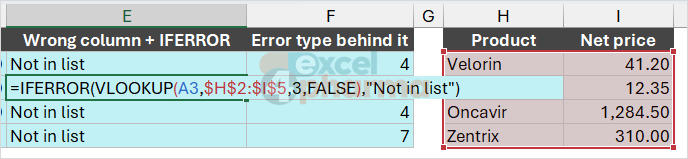
The difference is more than a technicality, and the IFERROR vs IFNA sheet shows it. Four orders are priced from the list in H2:I5. Column C uses IFNA with the correct column number, and it finds the price for the first three products and reports "Not in list" for Zentrx, which is misspelled on purpose:
=IFNA(VLOOKUP(A2,$H$2:$I$5,2,FALSE),"Not in list")
Column E repeats the lookup with a wrong column number, 3 in a table of two columns, wrapped in IFERROR. It reports "Not in list" for every row, including the products that are in the list. The real problem, a #REF!, is gone from sight, and the report claims that valid products do not exist. With IFNA, the same formula would have shown #REF! immediately. Column F makes it visible by asking ERROR.TYPE for the hidden error.
The lesson is general. IFNA is the right tool when "not found" is an expected outcome, as in a lookup against an incomplete list. IFERROR is for cases where any failure has the same meaning and you have thought about which errors can occur. Wrapping every formula in IFERROR by habit turns a model that warns you into one that quietly shows wrong numbers.
Revenue in column D shows the other use: =IFERROR(B2*C2,"Check") returns "Check" for the misspelled product, because multiplying by the text "Not in list" is a #VALUE!. A visible flag such as "Check" is better than a zero, which would pass silently into a total.
Common mistakes
- Reversing a comparison, so that the formula works but answers the opposite question. Test it with one case whose answer you know.
- Leaving out the third argument of IF and showing FALSE or 0 in a report. Write
""if the cell should look blank. - Testing thresholds in the wrong order in a nested IF or IFS. The first true test wins.
- Nesting many IFs for a ladder of numeric thresholds. Use a table and a lookup.
- Forgetting the TRUE default in IFS, and getting #N/A for values below the first test.
- Wrapping everything in IFERROR. It hides #REF! and #NAME?, which are mistakes in the model, together with the #N/A you expected.
- Replacing an error with 0 in a cell that feeds a total or an average. Zero is a number and it will be counted.
Companion file
Illustrative data only. Not a decision tool.For further reading
- IF function - nested formulas and avoiding pitfalls - Microsoft Support
- IFS function - Microsoft Support
- IFERROR function - Microsoft Support
- IFNA function - Microsoft Support