
Structured Tables
The problem
A formula such as =SUM(I2:I250) is correct on the day it is written. Add a row 251 next month and the total is wrong, silently. Chart ranges, lookup ranges and PivotTable sources have the same weakness: they point at coordinates, and the data moves.
An Excel table fixes this at the root. It turns a range of data into an object with a name, with named columns and a boundary that moves when records are added or removed. Formulas, charts and PivotTables that read the table follow it. Tables date from Excel 2007, but they became central to model building with dynamic arrays: a formula that reads a table is dynamic twice, because the source grows and the result grows with it.
The examples use the companion file W02_Excel_Tables.xlsx. The Data sheet holds the table tblSales, with 18 illustrative rows of units, list price and discount rate for three products in three markets over two months. The Formulas sheet reads it from outside, and the Budget sheet holds a second table that reads the first.
Creating a table
Select any cell of the range and choose Insert > Table, or press Ctrl+T. Microsoft's page also offers Home > Format as Table, which does the same thing and asks for a style. Confirm that the table has headers. The range gets alternate row shading, filter arrows on the header row and a new Table Design tab on the ribbon.
The first thing to do there is to rename the table. Excel calls it Table1, which is useless in a workbook with ten tables. A convention that pays off is the prefix tbl followed by the content: tblSales, tblBudget, tblCustomers. The prefix tells a table from a named range or from a variable in a LET formula, and the content makes every formula read like a sentence.
Two properties of the name matter. It belongs to the workbook, not to the sheet, so a table can be moved to another sheet without breaking a single formula that mentions it. And its columns are known by their header text, so the headers must be unique and not empty. A table cannot contain merged cells in its body or a blank row in the middle: a blank row ends the range that Excel proposes.
Calculated columns
Type a formula in one cell of an empty table column and Excel copies it to every row, and to every row you add later. This is a calculated column. In tblSales three columns are calculated. Gross sales is units times list price, the discount is the gross sales times the discount rate, and net sales is the difference:
=[@Units]*[@[List price]]            Gross sales
=[@[Gross sales]]*[@[Discount rate]]   Discount
=[@[Gross sales]]-[@Discount]        Net sales
The @ sign means "this row". Microsoft's page explains that Excel shows #This Row as @ in tables with more than one data row. Column names with spaces need a second pair of brackets, as in [@[List price]]. The same is true of names with special characters, such as a dollar sign, a comma or a parenthesis. Five characters, the two square brackets, the number sign, the single quotation mark and the at sign, also need a single quotation mark in front of them as an escape. The easiest way to avoid all this is to give columns plain names.
![One formula per column, written once: [@Units] and [@[List price]] mean "this row", whatever row it is.](../assets/shots/W02-01.png)
You do not have to type the references. While a formula is open, clicking a cell inside the table inserts the structured reference for you. When a formula is written once and copied automatically, one more error disappears: the formula that was not dragged down to the last row.
Calculated columns keep consistency, not rigidity. If you overwrite a cell with a different formula, Excel marks an exception and the column stays as it was. Edit the formula in a cell that has no exception and Excel rewrites the rest of the column.
Reading the table from outside
A formula outside the table names the table and the column in square brackets. The Formulas sheet starts with three:
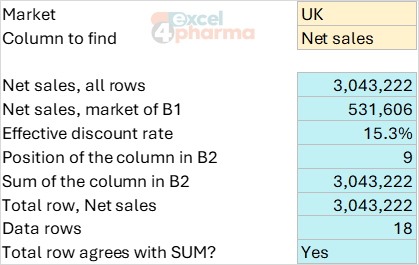
=SUM(tblSales[Net sales])                                        3,043,222
=SUMIFS(tblSales[Net sales],tblSales[Market],$B$1)               531,606 for the UK
=SUM(tblSales[Discount])/SUM(tblSales[Gross sales])              15.3%
The ranges never mention a row. Add 40 rows and the three results include them, with no one touching the formulas. In the same way, a chart or PivotTable fed by the table grows with it.
Beyond the column, the syntax has special item specifiers for the parts of the table:
| Specifier | Returns |
|---|---|
| tblSales[#All] | The whole table: headers, data and total row |
| tblSales[#Data] | The data rows only |
| tblSales[#Headers] | The header row |
| tblSales[#Totals] | The total row; null if the table has none |
| tblSales[@] or [#This Row] | The cells of the formula's own row |
Combined, they turn column names into data. The header name typed in B2 can be searched with =MATCH($B$2,tblSales[#Headers],0), which returns 9 for Net sales, and =SUM(INDEX(tblSales[#Data],0,B7)) sums the column found at that position. If someone inserts a column before it, both results adjust. The specifiers can also be combined inside one reference: tblSales[[#Totals],[Net sales]] reads the total of one column.
The total row
Switch on Total Row in the Table Design tab and Excel adds a line below the data, where each cell has a drop-down with SUM, AVERAGE, COUNT, MIN, MAX and others. The formulas use SUBTOTAL, which ignores rows hidden by a filter by default, so the totals follow what the reader sees. In the file the total row gives 101,123 units, 3,593,391 of gross sales, 550,169 of discount and 3,043,222 of net sales, which agrees with the SUM above. The Formulas sheet checks the two against each other.
To add a record, press Tab in the last cell of the last data row: the table grows by one row, copies the calculated columns and moves the total row down. You can also drag the sizing handle at the lower-right corner.
Tables on several sheets
In a model of some size, tables live on several sheets: inputs on one, calculations on another, results on a third. Because the name belongs to the workbook, a formula reads tblSales the same way on its own sheet and three sheets away. The Budget sheet shows this. Its table tblBudget has a budget by market and product, and a calculated column brings in the actual figure from the other sheet:
=SUMIFS(tblSales[Net sales],tblSales[Market],[@Market],tblSales[Product],[@Product])
A second calculated column divides actual by budget and subtracts 1. For the US, Velorin is at 634,058 against a budget of 602,000, 5.3% above; Cardexa is 5.2% above and Oncavir is 3.0% below. Move either table to another sheet and nothing changes.
Tables and dynamic arrays
A table is the natural source for the spilling functions. In D5 of the Formulas sheet, =FILTER(tblSales,tblSales[Market]=$B$1,"No rows") returns the UK rows, six rows by nine columns, and the line above it, =tblSales[#Headers], supplies the headers. When rows are added to the table, the spill follows. The rule from the article on dynamic arrays still holds: a spilling formula cannot sit inside a table, so it goes next to it.
Common mistakes
- Leaving the default name Table1 and writing formulas nobody can read.
- Keeping a blank row or a blank header inside the data. The table splits or stops.
- Writing formulas outside the table with fixed ranges such as I2:I19 on top of a table. Use the table reference.
- Overwriting one cell of a calculated column with a typed number. The exception hides in the middle of the column.
- Placing a spilling formula inside a table and getting #SPILL!.
- Typing new rows under a table that has a total row. The table does not grow; use Tab or insert table rows.
- Expecting the total row to count rows hidden by a filter. SUBTOTAL leaves them out unless the function number is changed.
- Using special characters in column names and then fighting with brackets.
Companion file
Illustrative data only. Not a decision tool.For further reading
- Overview of Excel tables - Microsoft Support
- Using structured references with Excel tables - Microsoft Support
- Dynamic array formulas and spilled array behavior - Microsoft Support