
Sorting, Filtering and Slicers in PivotTables
The problem
A PivotTable of net sales by product has six rows in alphabetical order, which tells the reader nothing about what matters. The question in a management meeting is "who are the products that make most of the sales", and the next one is "show me only the East region, only the second quarter, and only the Hospital channel". Answering with the report as it is means scanning numbers by eye. PivotTables can rank, cut and drive each other, and this article covers how.
Short theory
A PivotTable offers three kinds of control over what it shows. Sorting changes the order of items without removing any. Filtering removes items from view: by label, by value, or by rank. Slicers and timelines are visual filters, buttons on the sheet instead of drop-downs, which can be connected to several reports at once.
Two points are worth knowing before the steps. First, a filter in a PivotTable removes the item from the report, but the grand total changes only if you choose the option to include filtered items in totals; by default the total reflects what remains visible. Second, the Top 10 filter, as in AutoFilter, is badly named: it does not have to be ten, and its percent option does not mean what many assume.
Steps in Excel
Sorting
Click any value in the column that should drive the order, then on the Data tab choose Sort Largest to Smallest. The sort follows the values of that column and stays in force when the report is refreshed or rearranged, which a manual sort of cells would not. In a report with two row fields, the sort applies within the outer item: the products are ordered inside each region, and the regions are ordered among themselves by their own totals only if you sort on that level.
For a sort on a column inside a cross-tabulation, right-click a value, choose Sort, then More Sort Options, and pick Sort by Values in selected column. Excel then ranks the rows by the numbers of that region only.
A manual order is also possible. Click an item label and drag its border to a new position, or type over the label to rename it. The order stays until a sort option overrides it. With the sort set to Manual, new items join at the end of the list.
Filtering by label
The arrows next to the row and column labels open a list of items with tick boxes. Untick the ones to hide. Label Filters add conditions on the text: Begins With, Contains and the like. This is the right tool to keep, for example, every product whose name starts with a given letter.
Filtering by value
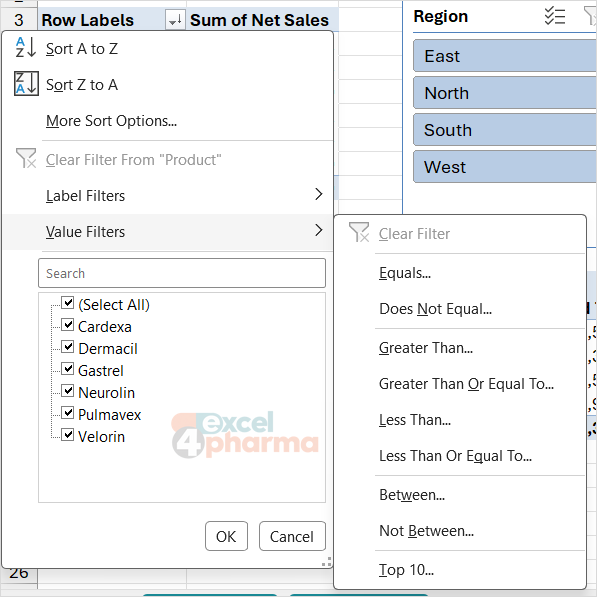
Value Filters work on the numbers. In the arrow of the Product label, choose Value Filters, then Greater Than, pick Sum of Net Sales and a threshold. Products below it leave the report. The condition is evaluated on the numbers as they appear in the report, which for a cross-tabulation means the row totals.
Top 10
Value Filters, Top 10 gives three choices: Top or Bottom, a number, and Items, Percent or Sum. The three options work differently:
- Items keeps the N items with the largest value.
- Percent keeps the top items whose values together make up the given percentage of the total. It is a cumulative share of the total value, not a percentile of the items.
- Sum keeps the top items until their cumulative value reaches the amount you give.
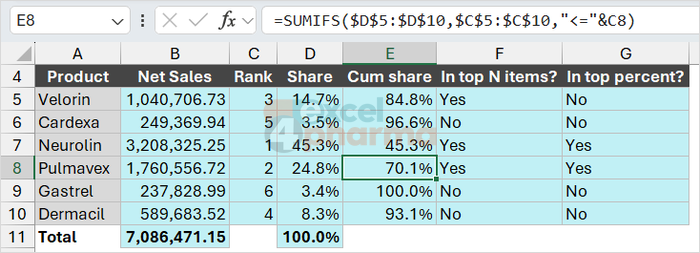
The Rankings sheet of the companion file shows the difference. With N in B1 equal to 3, the top three by net sales are Neurolin, Pulmavex and Velorin. The shares are Neurolin 45.3%, Pulmavex 24.8%, Velorin 14.7%, Dermacil 8.3%, Cardexa 3.5% and Gastrel 3.4%. A Top 10 filter with Percent set to 70 keeps Neurolin and Pulmavex: together they reach 70.1% of sales, and Excel stops as soon as the cumulative share reaches the target. The table in rows 5 to 10 shows the cumulative share so you can check this by hand.
This is the filter that answers an 80/20 question, and it makes it clear why "Percent" does not behave like a percentile.
Grand totals after filtering
On a regular worksheet source, a filtered PivotTable computes the grand total on the visible items only; the option to include filtered items in totals exists only for OLAP and Data Model sources. The Design tab, Grand Totals, switches the totals on or off. Be careful when reading a total after a filter: the number is smaller because items are missing, not because the sales fell.
Slicers
A slicer is a panel of buttons for one field. Click a cell in the report, choose PivotTable Analyze, then Insert Slicer, and tick Region and Channel. Two panels appear on the sheet. Click a button to filter the report; hold Ctrl to select several; the funnel icon with the cross at the top right clears the filter. Selected buttons are highlighted, unselected ones are gray, and a button with no data in the current selection is dimmed. The status of the filter is visible without opening any menu, which is why slicers are standard in dashboards.
A slicer can drive more than one report. Right-click the slicer and choose Report Connections (or use the Slicer tab), then tick every PivotTable that should follow it. Reports connected to a slicer must share the same data cache, which is the case when they are created by copying a PivotTable or from the same source in the same workbook, and is not the case if each was created separately from the same table in some situations. If the second report is missing from the list, it uses a different cache; recreate it by copying the first.
The Slicer tab also sets the number of columns of buttons, their size and the style. A slicer with the option Hide items with no data removes dead buttons.
Timelines
A timeline is a slicer for dates. Click in the report and choose PivotTable Analyze, Insert Timeline, and select the date field. A bar appears with a time scale. Drag the handles to select a period; the drop-down at the top right switches between Days, Months, Quarters and Years. The report shows only the transactions in the selected period.
The companion file's Timeline Check sheet gives the control values. With the step in B1, the start in B2 (01-Apr-25) and the end in B3 (30-Sep-25), the net sales are 2,768,333.60 in B4 and the number of transactions is 119 in B5. The monthly grid in D2:F19 breaks the same period down by month, so you can confirm that the timeline selection matches. A timeline needs a real date field: dates stored as text are not offered.

Top N by group
A frequent request is the top three products inside each region. The Top by Region sheet shows the expected result: a grid in A3:E9 with products against regions, and a top-3 block in rows 13 to 15. In a PivotTable, put Region and Product in Rows, apply the Top 10 filter to the Product field with Top 3 by Sum of Net Sales. Excel applies the filter inside each region, because the filter works on the field within its parent. The block in rows 13 to 15 lets you compare.
Common mistakes
- Sorting by selecting cells and using the A to Z button on the Home tab. It may break the report; use the sort commands within the PivotTable.
- Reading Top 10 Percent as the top percentile of items. It is the cumulative share of the total value.
- Forgetting that a filter changes the grand total.
- Connecting a slicer to a report with a different cache and wondering why it does not appear in the list.
- Using a timeline on text dates.
- Applying several filters on the same field. A label filter and a value filter on the same field exclude each other by default; allow multiple filters per field in Options, Totals & Filters if you need both.
Companion file
Illustrative data only. Not a decision tool.For further reading
- Sort data in a PivotTable or PivotChart - Microsoft Support
- Filter data in a PivotTable - Microsoft Support
- Use slicers to filter data - Microsoft Support
- Create a PivotTable timeline to filter dates - Microsoft Support