
Cell Formatting: Borders, Alignment and Two-Level Headers
The problem
The Home tab puts a handful of formatting buttons within reach: bold, fill color, borders, Merge & Center. They are so convenient that most people never look further, and that is where the trouble starts. Many of the habits they encourage look fine on screen and quietly break things later: a table that will not sort, a lookup that returns #N/A for a product that is clearly there, a PivotTable that refuses to group.
Five habits cause most of the damage: hiding the grid by painting borders white, pushing text to the right with spaces, centering a title by merging cells, adding blank rows to create air, and typing a line break as a row of spaces. Each has a cleaner alternative that takes the same number of clicks once you know where it is. This article covers them, plus one trick that most users believe is impossible: a header in the top-left corner of a table that labels both the rows and the columns.
The examples use the companion file G01_Cell_Formatting.xlsx, which has one sheet per technique. The data are a small, illustrative net sales table for four fictional products in four markets.
A little theory: format is not content
A cell holds a value and, separately, a format. The value is what formulas see; the format is only how Excel draws it. Everything in this article follows from one rule: formatting should change how a cell looks without changing what it contains. A space typed before a word changes the content. An indent does not. A merged cell changes the structure of the sheet. Center Across Selection does not. Whenever a formatting choice alters content or structure, expect a formula, a sort or a PivotTable to notice sooner or later.
Nearly everything below lives in one dialog. Select the cells and press Ctrl+1 to open Format Cells; its tabs, from left to right, are Number, Alignment, Font, Border, Fill and Protection. The Home tab buttons are shortcuts into the same settings.
Borders and gridlines
Borders: start from the style and color
The Borders button on the Home tab offers a menu of ready-made options, but the Border tab of Format Cells gives full control. The order of operations matters. First choose the Style of the line and its Color; then draw the border by clicking either the preset buttons or the preview box. In the preview, every click on an edge toggles it on or off, so a second click removes what the first one drew. If you pick the line first and the style afterward, the style applies only to borders you draw from that moment on.
A restrained pattern works well for reports: a medium line under the header row, a thin line above a subtotal, a double line under the grand total, and nothing else. In the Borders sheet of the companion file the table is framed this way. The eye reads the structure from the three lines, and the cells need no box around each number.

Hiding the grid the right way
The pale gray lines between cells are not borders. They are gridlines, a display aid that never prints. To get a clean white page, switch them off: on the View tab, in the Show group, clear Gridlines. This applies to the current sheet only, so repeat it on every sheet you want clean. Every sheet in the companion file was prepared this way.
The tempting alternative is to select the whole sheet and paint the borders white. It hides the grid, but it adds a formatting layer to every cell it touches, it draws white lines over any fill color added later, and it is easy to forget it is there. If the gridlines are too faint, change their color instead: File > Options > Advanced, then, under Display options for this worksheet, use the Gridline color box.
Borders are different from gridlines in one more respect: they do print, as the Microsoft article on borders notes. Use them deliberately.
Text inside cells
Indent instead of spaces
A product line shown under a total, such as Net sales followed by Velorin, Cardexa and so on, is normally set back a little. Do not type spaces before the name. A leading space is part of the text, so the cell no longer matches Velorin in a lookup, and a VLOOKUP written for the clean name fails. Use Increase Indent in the Alignment group on the Home tab (or the Indent box on the Alignment tab of Format Cells) instead. The indent is format only; the cell still contains exactly Velorin.
The Indent sheet shows both versions side by side. Next to each label, LEN counts its characters and a lookup tries to find the clean name:
=LEN(A5)
=IFERROR(VLOOKUP(D5,$A$5:$B$8,2,FALSE),"Not found")
Column D holds the clean product names to look for. The indented list finds every product. The list typed with spaces, further down the sheet, reports Not found for each one, and the LEN column shows the three extra characters that nobody could see.
Line breaks and wrapping
To start a new line inside a cell, press Alt+Enter at the point where the break should fall. Excel switches on Wrap Text for the cell automatically. The same option, set by hand, makes text wrap wherever the column width requires, and the row height follows if it has not been fixed.
A third option is Shrink to fit on the Alignment tab. Instead of wrapping, Excel reduces the font until the text fits on one line. It suits short labels in narrow columns and nothing longer: shrink a long sentence and the result is unreadable. The Wrap and Shrink sheet shows the three behaviors in the same narrow column.
Center Across Selection, not merge
Merge & Center is the best known button on the Home tab and the one that causes the most trouble. A merged range becomes a single cell, and the other cells are emptied. Selecting a column through a merged range is awkward, copying and pasting into it produces warnings, sorting a range that contains merged cells fails, and formulas that read the merged area see values only in its first cell. Microsoft's own article on merging notes that only the upper-left value survives.
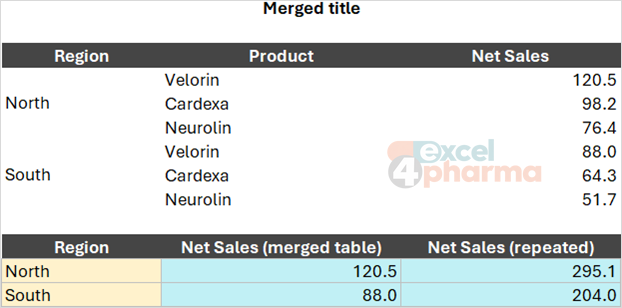
Where merging hurts the most is a vertical merge in a data column, which is common in handmade reports: the region name merged over the three rows it covers. In the Merge vs Center sheet the left table has the region North merged across three product rows. A conditional sum by region then returns the sales of the first row only, because the other two rows have an empty region:
=SUMIFS($C$4:$C$9,$A$4:$A$9,A12)
where A12 holds the word North. The result is 120.5 instead of 295.1.
The same table with the region repeated in every row returns the correct total. For titles, the alternative is Center Across Selection. Select the cells, press Ctrl+1, and on the Alignment tab choose it from the Horizontal list. The text appears centered over the selected cells, which remain separate and untouched. For a column of repeated labels, keep the label in every row and let a lighter font color or a PivotTable layout do the visual grouping.
Row height instead of blank rows
The same logic applies to blank rows used as spacers. An empty row inside a table interrupts the current region: Ctrl+Down Arrow stops there, a PivotTable stops there, and so does a table's automatic expansion. If you want more white space between lines, increase the row height instead. The data stay one continuous block.
A two-level header in one cell
A table with products down the side and markets across the top has a corner cell, A1 above the product names, that usually stays empty. It can carry a label for each axis, with one word aligned to the right and the other to the left, split by a diagonal line. Excel aligns a whole cell, not parts of it, so the trick is to build the effect from line breaks and spaces.
- In the corner cell type the label of the columns, press Alt+Enter, then type the label of the rows. In the companion file the cell holds Market on the first line and Product on the second.
- Press Ctrl+Enter to confirm and stay in the cell.
- Press Ctrl+1. On the Alignment tab set Horizontal to Left and select Wrap Text.
- On the Border tab click the diagonal button that runs from the top-left to the bottom-right corner.
- Increase the row height so that the two lines have room.
- Click in the formula bar in front of the first word and add spaces until it reaches the right edge of the cell.
The spaces in step 6 are the one place where padding with spaces is acceptable, because the cell is a header that no formula will ever look up. The Two-Level Header sheet holds the finished result: the market names run along the top and the product names down the left, and the corner cell labels both.

Common mistakes
- Painting borders white to hide the grid. Use Gridlines on the View tab, and Gridline color under Excel options for a different color.
- Typing spaces to indent a label. The spaces become part of the text and break lookups and filters.
- Using Merge & Center on titles and data. Choose Center Across Selection for titles and repeat the labels in data.
- Leaving blank rows inside a table. Use row height for spacing.
- Applying every border to every cell. The result is noisy; keep to a few lines that explain the structure.
- Fixing the row height of a wrapped cell. If the text then gets cut, release the height with AutoFit Row Height.
Companion file
Illustrative data only. Not a decision tool.For further reading
- Apply or remove cell borders on a worksheet - Microsoft Support
- Merge and unmerge cells in Excel - Microsoft Support