
PivotTables from Multiple Tables: The Data Model
The problem
A sales export rarely contains everything a report needs. The transactions carry a product code, a market code and a customer code, while the therapeutic area sits in the product master, the region in the market list, and the customer type in the customer file. The classic answer is to bring those attributes into the sales table with a column of VLOOKUP or XLOOKUP for each one, and then build the PivotTable on the enlarged table.
It works, but it has a cost. Every new attribute means a new helper column copied down thousands of rows; the file grows; and the next export has to be pasted in and the lookups extended again. The Data Model offers a cleaner route: keep each table as it is, tell Excel how they are related, and let one PivotTable read them all.
Tables, keys and relationships
The idea comes from databases, and three words are enough to use it.
A fact table holds the events to be summarized, here the sales transactions: one row per order, with amounts and codes. A lookup table describes one kind of item, one row per item: the product master, the market list. A key is the column that links them, such as the product code, which appears once in the product master and many times in the sales table.
A relationship joins the key in the fact table to the same key in the lookup table. It is a one-to-many relationship: one product, many sales rows. Two conditions must hold. The key must be unique in the lookup table, and the two key columns must have the same data type: a code stored as text on one side and as a number on the other will not match.
The companion file has three tables of this kind, on three sheets: Sales (480 orders with date, product code, market code, customer and net sales), Products (product code, product name, therapeutic area) and Markets (market code, market name, region). None of them contains a lookup formula. The sheet Steps repeats the instructions below, and the sheet Check holds the results you must obtain.
Step 1: format each range as a table
The Data Model works with Excel tables, not plain ranges. Click inside each range, press Ctrl+T, confirm that the table has headers, and give it a clear name in Table Design > Table Name: Sales, Products, Markets. In the companion file this is already done, so there is nothing to do.
Step 2: create the relationships
Yes, the relationships have to be created, and by you. The Sales table holds only codes, so Excel cannot know which therapeutic area or region a sale belongs to until you tell it which columns match. The most direct way is the Data tab, Data Tools group, Relationships button, then New. The dialog has four boxes, filled in from top to bottom:
- Table: Sales. Column (Foreign): Product Code. Related Table: Products. Column (Primary): Product Code. Click OK.
- Click New again. Table: Sales. Column (Foreign): Market Code. Related Table: Markets. Column (Primary): Market Code. Click OK.
The foreign column is the one with repeated values (the many side), the primary column is the one with unique values (the one side). Close the Manage Relationships box. As a side effect, Excel has now added the three tables to the Data Model, a hidden store inside the workbook that PivotTables can read.
If you skip this step and start from a PivotTable, Excel warns that relationships between tables may be needed when you drag a field from a lookup table, and offers Create and Auto-Detect buttons. Auto-Detect often finds the same links, but defining them yourself is clearer and easier to check later.

Step 3: create the PivotTable from the Data Model
Click any cell of the Sales table and choose Insert > PivotTable. In the dialog, select Use this workbook's Data Model, then New Worksheet and OK. The field list on the right now offers all the tables, not just one.
If you did not create the relationships first, there is a second route: choose Select a table or range with Sales as the table, and tick Add this data to the Data Model. Excel then adds the table to the Data Model and asks you to create the relationships when you need them. Either way, the box must not be left unticked: a PivotTable created without the Data Model sees only one table, and Distinct Count is not offered.
Step 4: rows, columns and values
In the PivotTable Fields pane, click All at the top, just under the title. The pane lists the three tables, each with a small arrow on its left: click the arrow to open the table and see its fields. Then drag the fields into the areas below:
- open Products and drag Therapeutic Area into Rows;
- open Markets and drag Region into Columns;
- open Sales and drag Net Sales into Values, where it becomes Sum of Net Sales.
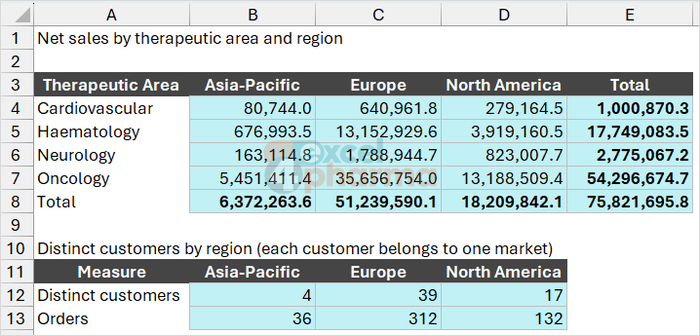
The PivotTable now behaves as if the three tables were one. The result is net sales by therapeutic area and region, with no lookup column anywhere in the workbook. When the next month's data arrive, new rows are added to the Sales table, and Data > Refresh All updates the PivotTable. The relationships stay as they are.
Step 5: count distinct customers
A standard PivotTable can count rows but not distinct items. Asking how many different customers bought in each region, rather than how many orders they placed, used to require helper formulas. A PivotTable built on the Data Model does it directly. The steps, one by one:
- In the field list, open Sales and drag Customer into Values, below Sum of Net Sales. It appears as Count of Customer, which counts orders: for the moment it is not the number you want.
- Click the small arrow to the right of Count of Customer in the Values area and choose Value Field Settings.
- In the list Summarize value field by, scroll to the bottom and select Distinct Count. If the list ends at Var and Varp, the PivotTable was not created from the Data Model: go back to Step 3.
- In Custom Name, type Distinct Customers and click OK.

The grand total row of the new column gives the distinct customers by region: in the companion file, the 312 orders placed in Europe come from 39 customers, and the 36 orders in Asia-Pacific from just four. A very different picture from the order count alone. Note that the distinct count in a single cell, such as Oncology in Europe, cannot exceed the regional figure, and the cells of a column may add up to more than its total: a customer who bought two therapeutic areas appears in both cells, but only once in the total.
Checking the result
A PivotTable on the Data Model is easy to trust too quickly. The companion file includes a Check sheet that calculates the same figures with ordinary formulas: net sales by therapeutic area and region in A3:E8, and the number of distinct customers by region in B12:D12. Compare them with your PivotTable; if a total is off, the usual cause is a code in the sales table that does not exist in a lookup table, which the PivotTable shows as a (blank) item.
What changes, and what does not
A few things work differently in a PivotTable built on the Data Model. Calculated fields and calculated items are not available; their place is taken by measures, written in the DAX language, which go beyond the basics covered here. The Data Model is also the entry point to Power Pivot, available on the ribbon in Microsoft 365, which adds a diagram view of the relationships and the measures mentioned above.
The Data Model is not always worth it. For one table with everything already in it, a normal PivotTable is simpler. The Data Model pays off when the information is spread over several tables, when the data are refreshed regularly, or when distinct counts are needed.
Common mistakes
- Duplicate keys in a lookup table. If a product code appears twice in Products, Excel cannot create a one-to-many relationship.
- Keys stored as text on one side and as numbers on the other. The relationship is created, but nothing matches.
- Codes in the sales table missing from the lookup table. Their sales appear under (blank); fix the lookup table, not the PivotTable.
- Creating the PivotTable from a plain range or without the Data Model. The PivotTable then sees only one table, and Distinct Count is not offered.
- Rebuilding helper lookup columns out of habit. With the relationships in place, they are no longer needed.
Companion file
Illustrative data only. Not a decision tool.For further reading
- Create a Data Model in Excel - Microsoft Support
- Create a relationship between tables in Excel - Microsoft Support
- Use multiple tables to create a PivotTable in Excel - Microsoft Support