
Goal Seek and Scenario Manager
The problem
A pricing team has a contribution model for one product. The inputs are the units sold, the list price and the gross-to-net discount, the share of the list price given back to payers in rebates and discounts. The question from the commercial director is not "what is the contribution", which the model answers, but the reverse: how large a discount can we concede before the contribution falls below 4,000,000? A formula can solve it on paper, since the model is simple, but in a real model with a dozen linked steps nobody wants to invert the algebra.
A second question is of a different kind. The same model has to be shown under three views of the world: a base case, an upside with more volume and a lower discount, and a downside with less volume, a lower price and a heavier discount. Typing the three sets of numbers in and out by hand, and remembering which is which, invites mistakes.
Excel has a tool for each question. Goal Seek works backwards from a target to one input. Scenario Manager stores named sets of inputs and swaps them in and out. Both sit in the same menu, Data, Forecast, What-If Analysis.
Short theory
Goal Seek is a numerical search. It does not solve the equation: it tries values in the input cell, looks at how the result moves, and corrects until the result is close enough to the target. Three conditions follow from that. The cell with the result must contain a formula that depends, directly or through other cells, on the input cell. The input cell must contain a constant, not a formula, because Goal Seek has to overwrite it. And there is only one input: Microsoft states that Goal Seek works only with one variable input value, and points to Solver when several inputs must change together.
The answer is approximate. Goal Seek stops when the result is within a small tolerance of the target, so a value that should be exactly 0.349019... may come back as 0.349020. Where the formula is not smooth, or has more than one solution, the answer can depend on the value the input had when you started. Opinion, with high confidence: always check the result against the target, and against common sense.
Scenario Manager is a store, not a calculator. A scenario is a named list of cells and the values they take. When you choose to show a scenario, Excel writes those values into the cells, and the model recalculates as usual. A scenario can hold up to 32 changing cells. Scenarios are saved in the worksheet where they are created, and the changing cells must be on that sheet.
Steps in Excel
Goal Seek: the highest discount that keeps a target
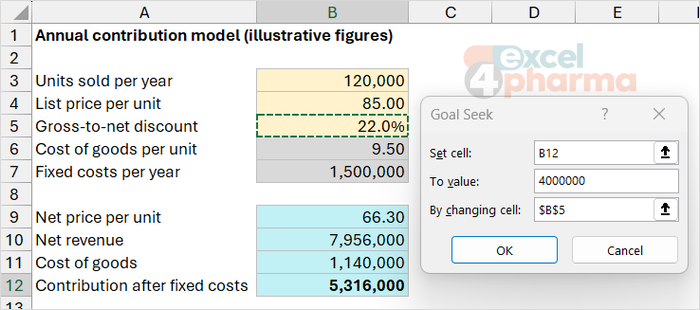
The companion file has the model in the Model sheet: units in B3 (120,000), list price in B4 (85.00), discount in B5 (22%), cost of goods per unit in B6 (9.50) and fixed costs in B7 (1,500,000). The net price in B9 is the list price after the discount, the net revenue in B10 is units times net price, and the contribution in B12 is the net revenue minus the cost of goods and the fixed costs. At the base values the contribution is 5,316,000.
To find the discount that brings the contribution down to 4,000,000:
- Click Data, What-If Analysis, Goal Seek.
- In Set cell enter
B12, the contribution. - In To value enter
4000000. - In By changing cell enter
B5, the discount. - Click OK. A box reports whether a solution was found. Click OK again to keep it, or Cancel to restore the old value.
The discount in B5 changes to 34.9%. The Goal Seek sheet holds the closed-form answer so that you can compare: cell B5 of that sheet shows 34.9020%, the exact solution of the equation. The search result is the same to four decimals. The dialog entries are repeated in B4:D4 as a reminder.
The second question on the sheet is the break-even: how many units cover the fixed costs? Reset the discount to 22%, then run Goal Seek with set cell B12, to value 0 and changing cell B3. The answer is 26,408.45 units, the same as the closed form in B9 of the Goal Seek sheet. A unit count with decimals is a reminder that Goal Seek knows nothing about packs: round it up yourself.
Two habits keep the tool safe. Goal Seek overwrites the input cell with the solution, so write the base value down, or keep a copy of the sheet, before you start. And it works one question at a time: after the first run the model stays at the new discount, which affects the second question, unless you restore it.
If Goal Seek reports that it may not have found a solution, the usual reasons are that the target cannot be reached by that input (a contribution of 20,000,000 with no discount at all), that the input has the wrong sign or scale, or that the formula is not continuous. Try another starting value close to what you expect. The tolerance and the number of tries follow the calculation settings in File, Options, Formulas, in the Maximum Iterations and Maximum Change boxes. That link is a convention I have found reliable but Microsoft's page does not spell it out, so treat it as medium confidence.
Scenario Manager: three views of the same model
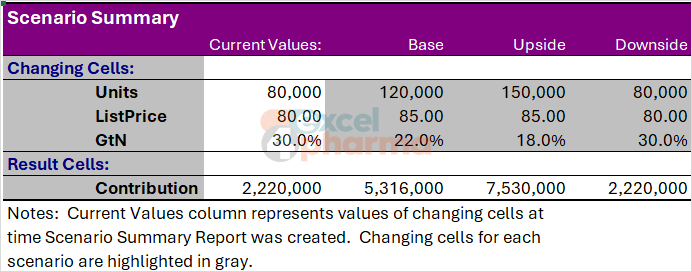
On the Scenarios sheet the three cases are laid out in a table. Units are 120,000, 150,000 and 80,000; the list price is 85.00, 85.00 and 80.00; the discount is 22%, 18% and 30%. Four cells in the Model sheet carry names: Units (B3), ListPrice (B4), GtN (B5) and Contribution (B12). Names are a courtesy to the reader: Scenario Manager shows them in its summary in place of cell addresses.
To create the scenarios:
- Click Data, What-If Analysis, Scenario Manager, then Add.
- Type a Scenario name, for example
Base. - In Changing cells enter
B3:B5. A scenario can use up to 32 cells; non-adjacent ones are separated by commas. - Excel proposes the current values. Check them and click OK; edit the values for each case.
- Repeat for
UpsideandDownside.
Select a scenario and click Show to load it into the model. The inputs change, the contribution recalculates, and the sheet now represents that case. The results, which the Scenarios sheet reproduces with formulas in row 8, are 5,316,000 for the base case, 7,530,000 for the upside (41.6% higher) and 2,220,000 for the downside (58.2% lower).
Always create a base scenario first, with the values you have today. Showing a scenario overwrites the inputs, and without a base case to return to, the original numbers are lost the moment you click on another case.

The summary report
The Summary button creates a report that sets all the scenarios side by side. Choose Scenario summary and give the result cells, here B12. Excel inserts a new sheet in which the changing cells and the result appear for each scenario in a column, with the current values in the first one. If the cells have names, the names are used as labels, which is why the names were defined in advance. Scenario PivotTable report produces a table with the same content in the form of a PivotTable.
The report is static. Microsoft's documentation states that scenario reports do not recalculate: if you change a scenario's values, or the model, you must create the summary again. For a report that is meant to stay on the page, put the results into a table with formulas, like the one on the Scenarios sheet of the companion file.
Merging scenarios
When several people work on versions of the same model, Merge collects the scenarios from other open workbooks into the current sheet. The condition is that the changing cells are the same in every workbook, so that a scenario written in one workbook fits another. Build the model once, send the same file to everyone, and merge what comes back.
A more transparent alternative
Scenario Manager has two weaknesses: its contents are hidden in a dialog, and it overwrites inputs. For models that other people will use, project practice is different: keep the cases in a visible table, as the Scenarios sheet does, add a combo box from the Developer tab whose Cell link holds the number of the chosen case, and make the model read its inputs with INDEX from the table. The reader sees every case at once, the choice is one click, and nothing is overwritten. Scenario Manager remains useful for a quick analysis on someone else's model, where adding a selector would be an intrusion.
Common mistakes
- Running Goal Seek on a result cell that does not depend on the changing cell. The tool reports that it cannot find a solution.
- Choosing a changing cell that contains a formula. Goal Seek replaces it with a constant and the model loses its logic.
- Leaving the model at the Goal Seek solution and forgetting to restore the input.
- Trusting the answer without recomputing the result. A near-miss is easy to read as a hit.
- Creating scenarios without a base case, or with changing cells that include formulas, which are overwritten by values.
- Treating the scenario summary as live. It is a snapshot of the moment it was created.
- Asking Goal Seek to change two inputs at once. It cannot; use Solver.
Companion file
Illustrative data only. Not a decision tool.For further reading
- Use Goal Seek to find the result you want by adjusting an input value - Microsoft Support
- Switch between various sets of values by using scenarios - Microsoft Support