
Recording a Macro, and When It Pays Off
The problem
Every Monday morning, the pricing team sends a price report to the country managers. The data come out of the price database already correct, but the report still needs the same ten minutes of handwork: bold header with a dark fill, two decimals on the price columns, columns resized, page set to landscape and squeezed onto a single sheet of paper. Nobody would call it difficult. It is simply the same sequence of clicks, every week, by someone whose time would be better spent reading the prices than formatting them.
A former junior controller once described the same situation with the daily sales report of his first job: two to three hours every morning spent extracting data and building reports for the area managers, reduced to five minutes a day after a few simple macros. The numbers vary, the pattern does not.
A macro is a recorded or written sequence of instructions that Excel can repeat on request. The easiest way to create one is to let Excel watch what you do.
A little theory
Macros are written in VBA, Visual Basic for Applications, the programming language built into Excel and the other Office applications. The Macro Recorder translates what you do in the interface into VBA statements: select this cell, apply bold, set this property of the page. When you run the macro, Excel executes the statements in the same order.
Two points shape everything else. First, the recorder registers the sequence of actions, not the time between them: you can pause for a coffee in the middle of a recording and nothing changes. There is no need to hurry. Second, the recorder registers what you did, not what you meant. If the last row of your list is row 301 and you click on A301, the recorder writes "select A301", not "select the last row of the list". Run the same macro on a list of 600 rows and it will still go to A301. As Microsoft puts it in its own guidance, recorded ranges apply to those cells only, and rows added later are not included.
This is why recorded macros are a starting point. They are excellent for discovering how VBA names things, and often good enough for fixed layouts. For anything that has to adapt, the code needs a few edits, which are the subject of the following articles in this category.
Show the Developer tab
The tools for macros live on the Developer tab, which is hidden by default. Go to File > Options > Customize Ribbon, tick Developer in the list on the right and click OK. The tab stays visible from then on. Its Code group holds Visual Basic, Macros, Record Macro and Use Relative References.
The essentials are also on the View tab, under the Macros button, so you can record without the Developer tab. You will want it soon anyway.
Record a macro
In the companion file, open the sheet Price Report. Then:
- Click Developer > Record Macro.
- In Macro name, type a name such as Format_Price_Report. The name must start with a letter and can contain letters, numbers and underscores, but no spaces. It also cannot look like a cell reference: TAX2026 is rejected, because TAX is a valid column in today's grid of 16,384 columns.
- Optionally, type a letter in Shortcut key. Lowercase gives Ctrl+letter; hold Shift while typing the letter and the label changes to Ctrl+Shift+, so the macro runs with Ctrl+Shift+letter. Be careful: while the workbook is open, the macro shortcut overrides Excel's own. Assign Ctrl+C and you have lost copy; even Ctrl+Shift+F is taken, since it opens the Font tab of Format Cells.
- In Store macro in, choose This Workbook. New Workbook stores it in a new file; Personal Macro Workbook stores it in a hidden workbook called Personal.xlsb, which Excel creates if needed and opens every time it starts, so the macro is available in every file.
- Type a short Description of what the macro does, then click OK.
From now on, Excel records. A square stop button appears on the status bar at the bottom of the window. Apply the formatting: bold header, a fill color, number format on the price columns, column widths. Then stop the recording with Developer > Stop Recording, or the square on the status bar.

Not everything you do ends up in the code. Opening a menu without choosing anything, opening a dialog box and closing it with Cancel, or switching to another application leave no trace, because nothing changed in the workbook. Everything else is captured, mistakes included: a wrong click that you then correct becomes two lines of code.
Read what Excel wrote
Press Alt+F11 to open the VBA editor. In the Project pane on the left, under your workbook, open Modules and double-click Module1. The macro is there, between Sub followed by the name you gave it and End Sub.
A good exercise is to record something with a visible side effect and compare it with what you expected. Record a macro that sets the page to landscape and fits the sheet onto one page wide by one page tall: Page Layout > Orientation > Landscape, then the dialog launcher of the Page Setup group, Fit to 1 page wide by 1 tall, OK. Two settings changed. The recorder, however, writes the whole page setup, around forty lines. Here is an excerpt of the version saved as Page_Setup_Recorded in the companion file:
With ActiveSheet.PageSetup
    .LeftHeader = ""
    .CenterHeader = ""
    .LeftMargin = Application.InchesToPoints(0.708661417322835)
    .RightMargin = Application.InchesToPoints(0.708661417322835)
    .PrintHeadings = False
    .Orientation = xlLandscape
    .PaperSize = xlPaperA4
    .Zoom = False
    .FitToPagesWide = 1
    .FitToPagesTall = 1
    ' ... and some thirty more lines
End With
Everything we actually asked for fits in four lines:
Sub Page_Setup()
    With ActiveSheet.PageSetup
        .Orientation = xlLandscape
        .Zoom = False
        .FitToPagesWide = 1
        .FitToPagesTall = 1
    End With
End Sub
With ... End With is worth noticing now. It means "until End With, every line that starts with a dot refers to ActiveSheet.PageSetup", and it saves repeating the object on every line. Zoom = False is needed because a page is scaled either by a zoom percentage or by a number of pages, not both.
The long version is not wrong. It is just noisy, and it carries hidden assumptions: the margins of the machine it was recorded on, and the paper size. Recorded on a European machine, it forces A4 paper on every user, including those in the US whose printers expect Letter. The short version changes only what we wanted to change.

Absolute and relative references
Use Relative References, next to Record Macro, changes how the recorder interprets selections. Off (the default), a click on D5 is recorded as "select D5". On, it is recorded as "move three rows down and one column right from where you were". Relative recording helps when the same steps must be applied starting from different cells, but it does not solve the A301 problem: neither mode understands "the last row of the list". That logic has to be written, and it takes one line, as we will see when reading and writing cells.
Run the macro
There are several ways to run a macro, and the right one depends on who will use it:
- Alt+F8 opens the Macro dialog box: select the macro and click Run. The same dialog is under Developer > Macros.
- In the VBA editor, put the cursor inside the macro and press F5.
- The shortcut key you assigned when recording, or later with Options in the Macro dialog box.
- A button on the sheet: insert a shape from Insert > Shapes, right-click it, Assign Macro, choose the macro. The pointer turns into a hand over the shape and a click runs it. For a file used by colleagues, this is the friendliest option.
- A button on the Quick Access Toolbar, for macros stored in the Personal Macro Workbook.
A running macro can be interrupted with Esc. More important: a macro cannot be undone. Once it has run, Ctrl+Z does nothing, even if the macro did no more than apply bold to a cell. Save before running a macro you are testing, and test on a copy.
Save the file
An ordinary .xlsx workbook cannot contain macros. If you save a workbook with macros as .xlsx, Excel warns that the VBA project will be lost. Use File > Save As and choose Excel Macro-Enabled Workbook (.xlsm), or Excel Binary Workbook (.xlsb), which also keeps macros and is more compact for large files.
Macros are also a classic vector for malicious code, which is why Office blocks by default the macros in files that come from the internet. For the same reason, the companion file of this article is a plain .xlsx with the code in a separate .bas text file, which you import in the VBA editor (File > Import File) before saving the workbook as .xlsm. The sheet Steps walks through it. Macro security deserves an article of its own.
When a macro pays off
Not every task deserves a macro. Building one takes time: recording, cleaning up the code, testing it on real data, and maintaining it when the report or the source system changes. A macro pays off when the task has at least one, and ideally all, of these features:
- low judgment content: the steps are mechanical and the exceptions are few and clear, the kind you could handle with one or two IF formulas;
- high repetitiveness: the same steps, applied to data with the same structure;
- high frequency: daily, weekly or monthly, rather than once a year.
Formatting, cleaning imported data, consolidating files with the same layout and producing recurring reports are the classic candidates. Interpreting results is not.
The sheet Payoff turns this into arithmetic. For each task it compares the hours spent doing it by hand with the hours spent running and maintaining the macro, and subtracts the build time once over a three-year horizon. With the illustrative inputs in the file:
- the weekly price report, 25 minutes by hand against one minute by macro, recovers its six hours of build time after 15 runs and saves about 50 hours over three years;
- the monthly access tracker update, 40 minutes against two, pays back after about 13 runs and saves about 10 hours;
- the annual price file, 90 minutes once a year, never pays back: ten hours to build, one hour of maintenance a year, and the result is a loss of more than eight hours. Do it by hand, with a checklist.
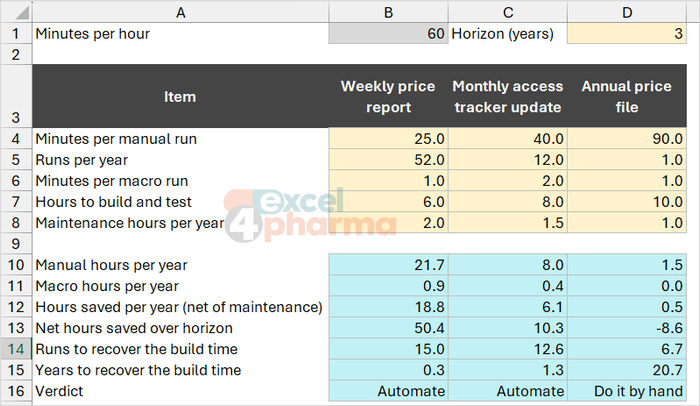
Frequency matters more than the minutes per run, and maintenance is the cost most often forgotten. A macro that breaks every time a column is added to the export can easily cost more than it saves. Speed is not the only benefit, though: a macro does the same thing the thousandth time as the first, which counts for a report that goes to management every week.
Common mistakes
- Recording a click on the last row of a list and expecting the macro to find the last row of the next list. The recorder writes a fixed address.
- Assigning a shortcut that already belongs to Excel, such as Ctrl+C or Ctrl+Z. The macro wins while the workbook is open.
- Saving as .xlsx and losing the code. Use .xlsm or .xlsb.
- Running an untested macro on the only copy of a file. There is no undo.
- Keeping the recorded page setup as it is. It forces the recording machine's margins and paper size on every user.
- Automating a task that happens once a year, or one that changes every time.
Companion files
Illustrative data only. Not a decision tool.For further reading
- Quick start: Create a macro - Microsoft Support
- Automate tasks with the Macro Recorder - Microsoft Support
- Show the Developer tab - Microsoft Support