
Power Query: The Editor and Your First Connections
The problem
On the first working day of every month, a CSV file lands in a shared folder: last month's sales, exported automatically by the company's order system. The system is old, and three things make the file unusable as it is. The first row is not a header but a title, Order system export - sales 2026-01. The separator is a semicolon, as is common in European exports. And the file is saved in the Windows-1252 encoding with prices such as € 1.245,50, written with a currency symbol, a point for thousands and a comma for decimals, so Excel reads them as text.
For years, someone fixed this by hand every month: delete the title row, find and replace the euro sign, convert the prices, save under a new name. Ten minutes each time, and once in a while a typo that broke a report. Power Query turns that routine into a pipeline defined once and applied to every new file: next month, the new file goes into the folder, Data > Refresh All is pressed, and the clean data are in the table a few seconds later.
What Power Query is
Power Query is the data import and preparation engine built into Excel, what database people call an ETL tool: Extract, Transform, Load. It was released as a free add-in for Excel 2010 and 2013 and has been built in since Excel 2016, where it appears on the Data tab in the Get & Transform Data group.
Its approach is different from both formulas and macros. A formula calculates a value in a cell; a macro executes instructions that change the sheet. Power Query records a sequence of transformation steps, each applied to the result of the previous one. Three properties follow:
- it is non-destructive: the source file is never modified, Power Query works on a copy;
- it is repeatable: the same steps run again on next month's file at every refresh;
- it is transparent: every step is listed, named and can be inspected, which is more than can be said of a find and replace done by hand.
Power Query does not replace VBA. For cleaning and combining data, a Power Query pipeline is almost always the better choice. For automation that leaves the worksheet, such as sending emails or moving files, VBA remains the right tool.
Where it lives
Every query starts from Data > Get Data, which lists the supported sources by family: from file (CSV, Excel, JSON, XML, a whole folder), from database (SQL Server and many others), from online services, and from other sources such as the web or ODBC. The most frequently used sources also have their own buttons on the ribbon, such as From Text/CSV. The Queries & Connections pane, opened from Data > Queries & Connections, lists every query already defined in the workbook.
The Power Query Editor
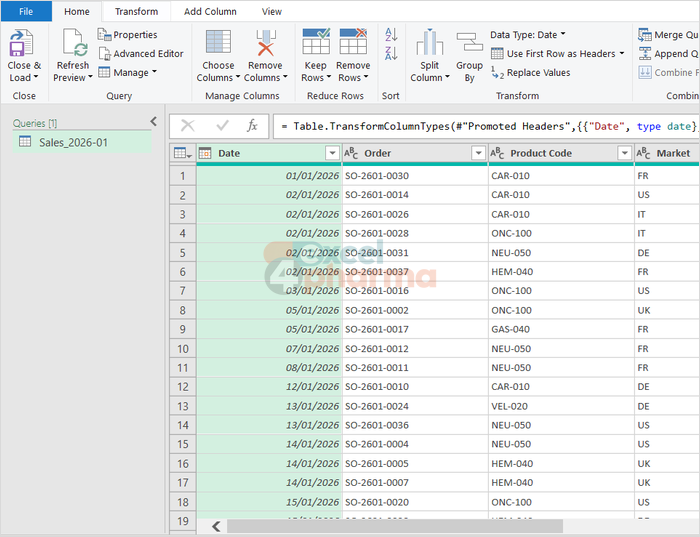
The Editor opens in its own window, with its own ribbon and three main areas:
- on the left, the Queries pane lists all the queries in the workbook;
- in the middle, the data preview shows the result of the query at the current step;
- on the right, Query Settings shows the query name and, below it, the Applied Steps.
The Applied Steps are the heart of Power Query. They are not a history of what you did, they are the definition of the query. Click on an earlier step and the preview shows the data as they were at that point; delete a step and everything after it is recalculated. Each step corresponds to a line of code in Power Query's language, called M, visible in the formula bar above the preview (if the bar is hidden, tick Formula Bar on the View tab). You never need to write M to use Power Query, but seeing it helps to understand what each step does.
Excel names the steps automatically: Source, Promoted Headers, Changed Type, Removed Top Rows, Replaced Value. These names are usually clear enough to keep. Rename only the steps that carry a key business rule, with a right click > Rename. A right click also offers Edit Settings and Delete, and the gear icon next to a step reopens its dialog box.
Connecting to a CSV file
Data > From Text/CSV, then pick the file. A preview window opens, where Excel guesses three settings: File Origin (the encoding), Delimiter and Data Type Detection. The guesses are usually right, but the encoding deserves a look: if the euro sign shows up as a strange character, set File Origin to 1252: Western European (Windows).
Two buttons close the window. Load puts the data straight into a sheet, which is fine only when nothing needs fixing. Transform Data opens the Editor, and this is almost always the right choice, because even a small fix belongs in the Editor where it is recorded and repeated. For the January file, the first fixes take two clicks: Home > Remove Rows > Remove Top Rows (one row, the title) and Home > Use First Row as Headers. Converting the European prices into numbers is a matter of data types and locale, a topic of its own.
Connecting to a workbook
Data > Get Data > From File > From Excel Workbook works the same way, with one extra step: the Navigator window lists the sheets and tables in the file, and you choose which one to load. When the source workbook has proper Excel tables, choose the table rather than the sheet: a table has clean boundaries, while a sheet may contain notes and blank rows.
Connecting to a folder
This is the option that changes the monthly routine. Data > Get Data > From File > From Folder, choose the folder, and Power Query lists the files it contains. Combine & Transform Data stacks them into a single table and opens the Editor; Combine & Load loads the result directly.
Behind the scenes, Power Query creates a set of helper queries: a Sample File, a Parameter1 that passes each file to it, and a Transform File function that applies to every file the steps defined on the sample. The main query, named after the folder, appends the results. When a change is needed for all files, such as handling a new column, you change it once on the sample and it applies to every file.
The method has two requirements. All files must share the same structure: the same column names and data types (the column order may differ, because columns are matched by name). And the folder should contain only those files, because every file in it, subfolders included, is picked up.

Connecting to a database
Data > Get Data > From Database > From SQL Server Database follows three steps: type the server and database names, confirm your credentials (remembered after the first time), and choose the tables or views in the Navigator. Data from a database already have clean types, but every transformation available for a CSV file works the same way. The connection details come from your IT team; the companion file does not include a database.
Loading the result
When the query is ready, Home > Close & Load loads it as a table in a new sheet. Close & Load To offers the alternatives:
- Table, for data you want to see in a sheet;
- PivotTable Report and PivotChart, to summarize the data directly;
- Only Create Connection, to keep the query as a definition without writing it to any sheet.
Queries that feed other queries, such as a master list used for a merge, are best kept as connections only. A practical pattern when building several queries: load each one as Only Create Connection at first, then, once the whole pipeline works, right-click each query in Queries & Connections > Load To and decide which ones really belong in a sheet. The Add this data to the Data Model option in the same dialog box connects Power Query to PivotTables built on several tables.
From then on, Data > Refresh All runs every query again on the current files.

Common mistakes
- Leaving the default encoding when the preview shows strange characters. Set File Origin before going further.
- Choosing Load instead of Transform Data on a file that needs fixing, and then fixing the loaded table by hand. The fix is lost at the next refresh.
- Using a general-purpose folder as a source. Every file in it, including temporary and unrelated files, ends up in the query.
- Renaming or deleting columns in the source files. Steps such as Changed Type refer to columns by name and fail when a name changes.
- Loading every intermediate query to a sheet. It clutters the workbook and slows down the refresh.
Companion files
Illustrative data only. Not a decision tool.For further reading
- Import data from a folder with multiple files (Power Query) - Microsoft Support
- Create a Data Model in Excel - Microsoft Support