
Your First PivotTable
The problem
A commercial team holds a log of 360 sales transactions: date, product, region, channel, units and net price. A colleague asks for net sales by product and region, and ten minutes later for the same by channel, and then by month. Each request means a new set of SUMIFS formulas, a new layout, a new check. A PivotTable answers all of them from the same source, because the layout can be rearranged in seconds and the totals are recalculated without a single formula.
The PivotTable is Excel's summarizing engine. It takes a flat list and turns it into a cross-tabulation: rows, columns and totals. It is also the tool that the rest of this series builds on.
Short theory
A PivotTable does not change the source. It reads the list, groups the records by the values of the fields you choose, and applies a function, normally a sum, to a numeric field. The result is a separate report.
The report has four areas:
- Rows: the fields that run down the left side.
- Columns: the fields that run across the top.
- Values: the numeric fields to summarize.
- Filters: fields that restrict the whole report to a selection.
Behind the report is a cache, a copy of the source data stored inside the workbook. When you change the source, the report does not know until you refresh it. This is the single most important property to remember: a PivotTable is a snapshot that you update, not a live formula.
What makes it work is the shape of the source. A good source is a flat list: one header row, one row per record, one value per cell, no blank rows or columns, no subtotals, no merged cells. The companion file's Sales sheet is of this kind, and it is an Excel table named tblSales.
Steps in Excel
Check the source
Before inserting anything, look at the list. Every column needs a unique header in one row. There must be no blank row inside it. Dates must be real dates, and quantities real numbers. If the list shows a green triangle in the corner of numbers, they are stored as text and will be counted rather than summed. The Messy Data sheet in the companion file is a deliberately damaged list, with blank rows, a missing header and a subtotal inside the data. Try to build a PivotTable on it and see how the result misleads, then repair the list.
Convert the source to a table with Ctrl+T. A table brings two advantages: the PivotTable range is the table name, not an address, and the range grows automatically when you add rows.
Insert the PivotTable
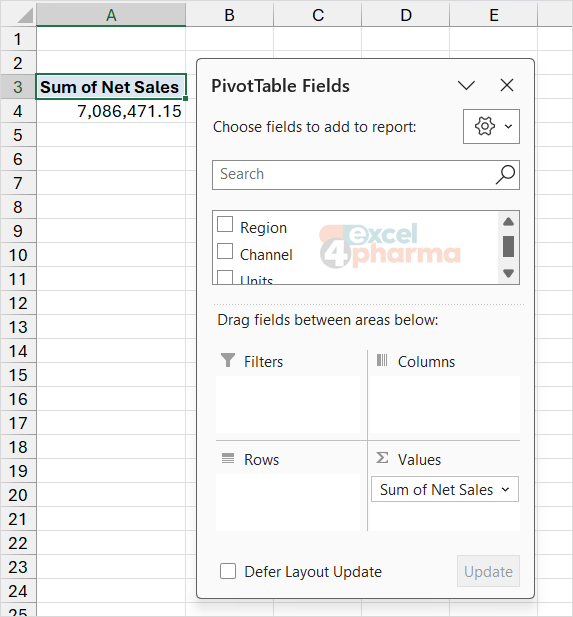
Click any cell in the table, then on the Insert tab choose PivotTable. The dialog suggests the table as the source and offers to place the report on a New Worksheet, which is the safer choice. Click OK. Excel creates a blank report and opens the PivotTable Fields pane on the right, with the list of fields at the top and the four areas at the bottom.
Build the first report
Drag Product to Rows, Region to Columns and Net Sales to Values. The report appears: one row per product, one column per region, a total at right and a total at the bottom. Net sales for the six products add up to a grand total of 7,086,471.15. The Check Grid sheet shows the same grid built with SUMIFS (header in row 2, products in rows 3 to 8, grand total in row 9), so you can confirm each number.
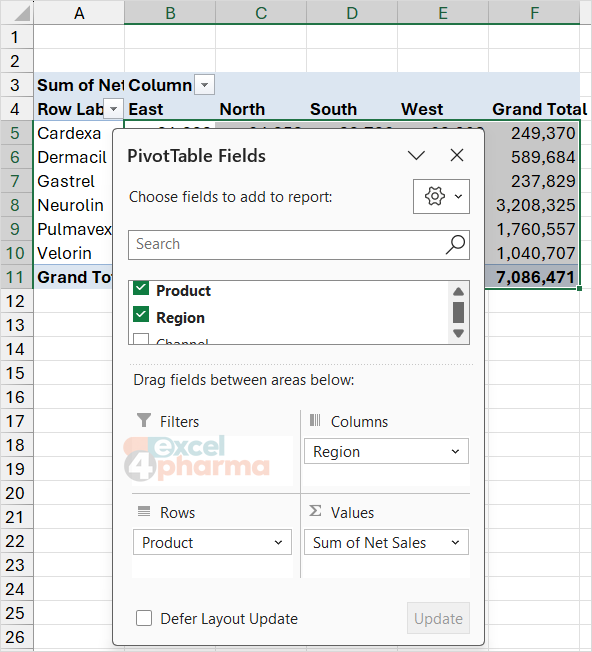
Fields can also be ticked in the list: Excel places text fields in Rows and numeric fields in Values. Dragging gives you control, and it is the way to place a field in Columns.
Rearrange
The power of the tool is that nothing is fixed. Drag Region from Columns to Rows, below Product, and the report becomes a long list with regions nested in products. Drag Channel into Columns and the report cross-tabulates product-region against channel. Drag a field out of the pane and it disappears from the report. Order matters: in Rows, the field on top is the outer level.
The Filters area works as a selector. Drop Channel in Filters and a drop-down appears above the report, where you can pick Hospital, Retail or Online, or several of them. Because it is a report filter, it restricts all the numbers at once.
Format the values
A sum shown as 7086471.15 is hard to read. Right-click a number in the report, choose Number Format, and set Number with a thousands separator and two decimals. This is stored as a property of the field, so it survives when you rearrange the report, which is different from formatting cells by hand. Also in the PivotTable Analyze tab, open Options and check Autofit column widths on update and Preserve cell formatting on update, so the report keeps its look after a refresh.
Layout and design
The Design tab controls the look. Report Layout offers three forms. Compact is the default and puts all row fields in one column. Outline gives each field its own column, with subtotals above the items. Tabular also gives each field its own column, with subtotals below, and repeats nothing: it is the form closest to a table, and the one to use if the result will be copied or used by formulas. In Tabular form, Repeat All Item Labels fills the blank labels in the outer field, which makes the result suitable for further analysis.
Subtotals can be shown at the top or the bottom of a group, or hidden. Grand Totals can be switched off for rows, for columns or for both. For a clean extract, switch off what you do not need.
Refreshing
Add the twelve rows in the New Rows sheet (A2:G13, transactions of July 2026) below the last row of tblSales. The table grows to include them. The PivotTable does not yet show them. Right-click the report and choose Refresh, or press Alt+F5; Refresh All on the Data tab updates every PivotTable in the workbook. The grand total changes from 7,086,471.15 to 7,190,188.54, and the row count from 360 to 372. The second grid in Check Grid shows the expected values, and cells B23 to B25 hold the check on the row count.
Two settings help. In PivotTable Analyze, Options, Data, tick Refresh data when opening the file so a report is up to date when a colleague opens it. And be aware that a refresh resets some manual changes, such as hand-edited labels in the report, depending on the settings.
If the source were an ordinary range and not a table, new rows below the range would not be included. The PivotTable would need its source to be extended through Change Data Source. This is why the table is the recommended starting point.
Reading the report
A PivotTable is also a tool to look into the numbers. Double-click any value and Excel creates a new sheet with the records behind it: this is the drill-down, and it is the quickest way to answer "where does this number come from". The records appear in a sheet of their own, not in the report, so delete the sheet when you are done.
The values can show a count instead of a sum. Excel does this automatically if the numeric field contains blank cells or text: the field name then reads Count of Net Sales instead of Sum of Net Sales. Seeing "Count of" where you expected "Sum of" is the signal that something in the column is not a number.
Common mistakes
- Building the report on a list with blank rows, subtotals or merged cells. The report covers only part of the list, or double-counts.
- Forgetting to refresh. The report shows the data as it was when it was created or last updated.
- Using a plain range as source and adding rows beneath it. Use a table.
- Typing a number over a value in the report. Cells in the Values area are results, not inputs; the report refuses most overwriting, and a hand-typed label in the report is lost at refresh.
- Reading "Count of" as if it were a sum.
- Copying a report into another file and expecting it to update. The copy keeps a link to the original data cache or no link at all; paste values if you need a static table.
Companion file
Illustrative data only. Not a decision tool.For further reading
- Create a PivotTable to analyze worksheet data - Microsoft Support
- Use the Field List to arrange fields in a PivotTable - Microsoft Support
- Design the layout and format of a PivotTable - Microsoft Support