
Power Query: Cleaning Data, Data Types and Locale
The problem
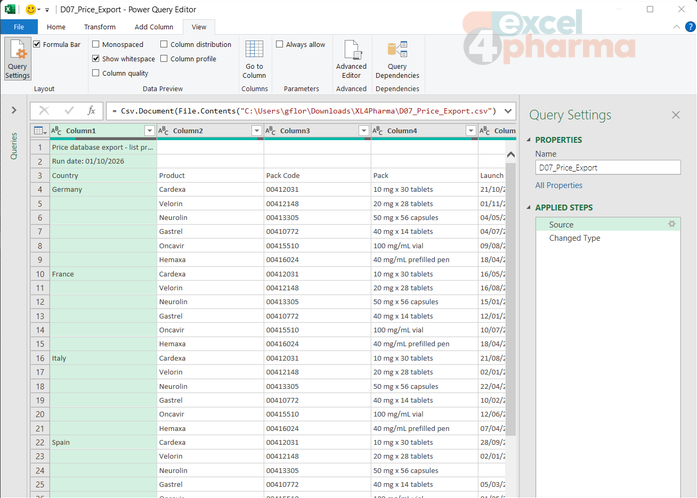
Every quarter, the price database sends an export of list prices for the European markets. The file looks like many exports do. Two title rows sit above the headers. The country appears only on the first row of each group and is blank below it. Some labels carry a trailing space. Prices are written as € 1.245,50. A product not yet launched shows a dash instead of a price and n/a as its status. Pack codes start with zeros that must not disappear. And somewhere in thirty rows, someone typed a letter O instead of a digit.
Connecting to the file is the easy part. This article covers what comes next: turning the raw import into a table whose every column has the right content and the right type, with steps that run again, unchanged, on next quarter's file.
The order of the steps
The cleaning commands live on three tabs of the Power Query Editor. Home holds the recurring clean-up (remove rows, choose columns), Transform changes the existing columns (data types, replace values, fill, format), and Add Column derives new ones. In practice, most clean-ups use a handful of them, and the order matters more than the choice:
- remove the spurious rows at the top, so that the right row becomes the header;
- promote the headers, so that every column has its real name;
- remove the columns you do not need, now that you can see what they are;
- fix the content: fill down, trim, replace values;
- set the data types last, with the correct locale, when the content is clean.
Power Query tolerates other sequences, but this one is easy to remember and avoids the most common trap: a type set too early, on a column that still contains a euro sign or a placeholder, produces errors in every cell. For the same reason, it pays to delete the Changed Type step that Power Query adds automatically after connecting and after promoting headers: click the X next to the step in Applied Steps. The types are set at the end, deliberately.
Rows and columns
Home > Remove Rows > Remove Top Rows asks how many rows to skip; two removes both title rows of the price export. Home > Use First Row as Headers then replaces the automatic Column1, Column2 names with the real ones. The same Remove Rows menu also removes bottom rows (useful for exports that end with a total), blank rows and duplicates.
For columns, there are two approaches. Select the unwanted columns and Remove Columns, or open Home > Choose Columns and tick only the ones to keep. The second is more robust when the source changes: a step that keeps named columns ignores any column the system adds next year, while a step that removes named columns lets the new one through. In the exercise, the Internal Note column goes. To rename a column, double-click its header.
Fill down, trim, replace
The blank countries are a classic of reports exported from other tools: the label is printed once per group. Transform > Fill > Down copies each value into the empty cells below it, until the next value. There is a catch, and it is worth knowing: Fill Down fills only null cells, and an empty field in a CSV file arrives as an empty text, not as null. So the first step is Transform > Replace Values with Value To Find left empty and null typed in Replace With. After that, Fill Down works.
Transform > Format > Trim removes leading and trailing spaces. Invisible in the preview, a trailing space is enough to make France and France with a space two different countries in every merge, lookup and PivotTable downstream. Clean, in the same menu, removes non-printable characters.
Replace Values does the rest. Select the two price columns together (Ctrl+click on the headers) and replace the euro sign followed by a space with nothing: one step, two columns. Two settings in Advanced options change the behavior:
- Match entire cell contents replaces only cells equal to the value. It is the right choice for placeholders: replacing - with null must not touch a negative number, and replacing n/a with Not launched must not alter a word that contains those letters;
- Replace using special characters inserts characters such as a tab or a line break, useful for text that came from multi-line cells.
The search is case-sensitive, and there is no regular-expression option in the dialog. For patterns that vary, the usual route is a combination of steps, such as Split Column or a conditional column.
Null is not zero
A null in Power Query is an absent value, and it propagates: a calculation that involves a null returns null. It is tempting to replace every null with zero, and it is often wrong. In the price export, the pharmacy retail price is null for the two hospital-only products, because there is no retail price. A zero there would pull every average retail price down and suggest a free product. Replace a null only when its meaning is clear: zero when it means no sales, a label such as Not launched when it means a status. Otherwise, leave it null and let PivotTables and formulas skip it.

Data types and locale
Each column has a data type, shown as an icon to the left of its header: text, whole number, decimal number, date, true/false and others. A column with the wrong type is the source of the quietest bugs: prices stored as text do not add up, dates stored as text sort alphabetically, and nothing turns red.
Prices written in the European style, with a point for thousands and a comma for decimals, are the typical case. A simple change of type uses the regional settings of the computer: on a PC set to English (United States), 1.245,50 is either an error or the wrong number. The fix is to tell Power Query how the text was written. Right-click the column header > Change Type > Using Locale, then choose the data type (Decimal Number) and the locale of the source (for example German (Germany) or Italian (Italy), which share that format). Select both price columns first, and one step converts them together.
Dates need the same treatment. 05/03/2026 is the 5th of March for a European system and the 3rd of May for a US one. Since the export writes day first, the Launch Date column is converted with Using Locale > Date > English (United Kingdom). The locale is a property of the step, not of the computer, so the query gives the same result on any PC that refreshes it.
The opposite case matters as much: some columns look numeric but must stay text. Pack codes such as 00412031, postal codes and any identifier with leading zeros lose information as numbers. Set them explicitly to Text, so that no automatic step converts them later.
Two curiosities. The data type icon in the header is also a menu: click it to change the type without the ribbon. And the locale for the whole file can be changed in File > Options and settings > Query Options > Current Workbook > Regional Settings, a setting that applies to new type steps in that workbook.
Errors in cells
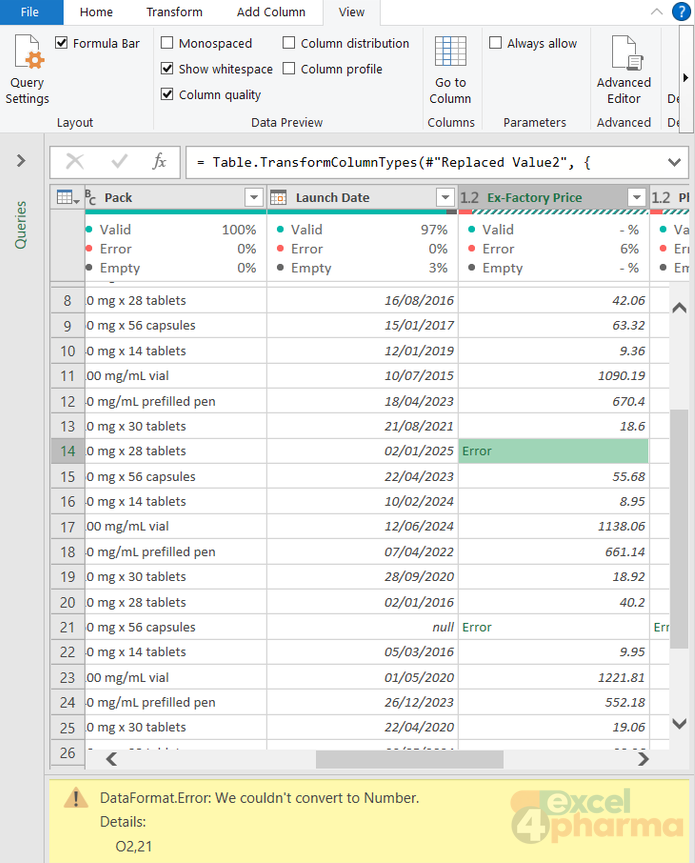
When a conversion fails on a value, Power Query does not stop. It writes Error in that cell and carries on. The corrupt price in the export, with its letter O, becomes exactly that. These are cell-level errors; a missing file or a renamed column produces a step-level error, which stops the whole query and appears in a yellow banner instead.
The quickest way to see cell-level errors is View > Column quality: under each header, a small bar shows the share of valid, error and empty values. The figures are based on the first 1,000 rows by default; the status bar at the bottom of the Editor offers the switch to the whole data set.
Three commands handle errors, each on the selected columns:
- Home > Keep Rows > Keep Errors shows only the faulty rows, to inspect them (delete the step afterwards);
- Home > Remove Rows > Remove Errors drops them;
- Transform > Replace Values > Replace Errors puts a value, such as null, in their place.
The choice depends on the use. For a report that goes to management, removing rows silently is risky: a missing product is harder to spot than an error. Inspecting, fixing the source and keeping a visible check is the safer habit. Clicking on the white space of an Error cell shows the reason below the preview, which usually points straight at the offending character.
Common mistakes
- Setting types before cleaning. A column with euro signs or placeholders converted to number fills with errors.
- Leaving the automatic Changed Type step in place. It converts with the computer's locale, before you have fixed anything.
- Running Fill Down on empty text. It does nothing until the empty values are replaced with null.
- Replacing placeholders without Match entire cell contents. Partial matches change values you meant to keep.
- Converting codes with leading zeros to numbers. 00412031 becomes 412031 and no longer matches the master list.
- Replacing every null with zero. Averages, minimums and counts change meaning.
Companion files
Illustrative data only. Not a decision tool.For further reading
- Data types in Power Query - Microsoft Learn
- Replace values and errors - Microsoft Learn
- Dealing with errors in Power Query - Microsoft Learn