
Power Query: Pivot and Unpivot
The problem
A regional payer report arrives as a grid: one row per region and product, one column per month, the number of reimbursed packs in each cell. It is easy to read and almost impossible to analyze. A PivotTable built on it sees six separate fields called 2026-01 to 2026-06 instead of one field called Month. A chart cannot be filtered by period. A SUMIFS on the second quarter needs three columns added by hand. And next month a seventh column appears, and every formula has to be extended.
The opposite also happens. A list of market access milestones holds one row per country, product and milestone, with the date in a single column. That is perfect for analysis, but a manager wants to see one row per country and product with the dates side by side.
Both are problems of shape, not of content, and Power Query solves them with two mirror operations.
Wide and long
The same information can be stored in two forms.
The wide form has one row per key and one column per period or category: Region, Product, 2026-01, 2026-02, and so on. It is the natural form for anyone typing data by hand and the best form for a printed report.
The long form has one row per combination of key and period, with the value in a dedicated column: Region, Product, Month, Packs. It is the form that PivotTables, dynamic-array formulas such as FILTER, charts with slicers and the Data Model expect. A new month is new rows, not a new column, so nothing downstream needs to change.
Unpivot turns wide into long. Pivot turns long into wide. In most workbooks, unpivot is the one used every month, because source systems and colleagues produce wide grids and analysis needs long tables.
Unpivot: from grid to list
In the companion file, the grid is an Excel table called ReimbursedPacks. Click in it and choose Data > From Table/Range to open it in the Power Query Editor.
The Transform tab, Any Column group, offers three variants under Unpivot Columns:
- Unpivot Columns: select the month columns, and they become rows;
- Unpivot Other Columns: select the columns to keep (here Region and Product), and every other column becomes rows;
- Unpivot Only Selected Columns: like the first, but strictly limited to the columns selected when the step was created.
The result has two new columns, Attribute (the old header, here the month) and Value (the number). Double-click them to rename them Month and Packs. Twelve rows of six months become 72 rows of four columns.
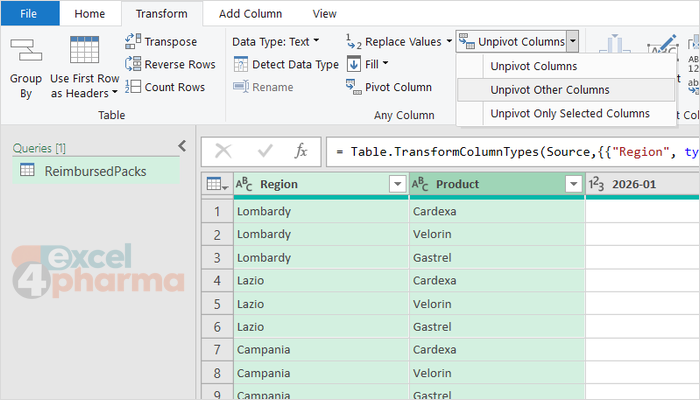
The difference between the variants matters when the source grows. Microsoft's documentation is explicit: after a refresh, both Unpivot Columns and Unpivot Other Columns also unpivot any column added to the source later, because the step remembers the columns to keep, not the ones to transform. Unpivot Only Selected Columns remembers the month names, so a new 2026-07 column stays where it is, as an extra column. For monthly data, the first two are the right choice; the third is for the rare case where new columns must be left alone. The exercise on the Steps sheet adds a July column to the source table: the query returns 84 rows at the next refresh, with no change.
A common belief, repeated in many guides, is that only Unpivot Other Columns survives a new column. In current versions of Power Query, plain Unpivot Columns does too. Selecting the key columns and using Unpivot Other Columns remains the clearest habit, because the step then says what it keeps.
Two details complete the job. The Month column arrives as text; convert it to a date if it will be used for time grouping, with Change Type > Using Locale when the headers are written in a regional format. And empty cells in the grid produce no row at all: unpivot skips null values, which is usually what you want.
Pivot: from list to grid
The milestones table, AccessMilestones, has 28 rows: five countries, two products, up to three milestones (HTA submission, HTA decision, price agreement). Open it with Data > From Table/Range, select the Milestone column and choose Transform > Pivot Column.
The dialog asks for the Values Column, the column whose content fills the new grid: here Date. Each distinct value of the selected column, Milestone, becomes a new column header.
By default, Power Query aggregates the values with a sum, which makes sense for numbers. Dates are not to be added, so open Advanced options and set Aggregate Value Function to Don't Aggregate. The other choices are Count (All), Count (Not Blank), Minimum, Maximum, Median, Sum and Average.
The result has ten rows, one per country and product, and three date columns. Spain shows null under Price agreement: the milestone has not been reached, and the grid makes the gap visible at a glance.
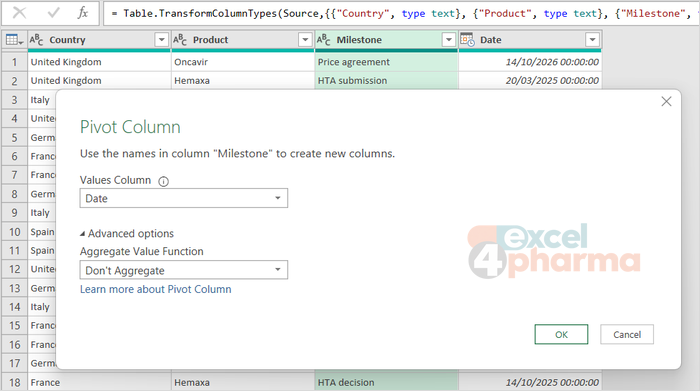
Don't Aggregate has one requirement: each combination of row and column must have exactly one value. If the same country, product and milestone appear twice, Power Query cannot choose and the cell shows Error, with the message that there were too many elements in the enumeration. The optional exercise on the Steps sheet copies one row to trigger it. The fix is either to remove the duplicates at the source, or to choose an aggregation that resolves them, such as Maximum for the latest date.
One more caution. Pivot creates one column per distinct value found at refresh time. If a new milestone appears in the data, a new column appears in the output, and the order of the columns follows the data. Downstream formulas that refer to columns by position will break; formulas that refer to them by name, or a PivotTable on the long table, will not.
Which shape to keep
A useful rule: store and model in long form, present in wide form. Unpivot early, close to the source, so that every step and every formula works on a stable structure. Pivot late, only for the output that people read. Often the final pivot is not even needed in Power Query: a PivotTable on the long table produces the same grid, with totals and filters, and stays flexible.
Common mistakes
- Building formulas or PivotTables on a wide grid. Every new period means editing them; unpivot first.
- Using Unpivot Only Selected Columns on monthly data. New months stay as columns.
- Forgetting to rename Attribute and Value. Two generic names make every later step harder to read.
- Pivoting text or dates with the default sum. Use Don't Aggregate, or Minimum and Maximum for dates.
- Using Don't Aggregate on data with duplicates. The cells show Error; remove duplicates or aggregate.
Companion file
Illustrative data only. Not a decision tool.For further reading
- Unpivot columns - Microsoft Learn
- Pivot columns - Microsoft Learn