
Reading and Writing Cells: Range, Cells and Variables
The problem
Once a year, the list prices of a portfolio are revised. The rule is simple: every list price goes up by the same percentage, rounded to two decimals, and the net price is the new list price less a standard discount, rounded again. On a sheet this is two formulas copied down. In a macro that has to run on next year's list, which will have a different number of rows, it means doing three things that every useful macro does: read values from cells, keep them in variables while calculating, and write results back, without knowing in advance where the data end.
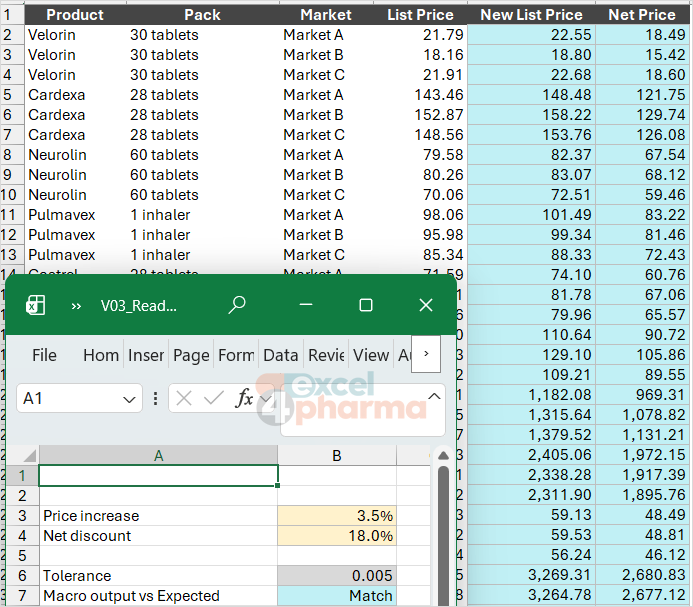
The companion file has a Price List sheet with 30 rows (ten fictional products in three markets) and an Inputs sheet with the two levers: a 3.5% increase in B3 and an 18% net discount in B4.
Two ways to point at a cell
VBA offers two ways to refer to a cell, and both return the same kind of object, a Range.
Range uses the A1 notation you type in formulas, as text between quotes:
Range("B2").Value = "Written with Range"
Range("A1:D30").ClearContents
Cells uses numbers, row first and column second:
Cells(3, 2).Value = "Written with Cells" ' row 3, column 2: B3
Note the order: Cells(7, 12) is L7, row 7 and column 12, the opposite of how we read the address. The advantage of Cells is that both numbers can be variables, which is what loops need. Range can take a variable too, by joining text and number with the ampersand: Range("D" & i) is D5 when i is 5. And the two can be combined to build a block of any size, Range(Cells(2, 7), Cells(6, 7)) being G2:G6.
The procedure Range_And_Cells in the companion file writes on the sheet Practice with both methods, so you can compare the code with the result.
Always say which sheet
Range("B2") on its own refers to the active sheet, whichever it happens to be when the macro runs. If the user clicked on another sheet, or another workbook, the macro writes there. The fix is to qualify every reference with its sheet, and the sheet with its workbook:
ThisWorkbook.Worksheets("Price List").Range("D2").Value
ThisWorkbook is the workbook that contains the code. ActiveWorkbook is whichever workbook is active at the moment, which may be a different file. For code that works on its own data, ThisWorkbook is almost always the right choice.
Writing the full path on every line is tedious, so the usual pattern is an object variable, assigned once with Set:
Dim wsPL As Worksheet
Set wsPL = ThisWorkbook.Worksheets("Price List")
wsPL.Range("D2").Value
Two benefits follow. The code reads better, because wsPL says what the sheet is. And if someone renames the sheet, the name changes in one place only.
Variables and their types
A variable is a named place in memory where a value is kept while the macro runs. It is declared with Dim and, ideally, a type:
Dim increase As Double
increase = ThisWorkbook.Worksheets("Inputs").Range("B3").Value
The types you will use most:
| Type | Holds | Range |
|---|---|---|
| Long | whole numbers | -2,147,483,648 to 2,147,483,647 |
| Integer | small whole numbers | -32,768 to 32,767 |
| Double | numbers with decimals | about 15 significant digits |
| String | text | up to about 2 billion characters |
| Boolean | True or False | |
| Date | dates and times | 1 January 100 to 31 December 9999 |
| Variant | anything, including arrays | |
| Worksheet, Range, Workbook | objects, assigned with Set |
For row numbers and counters, prefer Long to Integer. A worksheet has 1,048,576 rows, and an Integer counter overflows at 32,767 with a runtime error. Integer is a leftover from times when two bytes of memory mattered.
Variant can hold anything and is what an undeclared variable becomes. It is convenient, and the right type for one specific job, reading a whole range at once, but as a default it hides mistakes: a text where a number was expected passes unnoticed until the result is wrong. With Option Explicit at the top of the module, every variable must be declared.
Finding the last row
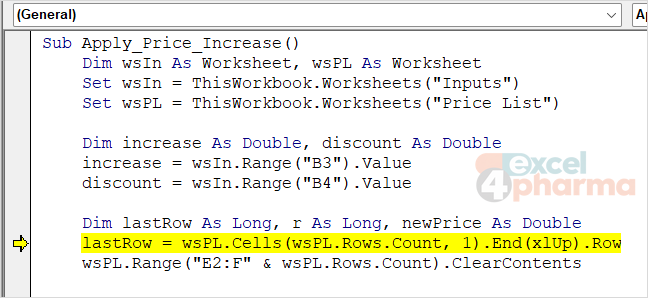
Next year's price list will not have 30 rows. The macro must find the last row with data by itself, and the standard way does what you would do by hand: go to the very bottom of column A and press Ctrl+Up Arrow.
lastRow = wsPL.Cells(wsPL.Rows.Count, 1).End(xlUp).Row
Rows.Count is the number of rows of the sheet. Cells(Rows.Count, 1) is the last cell of column A, End(xlUp) moves up to the first cell with data, and Row returns its row number. The other directions are xlDown, xlToLeft and xlToRight.
The opposite approach, Range("A1").End(xlDown), is common in recorded and older code, but it stops at the first blank cell. A single empty row in the middle of the list and the macro silently processes only half of it. On an empty column it jumps to row 1,048,576.
Writing cell by cell
Apply_Price_Increase puts the pieces together:
Sub Apply_Price_Increase()
    Dim wsIn As Worksheet, wsPL As Worksheet
    Set wsIn = ThisWorkbook.Worksheets("Inputs")
    Set wsPL = ThisWorkbook.Worksheets("Price List")

    Dim increase As Double, discount As Double
    increase = wsIn.Range("B3").Value
    discount = wsIn.Range("B4").Value

    Dim lastRow As Long, r As Long, newPrice As Double
    lastRow = wsPL.Cells(wsPL.Rows.Count, 1).End(xlUp).Row
    wsPL.Range("E2:F" & wsPL.Rows.Count).ClearContents

    For r = 2 To lastRow
        newPrice = Application.WorksheetFunction.Round(wsPL.Cells(r, 4).Value * (1 + increase), 2)
        wsPL.Cells(r, 5).Value = newPrice
        wsPL.Cells(r, 6).Value = Application.WorksheetFunction.Round(newPrice * (1 - discount), 2)
    Next r
End Sub
The two levers are read once, into variables, before the loop: reading them at every row would give the same values thirty times. The output columns are cleared before writing, so that a shorter list this year does not leave last year's results below it. Then, for each row, the list price in column 4 (D) is read, increased and rounded, and the results are written in columns 5 and 6 (E and F). The For loop counts r from 2 to the last row; loops have an article of their own.
After running it, the cell Inputs!B7 compares columns E and F with the sheet Expected, where the same calculation is done with ordinary ROUND formulas. It must show Match.
Writing a whole block at once
Every time VBA reads or writes a cell, it crosses the boundary between the code and the worksheet, and each crossing has a cost. Sixty crossings are nothing; sixty thousand are noticeable. The faster pattern reads the whole column in one go into an array, does the arithmetic in memory, and writes the results back in a single operation:
Dim prices As Variant, results() As Double
prices = wsPL.Range("D2:D" & lastRow).Value
ReDim results(1 To n, 1 To 2)

For i = 1 To n
    results(i, 1) = Application.WorksheetFunction.Round(prices(i, 1) * (1 + increase), 2)
    results(i, 2) = Application.WorksheetFunction.Round(results(i, 1) * (1 - discount), 2)
Next i

wsPL.Range("E2").Resize(n, 2).Value = results
Assigning the Value of a range to a Variant produces a two-dimensional array, even for a single column: prices(1, 1) is D2, prices(2, 1) is D3, and indexes start at 1. The results array is sized with ReDim to n rows and 2 columns, and Resize(n, 2) turns the single cell E2 into a block of exactly that shape. Apply_Price_Increase_Array in the companion file gives the same result as the cell-by-cell version; on a few thousand rows it is dramatically faster.
The same idea replaces copy and paste. To copy values from one block to another, assign them directly:
wsOut.Range("A1:D30").Value = wsPL.Range("A1:D30").Value
No clipboard, no selection, no flicker, and nothing to go wrong if the user copies something else in the meantime. The two blocks must have the same size.
A rounding trap
VBA has its own Round function, and it does not round like Excel. On a tie, a value exactly halfway between two candidates, VBA rounds to the even digit, a rule known as banker's rounding. The worksheet ROUND function always rounds halves away from zero. The sheet Rounding shows the difference on five exact ties:
| Value | Decimals | ROUND (worksheet) | VBA Round |
|---|---|---|---|
| 2.5 | 0 | 3 | 2 |
| 3.5 | 0 | 4 | 4 |
| 4.5 | 0 | 5 | 4 |
| 0.125 | 2 | 0.13 | 0.12 |
| 0.375 | 2 | 0.38 | 0.38 |
Microsoft's own documentation warns about it and points to the alternative used in this article's macros: Application.WorksheetFunction.Round, which calls the worksheet function from VBA. In a price list, where a macro and a formula must agree to the cent, this is the only safe choice.

Beyond values
Value is the property you will use most, but the same references reach every other property of a cell: Formula to write a formula as text, NumberFormat for the display format, Font.Bold, Interior.Color for the fill. Older code often uses Interior.ColorIndex, a number from a fixed palette of 56 colors inherited from early Excel versions; Interior.Color with RGB gives access to any color. Writing a formula with Range("G2").Formula = "=E2-F2" leaves a live formula in the cell, while writing a Value leaves a fixed number: choose deliberately, depending on whether the result should update when the inputs change.
Common mistakes
- Unqualified references. Range("A1") writes on whatever sheet is active; qualify with a worksheet variable.
- Swapping row and column in Cells. Cells(2, 5) is E2, not B5.
- Finding the last row with End(xlDown), which stops at the first blank cell.
- Declaring counters as Integer and hitting an overflow beyond row 32,767. Use Long.
- Forgetting to clear the output area, so a shorter list leaves old results at the bottom.
- Using VBA's Round where the result must match the worksheet ROUND function.
- Copying and pasting through the clipboard instead of assigning values directly.
Companion files
Illustrative data only. Not a decision tool.For further reading
- Refer to cells by using index numbers - Microsoft Learn
- Range.End property (Excel) - Microsoft Learn
- Data type summary - Microsoft Learn
- Round function - Microsoft Learn