
Sub vs Function
The problem
The price a patient sees at the pharmacy is not the price the manufacturer sets. Starting from the ex-factory price, the wholesaler adds its markup, the pharmacy adds its own, and VAT comes on top. In a workbook the calculation is one formula, =C2*(1+D2)*(1+E2)*(1+F2), but it appears in dozens of places: price lists, launch scenarios, comparisons between markets. Every copy is a chance for someone to drop a bracket or forget the VAT.
Two different needs hide in this example. One is a calculation that should be written once and used everywhere, like a native Excel function. The other is a task that does something to the workbook: fill a column, flag the prices above a threshold, report how many there are. VBA has a different kind of procedure for each.
Two kinds of procedure
A Sub, short for subroutine, performs actions. It can read and write cells, format ranges, open files, show messages. It does not return a value to whoever called it. Every recorded macro is a Sub.
A Function computes and returns a value. It can be called from another procedure, like a native VBA function, and, when it sits in a standard module, it can be used in a worksheet cell exactly like SUM or VLOOKUP. Microsoft calls these custom functions, and many people call them UDFs, user-defined functions.
The difference shows in the first line, and in how the result comes back:
Sub Fill_Retail_Prices()
    ' ... actions ...
End Sub

Function RetailPrice(ByVal exFactory As Double, ...) As Double
    RetailPrice = ...          ' the result is assigned to the function's own name
End Function
A function returns its result by assigning it to its own name, somewhere before End Function. If that assignment never happens, the function returns zero (or an empty value), without any error.
There is also a practical difference in how they are started. A Sub without arguments appears in the Macro dialog box (Alt+F8) and can be assigned to a button or a shortcut. A Function never appears there: you call it from a cell or from code.
Writing a worksheet function
In the companion file, the module V04_Sub_Function contains this function:
Function RetailPrice(ByVal exFactory As Double, ByVal wholesaleMarkup As Double, _
                     ByVal pharmacyMarkup As Double, Optional ByVal vat As Double = 0) As Double
    RetailPrice = exFactory * (1 + wholesaleMarkup) * (1 + pharmacyMarkup) * (1 + vat)
End Function
The header declares four arguments, each with a type, and the type of the result after the closing bracket: As Double. The fourth argument is Optional, with a default of zero, so the function also works for markets or calculations without VAT. Optional arguments must come after all the required ones. The space and underscore at the end of the first line simply continue the statement on the next line.
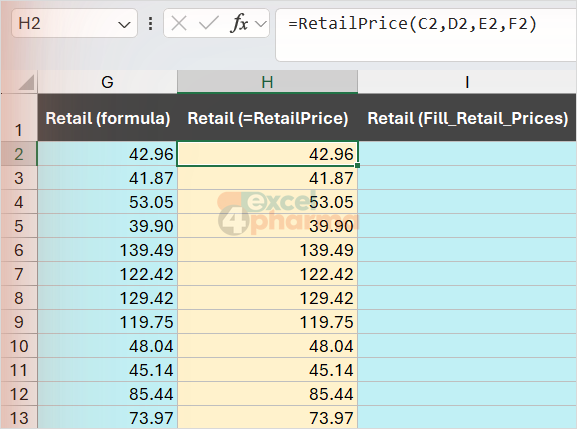
On the sheet Price Chain, the ex-factory price is in column C and the markups and VAT of each market, looked up from the sheet Markets, are in columns D, E and F. Column G holds the native formula. Type in H2:
=RetailPrice(C2,D2,E2,F2)
and copy it down to H13. Column H must equal column G, and cell L7 confirms it with Match. As you type, the function appears in the autocomplete list like any other, and in Formulas > Insert Function it is listed under the User Defined category. =RetailPrice(C2,D2,E2) would leave out the VAT and use the default.
A custom function is not a free-for-all. When called from a cell, it may only return a value. It cannot change other cells, apply formats, or resize windows; statements that try make the function return #VALUE!. This is by design, and it is a good thing: a formula that silently rewrote other cells would make a workbook impossible to audit.
A function recalculates when the cells passed as arguments change. If it reads other cells directly inside the code, Excel does not know about that dependency, and the result can go stale. Pass everything the function needs as arguments, as RetailPrice does.
Two more practical points. The workbook containing the function must be open, otherwise the formula returns #NAME?. And to use a function from another workbook, its name must be prefixed with the file: a function stored in the Personal Macro Workbook is written =PERSONAL.XLSB!RetailPrice(...). For functions a whole team uses every day, the clean solution is an add-in: save the workbook as Excel Add-In (.xlam) and activate it in File > Options > Add-ins > Manage: Excel Add-ins > Go.
Errors the native way
Older code often handles a problem inside a function by showing a message. A typical example is a percentage function that checks for a zero total, pops up a warning with MsgBox and returns zero, and otherwise returns the part divided by the total times 100, rounded to two decimals. Two things are wrong with it.
First, the message. A function in a cell runs at every recalculation, so a workbook with fifty such formulas and a zero total opens fifty message boxes, at moments the user did not choose. Second, the result. Multiplied by 100, 1,500 out of 5,000 returns 30, not 30%: formatted as a percentage, the cell shows 3000.0%. Zero is also a misleading answer to an impossible division, because it looks like a real result and flows into totals.
The version in the companion file behaves like a native function:
Function SharePct(ByVal part As Double, ByVal total As Double) As Variant
    If total = 0 Then
        SharePct = CVErr(xlErrDiv0)
    Else
        SharePct = part / total
    End If
End Function
It returns a fraction, 0.3, which the cell formats as 30.0%, and on a zero total it returns the error #DIV/0!, exactly as =A2/B2 would. CVErr turns an error constant into an error value; xlErrNA, xlErrValue and xlErrRef work the same way. Because the function can return either a number or an error, its type is Variant. Try it on the sheet Share.
A Sub that uses a Function
Functions are not only for cells. Fill_Retail_Prices loops through the rows of Price Chain and calls RetailPrice from code, writing plain values in column I:
Sub Fill_Retail_Prices()
    Dim ws As Worksheet, lastRow As Long, r As Long
    Set ws = ThisWorkbook.Worksheets("Price Chain")
    lastRow = ws.Cells(ws.Rows.Count, 1).End(xlUp).Row
    ws.Range("I2:I" & ws.Rows.Count).ClearContents
    For r = 2 To lastRow
        ws.Cells(r, 9).Value = RetailPrice(ws.Cells(r, 3).Value, ws.Cells(r, 4).Value, _
                                           ws.Cells(r, 5).Value, ws.Cells(r, 6).Value)
    Next r
End Sub
The calculation lives in one place. If the price chain changes, say a new fee per pack, only the function is edited, and both the formulas in column H and the macro pick up the change. This split, functions for calculations and subs for actions, is the backbone of well-organized VBA: small pieces, each with one job, each testable on its own.

Passing arguments: ByVal and ByRef
When a procedure passes a variable to another, VBA can pass the variable itself or a copy of its value.
- ByRef, by reference, passes the variable itself. If the called procedure changes it, the caller sees the change. This is VBA's default when nothing is specified.
- ByVal, by value, passes a copy. Whatever the called procedure does to it stays inside.
The default is a frequent source of surprises: a helper that "just uses" a variable can change it behind the caller's back. Declaring ByVal for inputs, as RetailPrice does, documents that the function only reads them. ByRef is the right choice when sharing is the point, typically a counter that several calls must update. Review_Prices shows the pattern:
Sub Review_Prices()
    Dim ws As Worksheet, lastRow As Long, r As Long
    Dim threshold As Double, flagged As Long
    Set ws = ThisWorkbook.Worksheets("Price Chain")
    threshold = ws.Range("L2").Value
    lastRow = ws.Cells(ws.Rows.Count, 1).End(xlUp).Row
    ws.Range("J2:J" & ws.Rows.Count).ClearContents

    flagged = 0
    For r = 2 To lastRow
        Flag_If_Above ws, r, threshold, flagged
    Next r

    ws.Range("L3").Value = flagged
    MsgBox flagged & " retail prices above " & Format(threshold, "#,##0.00"), vbInformation
End Sub

Private Sub Flag_If_Above(ByVal ws As Worksheet, ByVal r As Long, ByVal threshold As Double, ByRef flagged As Long)
    If ws.Cells(r, 7).Value > threshold Then
        ws.Cells(r, 10).Value = "Above"
        flagged = flagged + 1
    End If
End Sub
The counter flagged belongs to Review_Prices. The helper receives it ByRef and adds one each time it flags a price, so at the end of the loop Review_Prices knows the total and writes it in L3. With the threshold of 100 in L2, four prices are flagged, the same count that the formula =COUNTIF(G2:G13,">"&L2) gives in L4. Change ByRef to ByVal in the helper and run it again: the flags still appear in column J, but L3 shows 0, because the helper incremented its own copy.
Two more details. Flag_If_Above is Private: it does not appear in the Macro dialog box, and only code in the same module can call it, which keeps helpers out of the user's way. And it is called without brackets around the arguments, the usual syntax for calling a Sub; Call Flag_If_Above(ws, r, threshold, flagged) is the equivalent older form. A MsgBox is perfectly fine here: a Sub runs when the user starts it, so a message at the end is a confirmation, not an interruption.

Which one to write
Write a Function when the result is a value that belongs in a cell or feeds other calculations, and the same calculation is needed in many places. Write a Sub when the job changes the workbook: fills ranges, formats, imports, exports, creates sheets. Before writing a custom function for a calculation, it is worth checking whether a LAMBDA function, which needs no macros and no .xlsm file, would do the same job; VBA functions remain the better choice when the logic needs loops, string handling or anything a formula cannot express.
Common mistakes
- Forgetting to assign the result to the function's name. The function returns zero and no error appears.
- Trying to format or write other cells from a function used in a cell. It returns #VALUE!.
- Showing a MsgBox inside a worksheet function. It fires at every recalculation.
- Returning a percentage multiplied by 100 and then formatting the cell as a percentage.
- Reading cells inside a function instead of passing them as arguments. The result does not update when those cells change.
- Relying on the ByRef default by accident. Declare ByVal for inputs and ByRef only where sharing is intended.
- Putting a single argument in brackets when calling a Sub, as in Flag_It(counter). The brackets turn the argument into an expression, so it is passed as a copy even if declared ByRef.
- Saving the workbook as .xlsx, or opening the formulas without the workbook that holds the function. The result is #NAME?.
Companion files
Illustrative data only. Not a decision tool.For further reading
- Create custom functions in Excel - Microsoft Support
- Writing a Function procedure - Microsoft Learn
- Passing arguments efficiently - Microsoft Learn