
Loops: For...Next, Do While and Do Until
The problem
A price list has thirty rows today and, after the next portfolio review, three thousand. Flagging every list price above a threshold, numbering the lines, marking one row in two for an audit sample: none of these jobs is hard, but writing one line of code per row is impossible when you do not know how many rows there will be. A loop solves the problem by writing the instruction once and letting VBA repeat it.
Loops are also the answer to questions that are not about rows at all. In how many months will a new launch reach a cumulative net sales target? You do not know in advance, so the macro keeps adding months until the answer is yes.
The companion file has a Price List sheet with 30 prices, a Monthly Sales sheet with 24 months after launch, and the levers on Inputs: a price threshold of 100 in B3, a sampling step of 2 in B4, a payback target of 1,000,000 in B5 and a product to find in B6.
Two families of loops
VBA has two families. A counted loop repeats a known number of times, or once for every item in a group: For...Next and For Each...Next belong here. A conditional loop repeats for as long as, or until, a condition holds, and the number of repetitions is a result, not an input: Do...Loop, in its While and Until forms, belongs here.
A rule of thumb that works well: if you can say "for every row" or "for every cell", use For. If you must say "keep going until" or "as long as", use Do.
For...Next
The counted loop declares a counter, a start, an end and, optionally, a step:
Sub Flag_High_Prices()
    Dim ws As Worksheet, r As Long, lastRow As Long, threshold As Double
    Set ws = ThisWorkbook.Worksheets("Price List")
    threshold = ThisWorkbook.Worksheets("Inputs").Range("B3").Value
    lastRow = ws.Cells(ws.Rows.Count, 1).End(xlUp).Row
    ws.Range("E2:E" & ws.Rows.Count).ClearContents

    For r = 2 To lastRow
        If ws.Cells(r, 4).Value > threshold Then ws.Cells(r, 5).Value = "High"
    Next r
End Sub
The counter r starts at 2, the first data row, and VBA adds 1 after every pass until it passes lastRow. Inside the loop, r is just a number, which is why Cells(r, 4) works: it is column D of the current row. The last row is found as in the previous article, so the same macro handles 30 rows or 3,000. After running it, 18 of the 30 prices are marked High, and the cell Inputs!B12 compares the count with a COUNTIF formula.
The counter should be a Long, for the reason seen before: an Integer overflows at 32,767, far below the number of rows of a worksheet. The name after Next is optional, but writing it makes nested loops easier to read.

Step and counting backwards
Step changes the increment. Sample_Every_Nth_Row marks every second row, or every third if you change Inputs!B4:
    For r = 2 To lastRow Step stepSize
        ws.Cells(r, 7).Value = "Sample"
    Next r
With a step of 2 the counter takes the values 2, 4, 6 and so on up to 30: 15 rows are marked, which is ROUNDUP(30/2,0). Microsoft's reference describes the rule: with a positive step the loop runs while the counter is less than or equal to the end, with a negative step while it is greater than or equal to it. A negative step counts backwards, and backwards is not an exotic option: it is the only safe way to delete rows.
Delete_Discontinued goes through the sheet Delist, a list of 12 packs, six of them discontinued, and deletes the discontinued rows:
    For r = lastRow To 2 Step -1
        If ws.Cells(r, 2).Value = "Discontinued" Then ws.Rows(r).Delete
    Next r
When a row is deleted, every row below moves up by one. Counting forwards, the row that moves into the gap is never examined, because the counter has already moved on. The file contains the wrong version too, Delete_Discontinued_Wrong. Run it on the original list and it leaves Cardexa 56 and Oncavir 2 behind, two discontinued packs that sat directly below another one. Run Reset_Delist, which copies the list back from the sheet Delist Backup, then Delete_Discontinued: six active packs remain, and Inputs!B16 shows no discontinued rows left. Starting from the bottom, a deletion only moves rows that have already been examined.

Leaving early: Exit For
Sometimes the loop has done its job before the counter reaches the end. Find_First_Row looks for the first row of the product in Inputs!B6:
    For r = 2 To lastRow
        If ws.Cells(r, 1).Value = product Then
            found = r
            Exit For
        End If
    Next r
Exit For jumps to the statement right after Next. For Hemaxa the answer is row 20, and the loop stops there instead of reading the remaining ten rows. The macro writes the result in Inputs!B10; if the product is not in the list, found stays 0 and the macro writes "Not found".
For Each
For Each goes through every element of a group, such as the cells of a range, without a counter:
    For Each cel In ws.Range("D2:D" & lastRow)
        If cel.Value > threshold Then n = n + 1
    Next cel
The variable cel is declared As Range and, on every pass, is the next cell of the range. Count_High_Prices uses it to count the prices above the threshold and writes 18 in Inputs!B11. For Each is shorter and cannot be off by one, but it only reads forward through the group: when you need the row number, or to treat the previous row, a For loop with a counter is the better tool. For a collection, the loop variable can be a Variant or an object variable of the right type; for an array it must be a Variant.
Do While
Do While repeats as long as a condition is true. It suits the cases where the end is defined by the data, such as the first empty cell:
    r = 2
    Do While ws.Cells(r, 1).Value <> ""
        ws.Cells(r, 6).Value = r - 1
        r = r + 1
    Loop
Number_Rows_Do_While numbers the lines of the list in column F. Three parts are needed, and the macro fails quietly if any is missing. The counter must be set before the loop, because Do has no initial value of its own. The condition is checked before every pass, so if A2 were empty, the body would run zero times. And the counter must change inside the loop: without r = r + 1 the condition stays true forever. The loop stops at the first blank cell, which is a feature when the list is solid and a trap when a stray blank row sits in the middle of the data.
Do Until
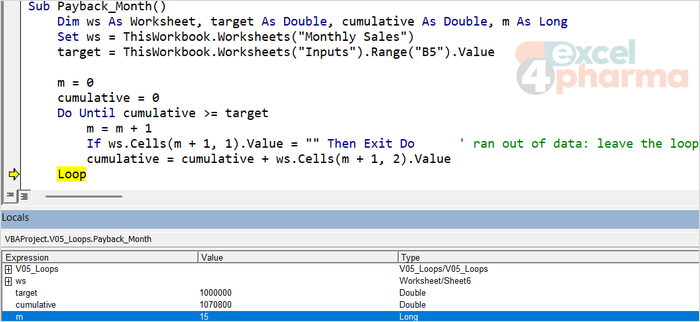
Do Until is the mirror image: it repeats until the condition becomes true. The two are logically interchangeable, "do while i is at most 3" and "do until i is greater than 3" produce the same loop, and the choice is a matter of which condition reads more naturally. The payback question is a good example:
    m = 0
    cumulative = 0
    Do Until cumulative >= target
        m = m + 1
        If ws.Cells(m + 1, 1).Value = "" Then Exit Do      ' ran out of data: leave the loop
        cumulative = cumulative + ws.Cells(m + 1, 2).Value
    Loop
Payback_Month adds one month of net sales after the other, starting from the second row of the sheet, and stops as soon as the cumulative total reaches the target in Inputs!B5. After 14 months the cumulative net sales are 975,800; month 15 brings it to 1,070,800, so the answer in Inputs!B9 is 15. The check beside it, a formula that counts the months below the target and adds one, gives the same number.
The If inside the loop is the safety net. A Do Until loop on its own never ends if the target cannot be reached: with a target of 5,000,000 there are not enough months on the sheet, and without the guard the macro would read blank cells forever. Exit Do leaves the loop, and the code after it writes "Not reached". Whenever the end of a conditional loop depends on something that might never happen, give it a second exit.
While or Until, start or end
Both words can also sit after Loop instead of after Do:
Do
    ' statements
Loop While condition
Then the condition is checked after the first pass, so the body always runs at least once. It is the right shape when something must happen before you can ask the question, such as reading a value and then deciding whether to read another. The older While...Wend loop does the same as Do While but has no Exit statement, so Do...Loop is preferable.
A loop inside a loop
Loops can be nested. The inner loop runs completely for every pass of the outer loop. Fill_Matrix fills a table of ex-factory prices by market, with one loop for the products down the rows and one for the markets across the columns:
    For r = 3 To 8                                   ' products, down the rows
        For c = 3 To 6                               ' markets, across the columns
            ws.Cells(r, c).Value = Application.WorksheetFunction.Round(ws.Cells(r, 2).Value * ws.Cells(2, c).Value, 2)
        Next c
    Next r
Six products times four markets make 24 calculations, written as one line of code. Each cell is the base price in column B multiplied by the factor in row 2 of its market: Velorin in market A is 42.50, the factor being 1.00, and Dermacil in market D is 18.08.

Indent the inner loop, and use different counters for each level: reusing r for both would break the outer loop. Exit For and Exit Do leave only the loop they sit in, not the outer one.
When a loop does not stop
Sooner or later a loop will run forever: the counter was never incremented, the condition can never become true, the stop value was mistyped. Excel stops responding, and the cursor spins. Press Esc or Ctrl+Break to interrupt the macro; the VBA editor opens in break mode with the current line highlighted, and the cause is usually visible at once. Save your work before running a new macro for the first time, because a runaway macro that does not respond to a key press leaves Task Manager as the only way out, and unsaved changes are lost.
Speeding up a long loop
Writing to the sheet inside a loop makes Excel redraw the screen at every change. For long loops, switch the redrawing off first and always switch it on again:
Application.ScreenUpdating = False
' ... the loop ...
Application.ScreenUpdating = True
If the macro stops with an error before the last line, screen updating stays off, so put the restoring line in a block that also runs after an error. If the loop only calculates, a second speed-up is the array technique seen before: read the range into an array, loop over the array in memory and write the results back in one assignment.
Common mistakes
- Never changing the variable that the Do condition tests. The loop runs forever; press Esc.
- Forgetting to initialize the counter before Do While or Do Until.
- Deleting or inserting rows inside a forward For loop. Count backwards, from the last row to the first.
- Using a fixed end such as For r = 2 To 31 instead of the last row found by the code.
- Stopping a Do While at the first blank cell when the list can contain blank rows.
- Reusing the same counter in a nested loop.
- Counter declared As Integer. Use Long.
- Writing to cells one at a time in a loop of thousands of rows without switching off screen updating, or without the array technique.
Companion files
Illustrative data only. Not a decision tool.For further reading
- For...Next statement (VBA) - Microsoft Learn
- Do...Loop statement (VBA) - Microsoft Learn
- For Each...Next statement (VBA) - Microsoft Learn