
LAMBDA, MAP, REDUCE and SCAN: Your Own Functions Without VBA
The problem
Every model has a few calculations that come back again and again: a net price after discount and rebate, a break-even volume, a compounded value. Each copy of the formula is a chance for a mistake, and when the rule changes, every copy has to be found and fixed.
For decades the only way to turn such a calculation into a reusable function was VBA: open the editor, write a Function, save the file as .xlsm and ask every user to enable macros. LAMBDA changes this. A custom function is now written as a formula, given a name in the Name Manager, and called from any cell like a native Excel function.
How LAMBDA works
LAMBDA lists the parameters first and the calculation last:
=LAMBDA([parameter1, parameter2, ...], calculation)
A break-even function takes three parameters, the fixed costs, the net price and the variable cost per unit:
=LAMBDA(fixed_costs, net_price, unit_cost, fixed_costs/(net_price-unit_cost))
Typed into a cell like this, it returns #CALC!: a LAMBDA on its own is only a definition, and it needs arguments to produce a result. To test it, call it in the same cell by adding the arguments in brackets right after it:
=LAMBDA(fixed_costs, net_price, unit_cost, fixed_costs/(net_price-unit_cost))(50000, 80, 35)
returns 1,111.11. This inline form is the test bench used while building the function. Up to 253 parameters are allowed, and the naming rules are the same as for LET: names start with a letter, cannot look like cell references, and are best kept different from Excel's own function names (avoid rate, price or value).
Naming a LAMBDA: the Name Manager becomes a library
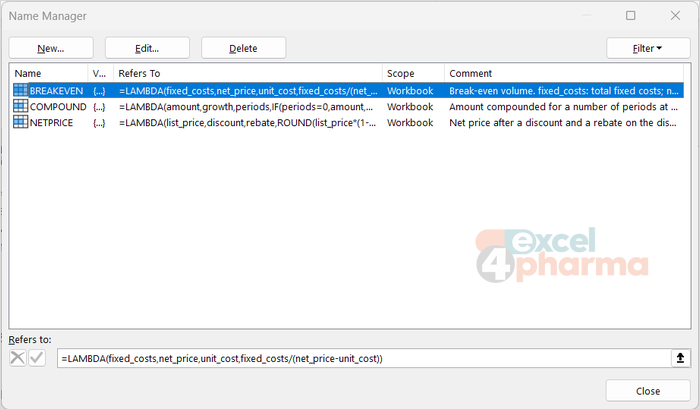
The form that pays off is the named function. In Formulas > Name Manager > New, type a name such as BREAKEVEN, a comment explaining the parameters and their units, and the LAMBDA (without the test arguments) in Refers to. From then on, any cell in the workbook can use it:
=BREAKEVEN(B2, B3, B4)
Excel even offers the name in Formula AutoComplete. The companion file defines three named functions:
- BREAKEVEN(fixed_costs, net_price, unit_cost), the break-even volume;
- NETPRICE(list_price, discount, rebate), the price after a discount and a rebate, rounded to two decimals;
- COMPOUND(amount, growth, periods), an amount compounded for a number of periods, written as a recursive function.
The advantage is double. The model reads better, because =NETPRICE(B8,B9,B10) says what it does, while =ROUND(B8*(1-B9)*(1-B10),2) has to be decoded. And the logic lives in one place: if the rebate starts applying to the list price rather than the discounted price, one edit in the Name Manager updates every cell that uses the function.

The comment field, which many users skip, is worth filling in. It turns the Name Manager into living documentation of the model for whoever inherits it.
LAMBDA or a VBA Function?
The two are complementary. A VBA Function lives in a code module, requires a macro-enabled file and the user's permission to run macros, but can do anything VBA can do, including reading files or talking to other applications. A LAMBDA is a formula: it works in a normal .xlsx file, needs no macro security approvals, and can do exactly what a formula can do, no more. For the calculations that analysts usually package as functions, such as margins, discounts, tiers, break-even points and compounding, that is all they need. When the task leaves the worksheet, VBA remains the right tool.
Recursion: a function that calls itself
A named LAMBDA can call its own name. This allows recursive functions, which solve a problem by reducing it to a smaller version of itself. Compounding is the classic case: an amount compounded for ten periods is the amount after one period, compounded for nine. COMPOUND is defined as:
=LAMBDA(amount, growth, periods, IF(periods=0, amount, COMPOUND(amount*(1+growth), growth, periods-1)))
The IF is the base case: when no periods are left, the function returns the amount and stops. Without a base case, or with one that is never reached, the function calls itself until Excel gives up and returns #NUM!. In the file, =COMPOUND(B13,B14,B15) returns the same result as the direct formula =B13*(1+B14)^B15 next to it, which is the right way to test a recursive function. Recursion is elegant, but for most business calculations it is not needed; the helper functions below cover far more everyday cases.
MAP: one calculation for every element
MAP applies a LAMBDA to each element of one or more arrays and returns an array of the same size:
=MAP(B2:B9, C2:C9, D2:D9, LAMBDA(lp, d, rb, NETPRICE(lp, d, rb)))
On the MAP sheet, this single formula returns the net price of eight products, spilling down the column. Without MAP, the same result needs a formula copied into eight cells. The LAMBDA can be written inline, as here, or replaced by a named function; with NETPRICE already defined, =MAP(B2:B9, C2:C9, D2:D9, NETPRICE) gives the same result.
REDUCE: accumulate to one result
REDUCE walks through an array, updating an accumulator at each step, and returns only the final value:
=REDUCE([initial_value], array, LAMBDA(accumulator, value, body))
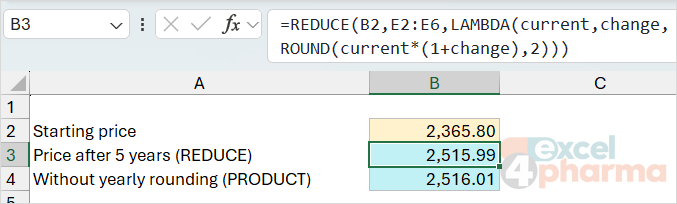
The REDUCE and SCAN sheet applies five annual price changes to a starting price, with the price rounded to two decimals after each change, as happens in a real price list:
=REDUCE(B2, E2:E6, LAMBDA(current, change, ROUND(current*(1+change), 2)))
A simple PRODUCT of the growth factors would ignore the intermediate rounding: in the file it ends two cents away (2,516.01 instead of 2,515.99), small but enough to break a reconciliation; REDUCE follows the business rule step by step. For plain sums and weighted averages, SUM and SUMPRODUCT remain simpler. REDUCE is worth it when each step has its own logic.
SCAN: accumulate and keep every step
SCAN works like REDUCE but returns all the intermediate results. Year-to-date sales from twelve monthly values in B10:B21 take one formula:
=SCAN(0, B10:B21, LAMBDA(total, sales, total+sales))
The result spills down twelve rows. Extending the data to 24 months only requires a longer source range. The same SCAN with the price-change LAMBDA returns the price path year by year, whose last value matches the REDUCE result.
Availability
LAMBDA, MAP, REDUCE and SCAN are available in Microsoft 365 and Excel 2024, but not in Excel 2021 or earlier, where the file shows #NAME?. Check who will open the workbook before building a model on them.
Common mistakes
- Typing a LAMBDA in a cell without arguments. The result is #CALC!; add the test arguments in brackets, or name it in the Name Manager.
- Passing the wrong number of arguments to a named function. Excel returns #VALUE!.
- Writing a recursive function without a reachable base case. Excel returns #NUM! after too many calls.
- Leaving the comment empty. Six months later nobody remembers the order of the parameters or their units.
- Using REDUCE or MAP where a native function exists. SUM, SUMPRODUCT and a filled-down formula are easier for colleagues to audit.
Companion file
Illustrative data only. Not a decision tool.For further reading
- LAMBDA function - Microsoft Support
- MAP function - Microsoft Support
- REDUCE function - Microsoft Support
- SCAN function - Microsoft Support