
Drill-Down and GETPIVOTDATA
The problem
A PivotTable of net sales by product and region is on screen, and a director points at one number: Neurolin in the East, 709,334.67. "What is in that?" The analyst has two choices: filter the source list by hand, or double-click the number. The second takes a second and cannot go wrong, because Excel finds the records itself.
The opposite request comes a day later. The PivotTable is correct but ugly and rigid, and the one-page report for management has a layout of its own, with some regions in a different order, blank columns for comments and four products that matter. Copying numbers by hand from the PivotTable breaks at the next refresh. The way to link a report to a PivotTable is the function GETPIVOTDATA, which reads a value from the report by name, whatever the position of that value on the sheet.
Short theory
A PivotTable is a summary, and a summary hides detail. Drill-down is the path back: from one summary cell to the records that make it. Excel does not store those records in the report. It goes to the PivotTable cache, selects the records that satisfy the row and column labels of the cell and writes them in a new sheet.
GETPIVOTDATA goes the other way, from the report to a single cell. It does not look at a cell position. It describes the value by the name of the data field and by pairs of a field and an item, and the PivotTable answers with the number in the cell that matches that description. If the PivotTable is rearranged, sorted or refreshed with new items, the function still finds the right cell, which a plain reference such as =Pivot!C7 never does.
Steps in Excel
Drill-down with a double-click
Double-click any value in the Values area, or right-click and choose Show Details. Excel creates a new sheet with an Excel table that holds the source records of that value, with all the columns of the source, not only the ones in the report. The sheet is formatted as a table, with a filter, and you can sort it, total it or copy it. When you have seen what you need, delete the sheet: the PivotTable and the source are untouched.
The Drill-Down sheet of the companion file reproduces the result. With Neurolin in B1 and East in B2, it shows what a double-click on that value gives: 19 records (B4), 6,112 units (B5) and 709,334.67 of net sales (B6), the same number as in the report. The list below, from A9, is what the drill-down sheet would contain.

Three facts about drill-down are worth remembering.
First, the details are as fresh as the last refresh. The records come from the cache, not from the source, so if the source has changed and the PivotTable has not been refreshed, the drill-down returns the old records. Refresh before you drill if the numbers matter.
Second, the drill-down sheet shows the fields of the source, not the fields you created in the PivotTable. If you grouped the products into families, the grouping field does not appear in the records. If you created a calculated field, it is not there either.
Third, the double-click can be a nuisance on a report that you hand to someone else, because it creates sheets. In PivotTable Analyze, Options, on the Data tab, the check box Enable show details switches it off, which is also a mild way to protect the source detail from readers who should only see the summary. It is not a security measure: the data is in the file.
Expanding and collapsing
A different kind of drill is the plus and minus buttons beside the labels, which expand a field into the next level or collapse it. They are on the PivotTable Analyze tab, Show group, as +/- Buttons. When a PivotTable has a date grouped by years and quarters, a double-click on a year label collapses or expands the quarters. A double-click on a value is a drill-down to records; a double-click on a label is an expansion. The cell you double-click decides the result.
GETPIVOTDATA, the automatic way
Click an empty cell outside the PivotTable, type an equals sign and click a value in the report. Excel writes a formula such as:
=GETPIVOTDATA("Sum of Net Sales",Pivot!$A$3,"Product","Neurolin","Region","East")
This is the part that surprises many users, who expected a plain reference like =Pivot!D5. The behavior is set by an option: on the PivotTable Analyze tab, under Options, the check box Generate GetPivotData controls it. If you clear it, a click gives a normal reference again. Leave it on: the function is the better tool for anything that has to survive a refresh.
The syntax is:
GETPIVOTDATA(data_field, pivot_table, [field1, item1], [field2, item2], ...)
The first argument is the name of the value field as it appears in the report, in quotes, for example Sum of Net Sales. The second is a reference to any cell inside the PivotTable. After that come up to 126 pairs: the name of a field, then the item you want in that field. If you give no pairs, the function returns the grand total.
Note the order of the pair: field first, item second. Field names and text items go in quotes. Dates and numbers do not.
Making the formula dynamic
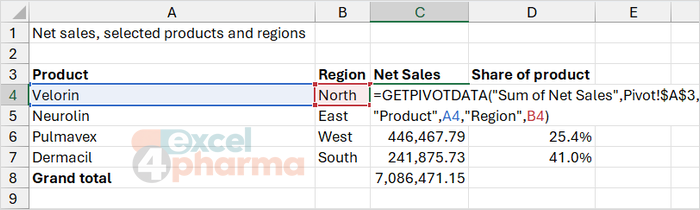
The formula Excel writes contains the labels as text. Replace them with cell references and the same formula fills a report. In the Report Template sheet, product names are in A4:A7 and regions in B4:B7. Column C holds the values the report must show: Velorin in the North 331,842.47, Neurolin in the East 709,334.67, Pulmavex in the West 446,467.79 and Dermacil in the South 241,875.73. Column H holds the matching GETPIVOTDATA formula, written as text without the equals sign, to type on a sheet next to your own PivotTable:
GETPIVOTDATA("Sum of Net Sales",Pivot!$A$3,"Product",A4,"Region",B4)
With the labels in cells, the report can be laid out as you like: change the region in B4 and the formula follows. Column D adds a share of the product, the kind of calculation a PivotTable does not offer next to a layout of your own.
Dates and several items
Dates must be given as a serial number or built with DATE. A text such as "01/04/2025" is read differently in different locales, and Excel does not accept any date format typed as text. The Date Items sheet lists the serials: 1-Jan-25 is 45,658, 1-Apr-25 is 45,748 and 1-Jan-26 is 46,023. In a formula, DATE(A2,B2,C2) does the job in every locale.
To pick more than one item of the same field, enclose the items in curly braces. The function then returns the sum of the items.
When the function returns #REF!
The error has a short list of causes, given by Microsoft. The second argument does not point into a PivotTable. The field you describe is not visible in the report: GETPIVOTDATA reads the report, not the source, so a field that is not in the layout, or an item hidden by a filter, cannot be read. Or a name is misspelled, including the name of the value field, which must be the one in the report. A frequent case is a PivotTable where you renamed Sum of Net Sales to Net Sales: the formula must use the new name.
Why bother
For a report on a large source, the function is an alternative to SUMIFS. SUMIFS reads every row of the source each time it is calculated; GETPIVOTDATA reads one cell of the report, so it is typically much lighter when there are hundreds of formulas on hundreds of thousands of rows. That is an opinion based on how the two work, with medium confidence: test it on your own file before choosing. The price is that the PivotTable must be kept in line with the report, with the fields in the layout and refreshed before the report is read.
Common mistakes
- Reading a drill-down after the source changed without refreshing the PivotTable.
- Expecting the drill-down to show grouping fields or calculated fields.
- Switching off Generate GetPivotData and linking a report to cells by address, which breaks on the first re-sort.
- Reversing field and item in a pair.
- Typing dates as text instead of serial numbers or DATE.
- Asking for a field that is not in the layout, or for an item hidden by a filter, and getting #REF!.
- Renaming the value field and forgetting the formulas.
Companion file
Illustrative data only. Not a decision tool.For further reading
- GETPIVOTDATA function - Microsoft Support
- Drill into PivotTable data - Microsoft Support
- Convert PivotTable cells to worksheet formulas - Microsoft Support