
Number and Date Formats, and Numbers Stored as Text
The problem
Appearances deceive in Excel, and nowhere more than in numbers. A cell can show 2.1 while holding 2.0952. It can show a date while holding 46,372. It can show "Net sales 8.5M" and still be a plain number that adds up. And the reverse happens just as often: a cell that looks like a number is really text, a total comes out short, a formula sits in the cell as literal characters and refuses to calculate.
All of this is the work of one mechanism, the number format, and of its sibling, the text format. Understanding it removes a large share of the small mysteries that make people distrust a spreadsheet. The examples use G02_Number_Date_Formats.xlsx, with one sheet per topic and illustrative figures for fictional products.
The theory in three lines
A cell holds a value. The number format decides how that value is displayed, and only that. Formulas always work on the value, never on what the screen shows.
The format is chosen on the Number tab of Format Cells (Ctrl+1). The ready-made categories (Number, Currency, Accounting, Date, Time, Percentage, Fraction, Scientific, Text) cover most needs, and the last one, Custom, accepts a code that you write yourself. Most of what follows is that code.
Percentages: store the fraction
A percentage is a fraction: 10% is 0.1. Format the cell as Percentage and Excel displays 10% while the cell holds 0.1. The alternative, typing 10 and calling it a percentage in the label, is the source of many errors, because every formula has to remember to divide by 100.
In the Percent sheet a gross sales figure and a rebate rate feed the same net sales calculation. With the rate stored as 18% the formula is simply:
=B3*(1-B4)
When someone types 18 instead, the same formula returns a large negative number, and nothing on the screen hints at the cause beyond a missing percent sign. Store rates as fractions and format them as percentages, and parameters stay readable and formulas stay short.
Custom number formats
Four sections
A custom format can have up to four sections separated by semicolons, in a fixed order: positive numbers, negative numbers, zero, text. Each section is a pattern in which 0 is a digit that is always shown, # a digit shown only when needed, , the thousands separator and . the decimal point (in the US setup of Excel). Any section can be left empty, but its semicolon must stay.
#,##0.0;(#,##0.0);"-";@
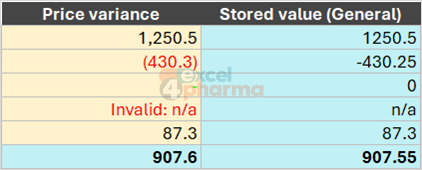
With this format 1250.5 appears as 1,250.5, a negative value in parentheses (the accounting convention), zero as a dash and text unchanged. Add a color in square brackets at the start of a section and each case gets its own: [Black]#,##0.0;[Red](#,##0.0);[Green]"-";[Red]"Invalid: "@. The available names are Black, Green, White, Blue, Magenta, Yellow, Cyan and Red.
One of the examples circulating in many guides describes the sections in the order positive, negative, text, zero. The correct order is positive, negative, zero, text, as Microsoft documents.
The Four Sections sheet applies the format above to a column of price variances. The stored values never change, so the SUM at the bottom still returns the true total.
Text and units without losing the number
To show a unit after a number, type the text in quotation marks inside the format: #,##0.0 "mg". The cell displays 250.0 mg, yet it contains 250 and can be used in any calculation. The sheet Four Sections includes a short list of doses to prove it: the SUM of five cells formatted this way is a number, not a concatenation.
Thousands and millions without dividing
Reports for management rarely need units. A comma placed after the last digit placeholder divides the displayed number by 1,000, and each additional comma divides by another thousand, without touching the value:
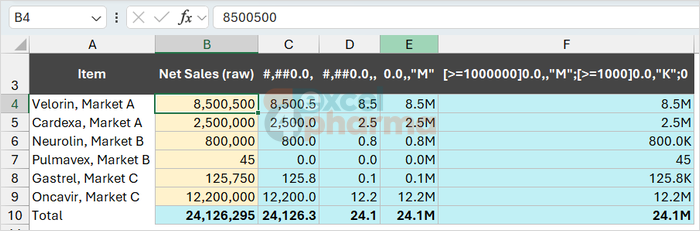
#,##0.0,displays 8,500,500 as 8,500.5#,##0.0,,displays it as 8.50.0,,"M"displays it as 8.5M
Do not divide the raw data by a thousand to get round numbers. The division would have to be repeated, remembered and documented, and it changes the numbers every formula reads. With the format, the full value remains underneath. The same codes work on chart axes and in data labels.
The Scaling sheet shows one column of net sales in raw units next to the same values in four formats.
Conditions
A section may begin with a condition in square brackets, using the comparison operators from conditional formatting: <, >, =, <=, >= and <>. A format can test up to two conditions, and the last section takes everything else. This one shows millions, thousands or plain numbers depending on size:
[>=1000000]0.0,,"M";[>=1000]0.0,"K";0
2,500,000 appears as 2.5M, 800,000 as 800.0K and 45 as 45. Combine it with colors, for example [Red][>20000]#,##0;[Blue][<1000]#,##0;#,##0, to flag very large and very small values. Conditional formatting covers the same ground with more flexibility and is the better tool when the thresholds change often; custom formats are best for fixed rules that should travel with the cell.
Hiding a value
Three semicolons in a row, ;;;, make a cell display nothing at all, whether it holds a number or text. The value is still there, visible in the formula bar and used in calculations. To hide only the negatives, use #,##0.0;;0.0, where the empty second section removes them from view. Hidden content is easy to forget, so use this for helper cells and document it.
Dates are numbers
Excel stores a date as a serial number: the count of days since 31-Dec-1899, so that 1 is 01-Jan-1900 and 2,958,465 is 31-Dec-9999, the last date Excel supports. A time is the fraction of a day: 0.5 is noon. A curiosity worth knowing: serial 60 is a 29-Feb-1900 that never existed. Excel kept that quirk for compatibility with older spreadsheet software.
That is why dates can be added and subtracted, and why one of the most frequent surprises in Excel has a one-line explanation. Subtract one date from another and Excel, being helpful, formats the result as a date too, so a difference of 10 days appears as a date in January 1900. The remedy is to select the cell and choose a Number or General format. The Dates sheet shows the mistake and the fix next to each other.
Typing something that does not look like a valid date leaves it as text. Entering 99/12/2026 gives text, because no month has 99 days. A date that was typed as text will not sort or calculate as a date, which leads to the next section.
Date and time codes
In a custom format d, dd, ddd and dddd give the day as 5, 05, Mon and Monday; m, mm, mmm and mmmm the month as 3, 03, Mar and March; yy and yyyy the year as 26 and 2026; h, hh, m and s the time. The letter m is ambiguous: Excel reads it as minutes when it follows an hour or precedes seconds, as in hh:mm.
Literal text goes in quotation marks, so that dddd d mmmm yyyy, "at" hh:mm shows Wednesday 16 December 2026, at 00:00 for 16-Dec-26. (An Italian source used the same date as an example and called it a Thursday; 16 December 2026 is a Wednesday.)
For documents shared across countries, write dates in an unambiguous order such as dd-mmm-yy, which displays 16-Dec-26 and cannot be misread as month first by an American colleague. Month and day names appear in the language of the machine that opens the file, so a file with Dec-26 reads Dez-26 on a German computer. To force a language, add a locale code at the start of the format, such as [$-407]dddd for German day names, or use the Locale (location) list on the Date category.
Numbers stored as text
Spotting them
A number stored as text sits left-aligned in a cell, usually carries a small green triangle in the corner, and is ignored by SUM. In the Text Numbers sheet the SUM of five such values is zero. The usual causes are exports from other systems, copy and paste from web pages and PDFs, and a cell that was formatted as Text before the number was typed.
Converting them
Several methods work, and which to use depends on the volume:
- Select the cells, open the error indicator and choose Convert to Number. It is the quickest for a block, and the Microsoft article on the topic describes it.
- Use
=VALUE(A2)in a helper column, fill it down, then paste the results back as values. - Use a double unary,
=--A2, or multiply by one,=A2*1. Both force Excel to read the text as a number. - For an export with European separators, where 1.250,75 means 1,250.75, use
=NUMBERVALUE(F4,$I$4,$J$4), where I4 holds the comma and J4 the point. The function states the decimal and group separators explicitly, so it works independently of the Windows regional settings.
Formulas that will not calculate
A formula typed into a cell formatted as Text stays on screen as text, exactly as typed. Changing the format to Number is not enough; Excel reads the cell again only when it is re-entered. Select the cells, set a format other than Text, and then for each cell press F2 followed by Enter. The Text Numbers sheet contains one such cell.
The reason is simple. A cell formatted as Text tells Excel that whatever is typed in it is a string, so Excel does not parse it as a formula. It is a rule about interpretation, not a memory saving, as some guides claim.
Leading zeros
Codes such as 00093 lose their zeros when typed, because 00093 is the number 93. If the code is an identifier, used for matching and never for arithmetic, store it as text: type an apostrophe before it ('00093) or format the column as Text before entering the data. If it must stay numeric, a custom format of 00000 displays 93 as 00093 while the value remains 93. The apostrophe is not part of the cell content and appears only in the formula bar.

Common mistakes
- Typing percentages as whole numbers and dividing by 100 later. Store 0.18 and format as a percentage.
- Dividing raw data by 1,000 or 1,000,000 to make a report readable. Use the comma scaling in the number format.
- Subtracting two dates and reading the result as a date. Apply a Number or General format.
- Typing a date in the wrong order for your regional settings and ending up with text, or with the wrong day.
- Converting text to numbers and leaving the old cells in place, so that totals include both or neither.
- Formatting a column as Text before pasting numbers into it. Format it as General and convert any text you inherit.
- Forgetting that
;;;hides a value. The number is still there and still counted.
Companion file
Illustrative data only. Not a decision tool.For further reading
- Review guidelines for customizing a number format - Microsoft Support
- Convert numbers stored as text to numbers in Excel - Microsoft Support