
Summarize By and Show Values As
The problem
A PivotTable of net sales by product and region shows amounts. The reader asks different questions: what share of the total does each product make; how does one region compare with the average; how did a product grow from quarter to quarter; which product ranks first in each region. All of these can be answered without a single formula outside the report, with two settings of the Values area: how the numbers are summarized, and how they are shown.
Short theory
Every number in the Values area is the result of two independent choices.
The first is the summary function, which says how the records of each cell are combined: sum, count, average, maximum and so on. The second is the display calculation, which says what to do with that result afterwards: show it as it is, as a share of a total, as a difference from another cell, or as a running total.
The two stack. First Excel summarizes the records, then it transforms the summary. Understanding the order explains most of the confusing outcomes. A "percent of column total" is the percentage of the summarized numbers, not of the individual records.
Both settings live in the same dialog, Value Field Settings, reached by right-clicking a value and choosing it, or by clicking the field in the Values area and choosing Value Field Settings.
Steps in Excel
Summarize Values By
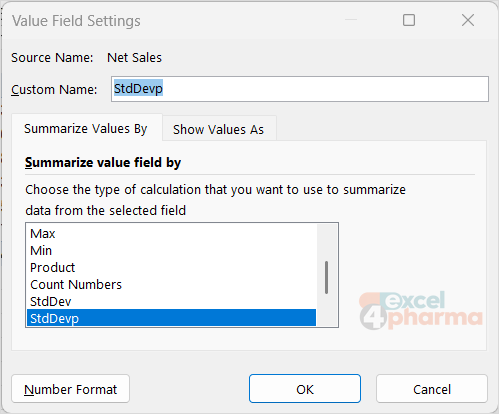
The first tab of the dialog, Summarize Values By, lists the functions:
- Sum, Count, Average, Max and Min.
- Product, which multiplies the values.
- Count Numbers, which counts only numeric cells, while Count counts all non-empty cells.
- StdDev, StdDevp, Var and Varp.
The last four deserve a note on naming. The names without the p are the sample versions, which divide by n minus 1 (the same as STDEV.S and VAR.S in formulas). The names with p are population versions, which divide by n (STDEV.P and VAR.P). The sample version is the right choice when the records are a sample of a larger set; the population version when they are all there is.
The Summarize By sheet applies each function to the net sales of one product, chosen in B1 (Neurolin). The results are: Sum 3,208,325.25, Count 69, Average 46,497.47, Max 162,024.30, Min 4,085.20, StdDev 33,252.01, StdDevp 33,010.17, Var 1,105,696,115.84 and Varp 1,089,671,534.45. Build a PivotTable with Product in Rows and Net Sales in Values several times, one per function, and compare. The same field can be dropped into Values more than once, each copy with a different function, which allows count, sum and average side by side. Rename the copies, since Excel will call them Sum of Net Sales2 and so on.
The summary applies to the records behind each cell. Average of Net Sales therefore averages the transactions, not the products: a product with a few large transactions and many small ones gets its own mean.
Show Values As
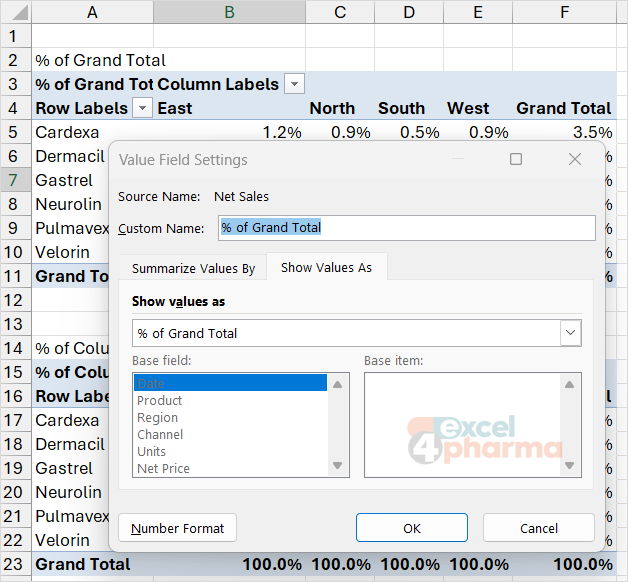
The second tab, Show Values As, has a drop-down with the display calculations. Start with the share calculations, which use the grid in the Show As sheet: products in rows 4 to 9, regions across, totals in row 10.
- % of Grand Total: each cell divided by the grand total. In the companion file the four regions hold 24.2%, 26.1%, 24.7% and 25.0% of the total net sales.
- % of Column Total: each cell divided by its column total, so each column adds up to 100%. Use it to see the product mix inside a region.
- % of Row Total: each cell divided by its row total, so each row adds up to 100%. Use it to see the regional split of a product.
- Index: a measure of how a cell compares with what would be expected from the totals. The formula is a cell value times the grand total, divided by the row total times the column total. An index of 1 means the cell is as expected, above 1 means over-represented. It is the quickest way to spot a product that sells more than its share in a region.
The blocks in Show As are laid out one beneath the other, with titles in rows 13, 25, 37 and 49, so each block can be compared with the PivotTable setting of the same name.
Differences and running totals
Some calculations need a Base field, the field along which they move, and a Base item where relevant.
- Difference From and % Difference From compare each value with the previous one, with the next one, or with a named item along the base field. Set the base item to (previous) to obtain period-on-period change when the rows are dates. When dates are grouped by Years and Quarters, choose the quarter level, Quarters (Date), as base field: the plain Date field returns an error.
- Running Total In accumulates along the base field: year to date for months, cumulative sales across quarters. % Running Total In divides the accumulation by the final total.
- Rank Smallest to Largest and Rank Largest to Smallest number the items along the base field.
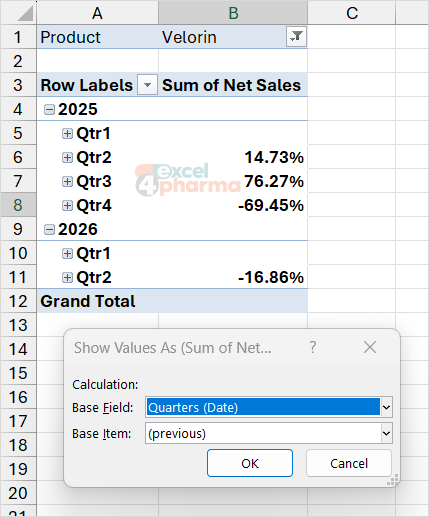
The Running Total sheet follows one product by quarter. With Velorin in the filter, (previous) returns +14.7%, +76.3% and -69.5% for the last three quarters of 2025, and -16.9% for the second quarter of 2026. The first quarter of each year shows blank: with Years in the rows, (previous) does not cross into the year before, so the +13.0% from the last quarter of 2025 to the first of 2026 appears only on the Running Total sheet. The percent difference is the change as a fraction of the previous value, so a fall of 69.5% followed by a rise of 13.0% does not take you back to where you were.
Rank is the setting that answers "which product is first in each region". With Region in Columns, Product in Rows and the base field set to Product, the rank is computed down each column.
Percent of parent
When two fields are nested in Rows, the calculation % of Parent Row Total shows each item as a share of the item that contains it. The Parent Share sheet has Region and Channel in the rows: each channel's share of its region adds up to 100% within each region, while % of Grand Total shows each channel's share of everything. There are also % of Parent Column Total and % of Parent Total, which let you choose the parent field.
Changing the number format
A display calculation changes the meaning of the number, so the number format must follow. A percentage shown as 0.242 is not wrong, but it is unreadable. In Value Field Settings, click Number Format and choose Percentage with one decimal. The format is stored on the field.
Common mistakes
- Reading the average of a PivotTable as an average of the rows shown. It is the average of the records behind them.
- Confusing StdDev with StdDevp. Use the sample version unless you have the whole population.
- Choosing the wrong base field in Difference From, and getting blanks everywhere.
- Expecting (previous) to compare the first quarter with the last quarter of the year before when Years is in the rows: that cell stays blank.
- Using % of Column Total when the question is about rows.
- Forgetting to rename the duplicated fields, which leaves Sum of Net Sales2 in a management report.
- Treating a percentage difference as additive. Two changes of +10% and -10% do not cancel.
Companion file
Illustrative data only. Not a decision tool.For further reading
- Show different calculations in PivotTable value fields - Microsoft Support
- Change the summary function or custom calculation for a field in a PivotTable - Microsoft Support
- Calculate values in a PivotTable - Microsoft Support