
Formula Auditing and Calculation Speed
The problem
Sooner or later you open a workbook that someone else built, or one of your own from two years ago, and a number looks wrong. Where does it come from? Which cells does it depend on? What breaks if you delete the column next to it? A second problem is the opposite one: the workbook is right but every keystroke takes a second. Both problems come from the same place, the web of references between cells, and Excel has tools to look at it.
This article covers the group of commands in Formulas > Formula Auditing, and the calculation settings in the Calculation group. The examples use the companion file W08_Auditing_Calculation.xlsx. The Inputs, Chain and Report sheets form a small chain from price to gross margin across three sheets. Evaluate holds a nested formula to step through. Calculation modes and Volatile functions are reference tables.
A first look: F2
The quickest way to see what a formula uses is to select the cell and press F2. Excel enters edit mode and draws a colored border around each cell and range in the formula, in the same color as the reference in the text. The cells must be on the same sheet. You can drag a colored border to another place, and the formula changes to the new reference. It is a fast way to edit a reference, and not the right tool for a dense web of formulas.
Trace Precedents and Trace Dependents
Trace Precedents draws arrows from the cells that feed the selected cell. Select Chain!B7, the gross margin, and click it: arrows run from B6 and B4. Click it again and Excel shows the next level back, and again, until you reach cells that depend on nothing, the inputs. On the Inputs sheet the price, discount, rebate and units are such cells. Blue arrows point to cells without errors and red arrows to cells that cause an error. Double-click an arrow and Excel jumps to the cell at the other end.
When a precedent is on another sheet or in another workbook, the arrow is black, dashed, and ends in a small worksheet icon. Double-click the icon and the Go To dialog lists the external cells, so you can pick one and jump. Microsoft adds that the other workbook must be open for Excel to trace into it. Report!B2 reads from Chain, and its arrow ends in the icon.
Trace Dependents goes the other way: from a cell to the cells that use it. This is the command to run before cleaning a sheet. Deleting a column or a row that looks unused is the classic way to produce #REF! errors in a place far from the deletion. Select the cell and trace its dependents: if arrows appear, something else needs it. On Inputs, B2 has dependents on Chain, and from there on Report.
Remove Arrows clears all of them. Its drop-down also removes one level of precedents or dependents at a time.

Show Formulas
Formulas > Show Formulas replaces every result with its formula, on the whole sheet, and presents data as they were typed. The keyboard shortcut is Ctrl+` (the grave accent, usually above Tab). Press it again to go back. Printing in this mode produces a record of the structure of the sheet, which is useful for documentation or for keeping a copy of the logic. Some descriptions give another key combination, Ctrl+Shift+8. On an English keyboard, that selects the current region; the formula toggle is the grave accent.
The function FORMULATEXT does the same for one cell and keeps the formula visible beside the result, as in column F of the Calc sheet in the article on names.
Watch Window
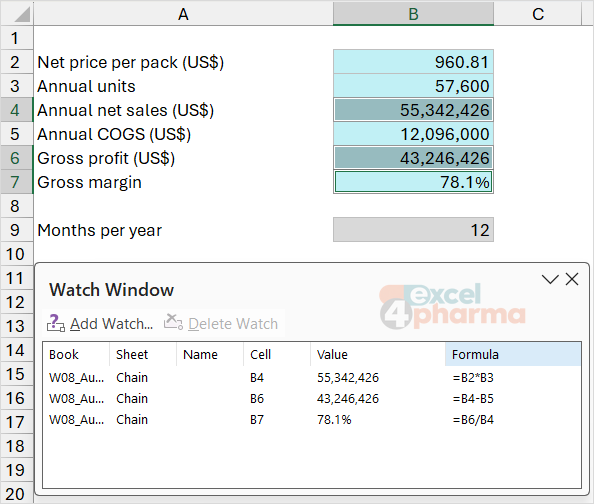
When the input you are changing is on one sheet and the result you care about is on another, you spend your time switching sheets. The Watch Window fixes that. Select the cells to monitor, choose Formulas > Watch Window > Add Watch and confirm. The window floats over the workbook, stays visible when you change sheets, and lists the workbook, sheet, name, cell, current value and formula of every watched cell. It updates as the model recalculates. You can drag the window to any edge of the Excel window and double-click an entry to jump to its cell.
Watch the gross margin on Chain and change the discount rate on Inputs: the margin moves in the window without leaving the input sheet. Two limits are in Microsoft's page. A cell can have only one watch, and cells that refer to another workbook appear only while that workbook is open. To remove entries, select them and click Delete Watch.
Evaluate Formula
When a long formula returns an error or a surprising number, Evaluate Formula shows how Excel calculates it, one step at a time. Select a single cell, since Excel evaluates one cell at a time, and choose Formulas > Evaluate Formula. The dialog shows the formula with one part underlined. Evaluate calculates the underlined part and shows its result in italics. Step In opens the formula inside a reference to another cell, Step Out returns, Restart begins again and Close ends.
The Evaluate sheet has twelve months of net sales and a window between 01-Apr-26 and 01-Sep-26 in G1:G2. D2 contains:
=SUM(OFFSET($B$1,COUNTIF($A$2:$A$13,"<"&$G$1)+1,0,COUNTIFS($A$2:$A$13,">="&$G$1,$A$2:$A$13,"<="&$G$2),1))
Evaluate shows these steps in turn. The reference $G$1 becomes the date's serial number, 46113. The concatenation "<"&46113 becomes the text "<46113". COUNTIF returns 3, the months before April, and adding 1 gives 4. Then the two dates and the COUNTIFS criteria are replaced the same way, with 46266 for the end, and COUNTIFS returns 6. OFFSET($B$1,4,0,6,1) turns into a range, B5:B10, and SUM returns 7,281.9. The formula, which looked opaque, has become a sequence of simple operations, and the step at which a result stops making sense is the step with the bug. D3 repeats the result with SUMIFS as a check.
Microsoft lists the limits. Parts of IF and CHOOSE formulas are skipped, and the Evaluation box shows #N/A for them. A blank reference is shown as 0. Circular references may not evaluate as expected. And some functions recalculate whenever the worksheet changes, so the tool can show a result different from the cell. The list includes RAND, OFFSET, CELL, INDIRECT, NOW, TODAY, RANDBETWEEN and INFO. This formula uses OFFSET, so check the final value against the cell.

Calculation options
By default Excel recalculates every formula that depends on a cell as soon as the cell changes. In a small model it is invisible. In a large one, with many conditional sums and lookups, each edit can take a noticeable time. Formulas > Calculation Options has three modes:
| Mode | Behavior |
|---|---|
| Automatic | Recalculates dependent formulas after every change. The default. |
| Automatic except for data tables | The same, but What-If data tables wait. |
| Manual | Recalculates only when asked. Also switches on Recalculate workbook before saving. |
Data tables are the heaviest items in most simulation models, and the second mode keeps the rest live while the tables wait. The same applies to a Monte Carlo built with data tables. The mode is also under File > Options > Formulas.
In Manual mode, three keys recalculate. F9 recalculates the formulas that changed since the last calculation, with their dependents, in all open workbooks. Shift+F9 does the same for the active sheet only. Ctrl+Alt+F9 recalculates all formulas in all open workbooks, whether or not they changed. Pressing F2 and Enter in a cell updates that cell alone. While calculation is pending, the status bar shows Calculate.
Manual calculation is dangerous. The setting belongs to the Excel session, not to the file, and Excel takes the mode of the first workbook opened. A file saved in Manual mode will switch other workbooks opened after it, and a user who does not know it will read stale numbers and not understand why. If results look plainly wrong, look at the calculation mode first. A circular reference is a related trap. Excel can iterate, using Enable iterative calculation, and Microsoft describes how to set a maximum number of iterations and a maximum change, but for most models a circular reference is a mistake to remove and not a feature to switch on.
What slows a workbook
The Volatile functions sheet lists functions that recalculate at every change in the worksheet, whether or not their inputs changed: RAND, RANDBETWEEN, NOW, TODAY, OFFSET, INDIRECT, CELL and INFO. Everything that depends on them recalculates too. A few volatile cells do no harm, and thousands, or a few feeding a long chain, are the usual suspect when a model is slow. As a rule of thumb, replace OFFSET with INDEX where you can, avoid INDIRECT in large ranges, and type the date in an input cell instead of using TODAY in every row.
Common mistakes
- Leaving the workbook in Manual mode and sending it, or opening it and reading stale results.
- Deleting a row or column without tracing its dependents.
- Trusting Evaluate Formula on a formula with volatile functions, without comparing the cell.
- Looking at the formula bar for the logic of a long chain, instead of tracing it.
- Forgetting that a dashed arrow to a worksheet icon means another sheet or workbook, and that the other workbook must be open.
- Turning on iteration to hide a circular reference.
- Using Ctrl+Shift+8 for Show Formulas, which selects a region.
Companion file
Illustrative data only. Not a decision tool.For further reading
- Display the relationships between formulas and cells - Microsoft Support
- Evaluate a nested formula one step at a time - Microsoft Support
- Watch a formula and its result by using the Watch Window - Microsoft Support
- Change formula recalculation, iteration, or precision in Excel - Microsoft Support