
Choosing the Right Chart
The problem
Excel offers more than a dozen chart families and several dozen variants, and the gallery invites a choice by appearance. That is the wrong way round. A chart is an answer to a question, and the question decides the chart. "Which market is bigger?", "how did sales move after the launch?" and "how does the list price turn into the net price?" are three different questions, and each has a form that answers it at once and a form that makes the reader work.
This article is a decision guide. It starts from the question, gives the chart that fits and the case to avoid, and shows three of the choices side by side in G08_Choosing_Charts.xlsx. The first sheet, Chooser, holds the whole table. All figures are illustrative.
Start with the question
Almost every business chart answers one of a handful of questions. The table below condenses the guide on the Chooser sheet. The statements of purpose follow Microsoft's description of each chart type; the pharma examples are ours.
| Question | Chart | Example |
|---|---|---|
| Which is bigger? | Bar or column | Net sales by market |
| How does it change over time? | Line | Monthly units after launch |
| What share does each part hold? | Stacked column (100%), or a pie with few slices | Market share by company |
| How does a total build up? | Waterfall | List price to net price |
| Are two measures related? | XY (scatter) | Net price and volume by market |
| How are values spread? | Histogram | Net prices across contracts |
| Where are patients lost? | Funnel | Diagnosed, treated, adherent |
When two measures of different size must share a chart, a combo chart with a secondary axis is the tool, and it has its own article. The rest of this one is about the choices that go wrong most often.
Comparing items: bar, not pie
Microsoft's own guidance for the pie chart is restrictive: use it only with one data series, no negative values, almost no zero values and no more than seven categories, all parts of the whole. Doughnut charts, it adds, are not easy to read, and a stacked column or bar is the suggested alternative.
The Pie vs Bar sheet shows why with eight markets. The pie asks the eye to compare angles and areas, and with eight slices of similar size it cannot. The bar chart of the same data, sorted from the largest and with the values labeled, is read in a second, and the ranking is unambiguous. A practical rule: if the point is the ranking, use a bar; if the point is that one part is a clear majority or a clear minority of a whole, a pie with two or three slices can do it.
Bars are also the choice when category names are long, because the labels read horizontally, and for durations. Columns are better when the categories have a natural order, such as age bands. In both cases, sort by value unless the order carries meaning, and start the value axis at zero: the length of the bar is the data.

Trends and parts of a whole over time
For a change over time at even intervals, the line is the natural choice, as Microsoft's description notes, and it works best with several series. With a single series and uneven intervals, a scatter is better. Stacked lines add the series, which makes the individual lines hard to read, so avoid them. An area chart shows both the trend and the total, but a non-stacked area can hide one series behind another; Microsoft recommends a line in that case.
Part-to-whole over time is the job of the stacked column, preferably at 100% when the question is share and not volume. Keep the number of segments low, put the segment that matters most at the bottom so it has a common baseline, and use the palette consistently so a color means the same product in every chart of the report.
Bridges: the waterfall
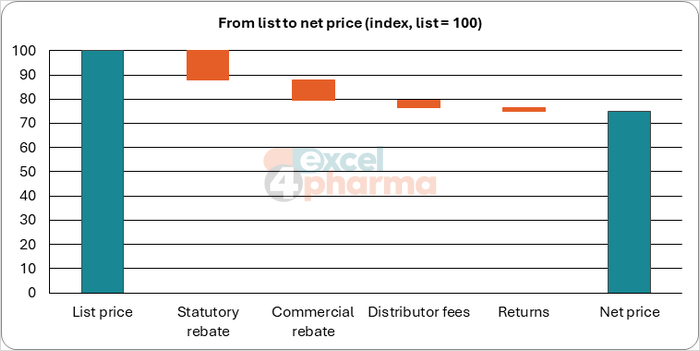
How does a list price become a net price? The question is a sequence of deductions, and the chart that answers it is a waterfall: a running total, where each step floats from where the previous one ended. On the Bridge sheet an index with list price 100 loses 12.0 to a statutory rebate, 8.5 to a commercial rebate, 3.0 to distributor fees and 1.5 to returns, ending at a net price of 75.0 and a gross-to-net rate of 25.0% (cell B11).
There are two ways to draw it. The classic technique is a stacked column chart with an invisible base: column C holds the level at which each floating bar starts, column D the size of the step, and column E the totals at the two ends. The formulas keep it live, so a changed input moves the bars. The second way is the native chart, Insert > Waterfall, which takes the signed values in column G, colors increases and decreases by itself and needs the end columns set as totals with Set as Total. The native chart is simpler and the stacked version more controllable, which matters if the chart has to be edited in an older file or combined with other series. The Steps sheet describes both.
Relationships and distributions
When the question is whether two measures move together, an XY (scatter) chart plots each case as a point on two numeric axes. On the Scatter sheet ten markets show net price on one axis and units on the other, and the points fall along a descending line: the correlation, calculated in F4 with CORREL, is about -0.997. A caution that belongs to every scatter chart: it shows association, not cause. Cheaper markets selling more units may reflect the price, or the size of the market, or both.
When the question is how values are spread, the histogram groups them in bins and shows the count in each. The Distribution sheet has thirty illustrative net prices and a bin table built with COUNTIFS in D3:G8: 3, 14, 8, 3 and 2 contracts in five bins of 15, a total of 30 that the sheet checks. The native Insert > Histogram does the binning for you; a column chart on a bin table gives you control of the edges and a table you can audit. Microsoft also lists box and whisker charts for distributions by quartile, best used with several related data sets.
Funnel and the rest of the gallery
A funnel chart shows values across the stages of a process, and fits when they decrease from stage to stage, as with patients from diagnosis to treatment to adherence. Treemap and sunburst charts show hierarchies, radar charts compare several series against a center, and map charts compare regions. They are all legitimate, and all harder to read than a bar. The test for any of them is whether a reader who has never seen the chart understands it without explanation.
A note on a claim sometimes repeated: that the chart types of Excel have not changed in twenty years. They have: Microsoft's current list includes waterfall, histogram, box and whisker, treemap, sunburst, funnel and map charts. What has not been added is a gauge, and its absence is, in our opinion, no loss: confidence moderate, since it is a matter of taste, but gauges spend a lot of space on one number that a bold figure with an arrow shows better.
Common mistakes
- Choosing the chart by its look and not by the question.
- Using a pie for eight or more parts, or for parts that do not sum to a whole.
- Leaving bars unsorted when the ranking is the message.
- Cutting the axis of a bar or column chart so that differences look larger than they are.
- Reading a scatter plot as proof of cause.
- Stacking series that are not parts of a total.
- Showing a chart only a specialist can read, in a report for people who are not.
Companion file
Illustrative data only. Not a decision tool.For further reading
- Available chart types in Office - Microsoft Support
- Create a chart from start to finish - Microsoft Support