
Page Setup: Scaling, Print Area, Print Titles, Headers and Footers
The problem
Everyone has pressed Print on a worksheet and watched the printer deliver eleven pages: the first three with the data, the following ones with the last two columns cut off and a stray note from some forgotten calculation. Then comes the second try, with a column header that appears only on page one, so that nobody can tell what the numbers on page three represent.
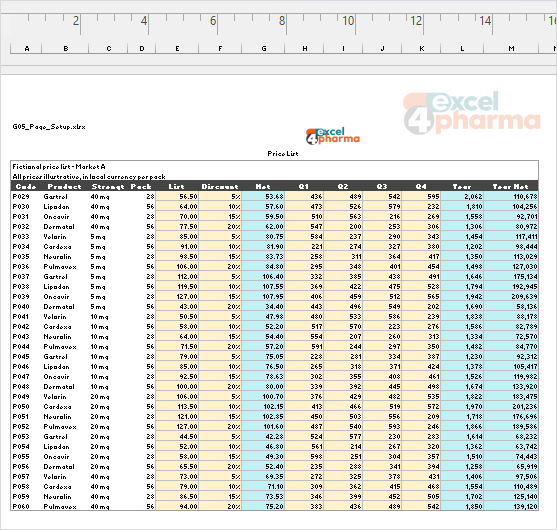
Excel prints what is on the sheet, exactly as it is on the sheet, unless it is told otherwise. Telling it otherwise happens in one place, the Page Setup dialog, and in a handful of settings that every printed report needs: the scale, the print area, the rows that repeat, and a header and footer that say what the page is and when it was printed. The article is about a price list that runs over several pages, but the settings apply to any report. The companion file is G05_Page_Setup.xlsx, whose sheets are already set up as described here, so that you can open File > Print and see the result. Its data are illustrative.
Where everything lives
On the Page Layout tab the Page Setup group shows the common commands: Margins, Orientation, Size, Print Area, Breaks and Print Titles. The small arrow at the bottom right of the group opens the Page Setup dialog, which has four tabs: Page, Margins, Header/Footer and Sheet. Everything in this article is found in these four tabs, and so is the setting of the printer itself. Settings belong to the worksheet, not to the workbook: each sheet keeps its own, which is why a three-sheet file can print three different ways.
Page: orientation and scaling
Orientation is the obvious setting. A table with more columns than rows belongs in landscape, and a long list of rows in portrait.
The setting that saves the most paper and frustration is the scale. On the Page tab you can reduce or enlarge the sheet by a percentage, but the better option is Fit to: you tell Excel the number of pages wide and tall, and it calculates the percentage. To print a sheet on exactly one page, fit it to 1 page wide by 1 tall. For a long list the most useful choice is 1 page wide and the tall box left empty, so the width is forced onto one page and the rows run down as many pages as they need. The Price List sheet is set this way.
Two cautions come with scaling. A heavy reduction makes small type unreadable, so check the Print Preview and if the percentage falls below about 70% consider fewer columns or a larger paper size. And when you select Fit to, the percentage box is ignored, so a manual percentage set earlier no longer applies.
The Margins tab sets the margins precisely, but the one option worth knowing is Center on page, horizontally or vertically, for a small table that should sit in the middle of the sheet.
Sheet: what prints
Print area
By default Excel prints everything that has content on the sheet. If there is a number in A1 and a forgotten calculation in A150, the pages in between print blank as well. To print only a block, select it and use Page Layout > Print Area > Set Print Area. You can select several blocks with Ctrl, and each block prints on its own page. To extend an existing area use Add to Print Area, which joins adjacent cells to it, and Clear Print Area removes all the areas of the sheet. The print area is saved with the workbook. On the Print Area sheet of the companion file, a table in A1:E12 is the print area and a scratch note sits far below, in A60, that does not print.
Page Break Preview
To see where the pages break, choose View > Page Break Preview. The printable area is white and the rest is gray, with the page numbers superimposed. Blue lines mark the page boundaries: a dashed line is a break that Excel chose itself, and a solid line is a break you set, or the edge of the print area. Drag a line to move it. This view is also the quickest way to set a print area: drag the outer blue border. To return, choose View > Normal. To insert a break of your own, select the row or column that should start the new page and use Page Layout > Breaks > Insert Page Break.

Print titles: repeating rows and columns
A column header on page one is not enough: page three needs it too. Do not copy the header into the data. Use Page Layout > Print Titles and, on the Sheet tab, enter the rows in Rows to repeat at top, for instance $1:$3, and the columns in Columns to repeat at left, for instance $A:$B when the product code and name must follow the reader across wide pages. Click the small button at the right end of the box and select the cells with the mouse if you prefer.
Two conditions are worth remembering, both documented by Microsoft. Print Titles is not available while a cell is in edit mode or a chart is selected, and the boxes are disabled when several sheets are selected together. This second one catches people who have grouped sheets to give them all the same header.
Gridlines, headings, comments and errors
The rest of the Sheet tab has a Print section:
- Gridlines prints the pale lines between cells. It is a better choice than drawing borders around every cell, unless the borders need a color other than the gridline color.
- Row and column headings prints the row numbers and the column letters, useful for a draft or an audit copy.
- Comments and Cell errors as control the printing of notes and of errors. Notes can print where they sit, if you first show them with Review > Show All Notes, or in a block at the end of the sheet with the cell reference. The errors option lets you print errors as blank, as dashes or as #N/A instead of #DIV/0! and the like. It hides the symptom, not the cause, so use it for a final printout, not as a way of managing errors in the model.
- Black and white and Draft quality save toner on internal copies.
Headers and footers
A printed page without its source soon becomes a page nobody can trust. A header or footer with the file name, the sheet name, the date of printing and the page number answers the questions that always come later: which file is this, and is it current?
Choose Insert > Header & Footer, which switches to Page Layout view, then click one of the three zones, left, center or right, in the header or the footer. The Header & Footer tab shows the elements to insert: Page Number, Number of Pages, Current Date, File Name, Sheet Name and Picture. Each is stored as a code in the text, such as &[File], &[Tab], &[Date] and Page &[Page] of &[Pages]. The same settings are in Page Setup > Header/Footer > Custom Header or Custom Footer, which is the route to use when several sheets are selected. The sheets in the companion file carry the file name on the left, the sheet name in the center and the date on the right of the header, and Page x of y in the center of the footer.
In the Options group of the same tab are four useful check boxes:
- Different First Page removes the header and footer from page one, or gives it its own, for a cover.
- Different Odd & Even Pages gives pages of different parity different headers, for a bound document.
- Scale with Document makes the font size of the header follow the scale of the sheet. Clear it for a consistent look across sheets.
- Align with Page Margins aligns the header and footer with the margins of the sheet.

Adding a logo
The Picture element puts an image in any zone, and it prints on every page. Click the zone, choose Picture, select the file and press Insert. A code &[Picture] appears in the zone. Click Format Picture to resize it, usually by locking the aspect ratio, and to adjust brightness and contrast, since logos often print too dark. To remove the picture, select the code &[Picture] in the zone and delete it.
To give several sheets the same logo and layout in one go, select them with Ctrl-click on the tabs, then open Page Setup. Edits then apply to all the selected sheets. It is faster than repeating the setup, but remember to ungroup afterwards by clicking an unselected tab: a grouped workbook lets any change on one sheet go to all, and, as noted, Print Titles is unavailable in that state.
The logo cannot be created in a file written by a program, so the companion workbook leaves it for you to add: the sheet Steps lists the procedure for the Price List sheet.
A checklist for every report
- Orientation and Fit to, checked in Print Preview.
- A print area, so that nothing stray prints.
- Print titles for every table longer than a page.
- A header or footer with file, sheet, date and page number.
- A look at the last page: a page with only two lines on it is a sign that Fit to needs one more adjustment.
Common mistakes
- Pressing Print without opening Print Preview.
- Printing a long list on several pages without repeating the header row.
- Copying the header row into the data every 40 lines. It breaks sorting and filters; use Print Titles.
- Using a manual percentage and then adding columns, so that the last column falls on its own page. Use Fit to.
- Grouping sheets for a header and forgetting to ungroup.
- Using the cell errors option to hide errors in a file that people will keep working on.
Companion file
Illustrative data only. Not a decision tool.For further reading
- Set or clear a print area on a worksheet - Microsoft Support
- Print rows with column headers on top of every page - Microsoft Support
- Headers and footers in a worksheet - Microsoft Support